Your normal week runs on a regular pattern, but real life has exceptions — a bank holiday, a private function, an early Christmas Eve service. Schedule Changes let you handle a single date (or a short range of dates) without disturbing the weekly setup you already have. A change you add for a specific date always takes priority over the normal pattern for that date.
Finding the Schedule Changes screen
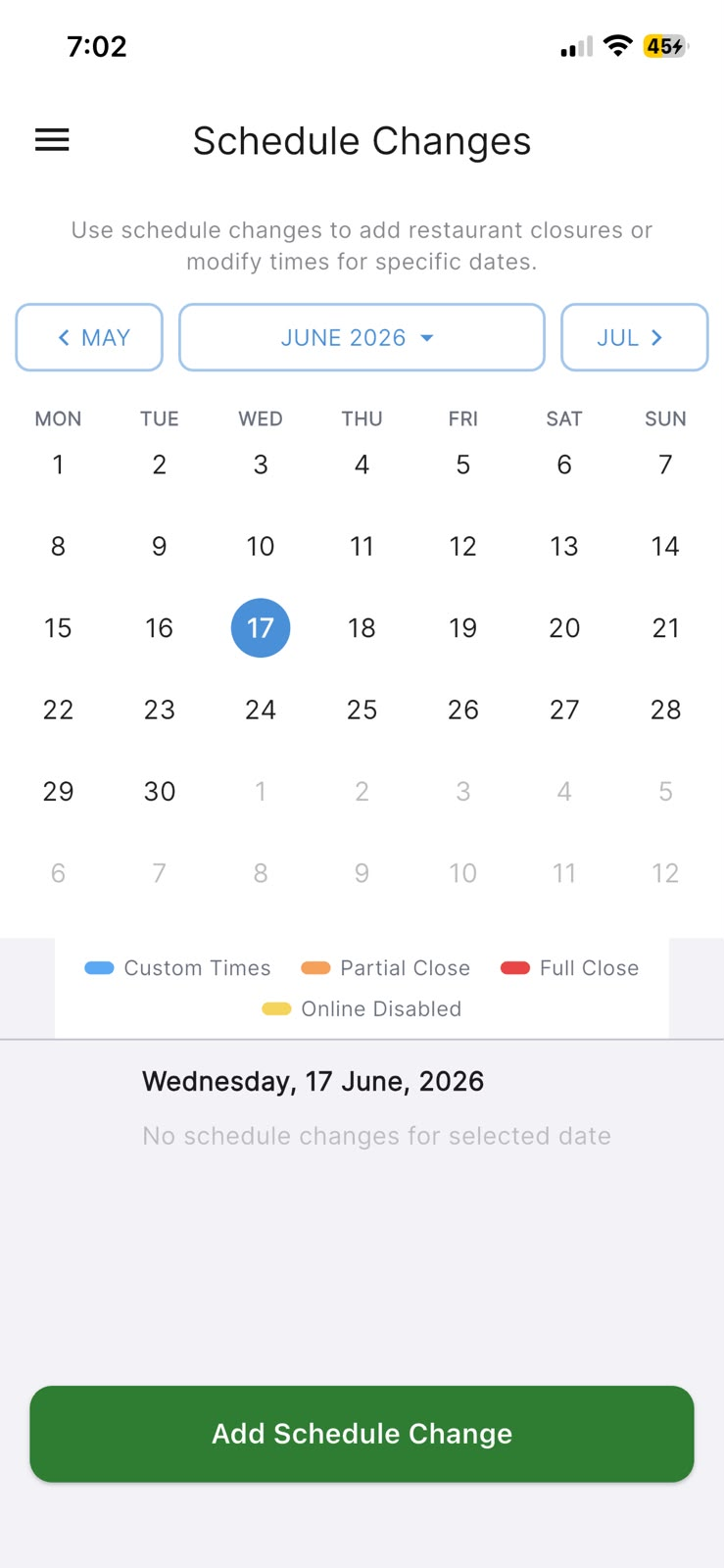
Schedule Changes is its own screen, not a tab inside Configuration. Open the menu and choose Schedule Changes. You will see a month calendar with a colour-coded legend (Custom Times, Partial Close, Full Close, Online Disabled), and below it the changes for whichever date you have tapped. Take a moment to tap around the calendar — dates with a change show a coloured marker.
In the app: from the menu → Schedule Changes.
Closing for a date
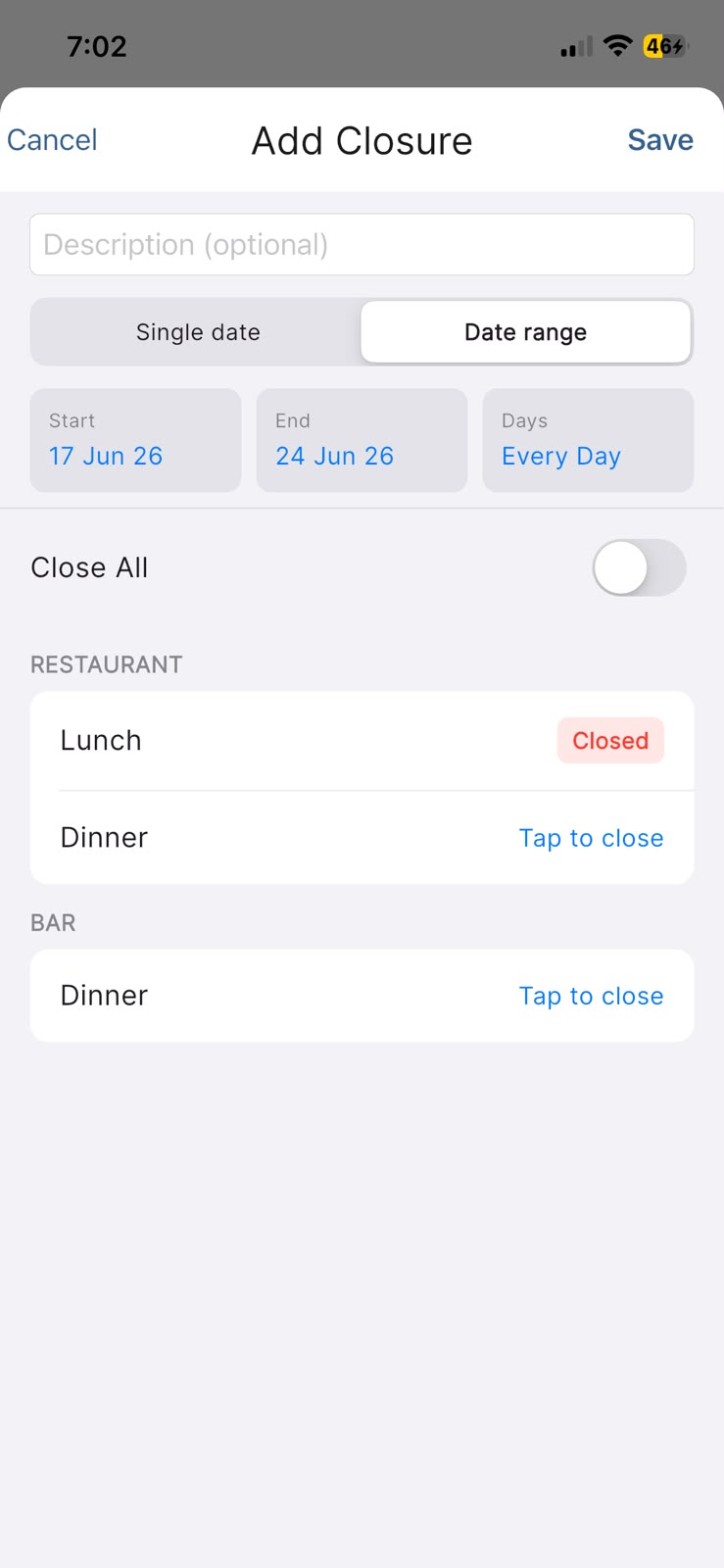
Pick the date on the calendar, tap Add Schedule Change, then choose Add Closure. Choose whether it's a Single date or a Date range, then decide how much to close:
- Leave Close All switched on to close the whole venue for that date.
- Switch Close All off if you only want to close certain meals — each meal then shows Tap to close, and the ones you pick are marked Closed.
There's a Description (optional) field if you'd like to label it (for example, the reason for closing). When you're happy, tap Save.
In the app: from the menu → Schedule Changes → Add Schedule Change → Add Closure.
Setting one-off special times
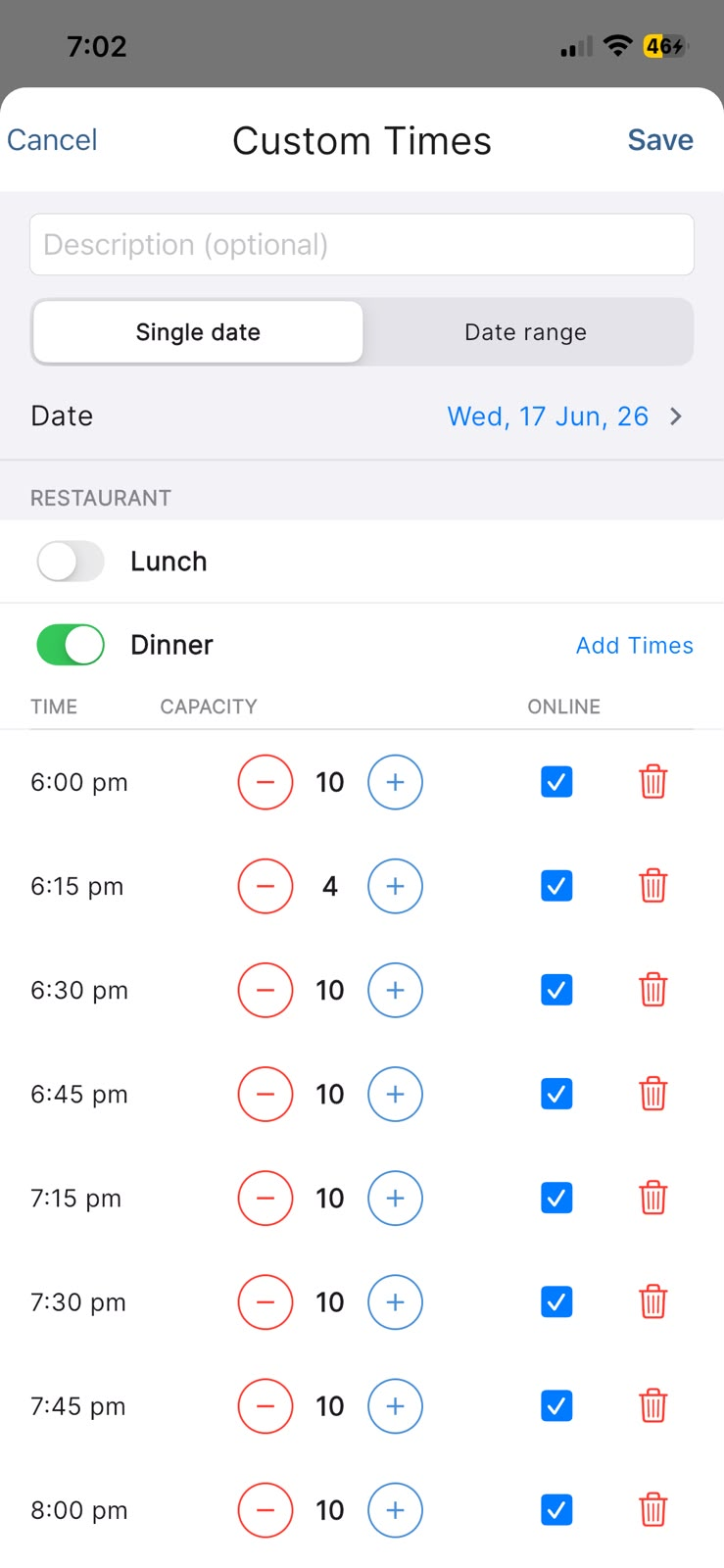
If you're not closing but simply want different times for a date — say a single early sitting on a holiday — pick the date, tap Add Schedule Change, then choose Modify Times. Switch on the meals you want to adjust, then use Add Times to enter the times for that meal. For each time you can set a capacity and choose whether it's available for Online booking, shown under the TIME, CAPACITY and ONLINE columns. When you add times you can add a Single Time or generate a whole Time Range at once. Tap Save when you're done.
These times apply only to the date (or range) you chose and replace the normal times for that day — your regular weekly pattern stays exactly as it was.
In the app: from the menu → Schedule Changes → Add Schedule Change → Modify Times.
Editing or removing a change
Any change you've added shows in the list under its date. Tap it to reopen it as Edit Schedule Change, where you can adjust it and Save again — or remove it entirely with Delete Closure or Delete Custom Times. When a date has no changes, the list simply reads No schedule changes for selected date, which means that date is following your normal pattern. There's no rush — you can revisit any date whenever your plans change.
In the app: from the menu → Schedule Changes → tap an existing change in the list.