Cancelling a booking and marking a guest as a no-show are two separate things in NomNom, and both are easy to undo or change later. This article walks through each one and explains exactly what happens.
The two are different
It helps to know the distinction before you start:
- Cancelling removes the booking from the day — the table is freed up and the reservation is shown as cancelled. You can restore it afterwards if you change your mind.
- Marking a no-show is a status you set on a booking that still happened (or should have). The booking stays on the day; you're simply recording that the guest didn't arrive.
Opening a booking
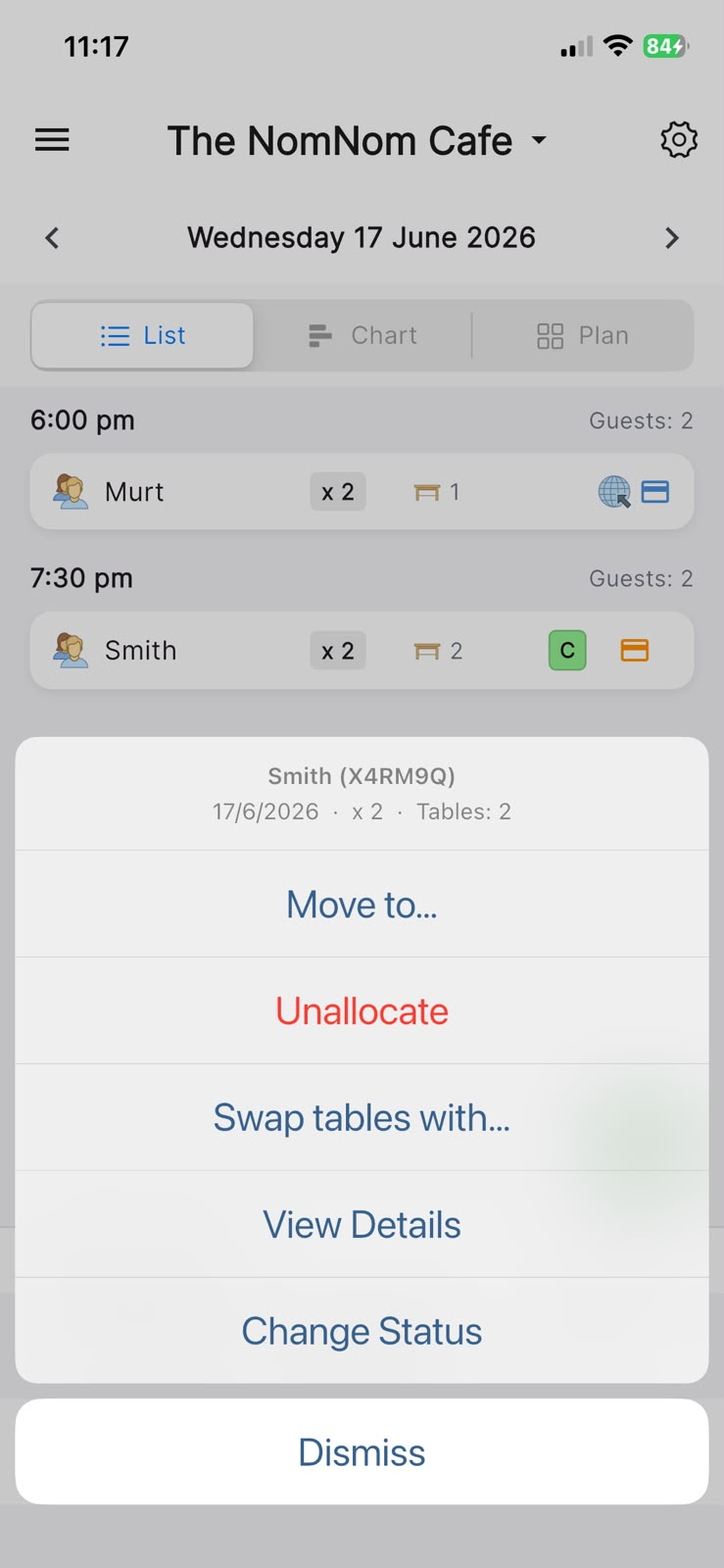
Both actions start from the same place — tap the booking you want in your reservations list to bring up its action menu, then choose View Details.
In the app: Reservations list → tap a booking → View Details.
Cancelling a booking
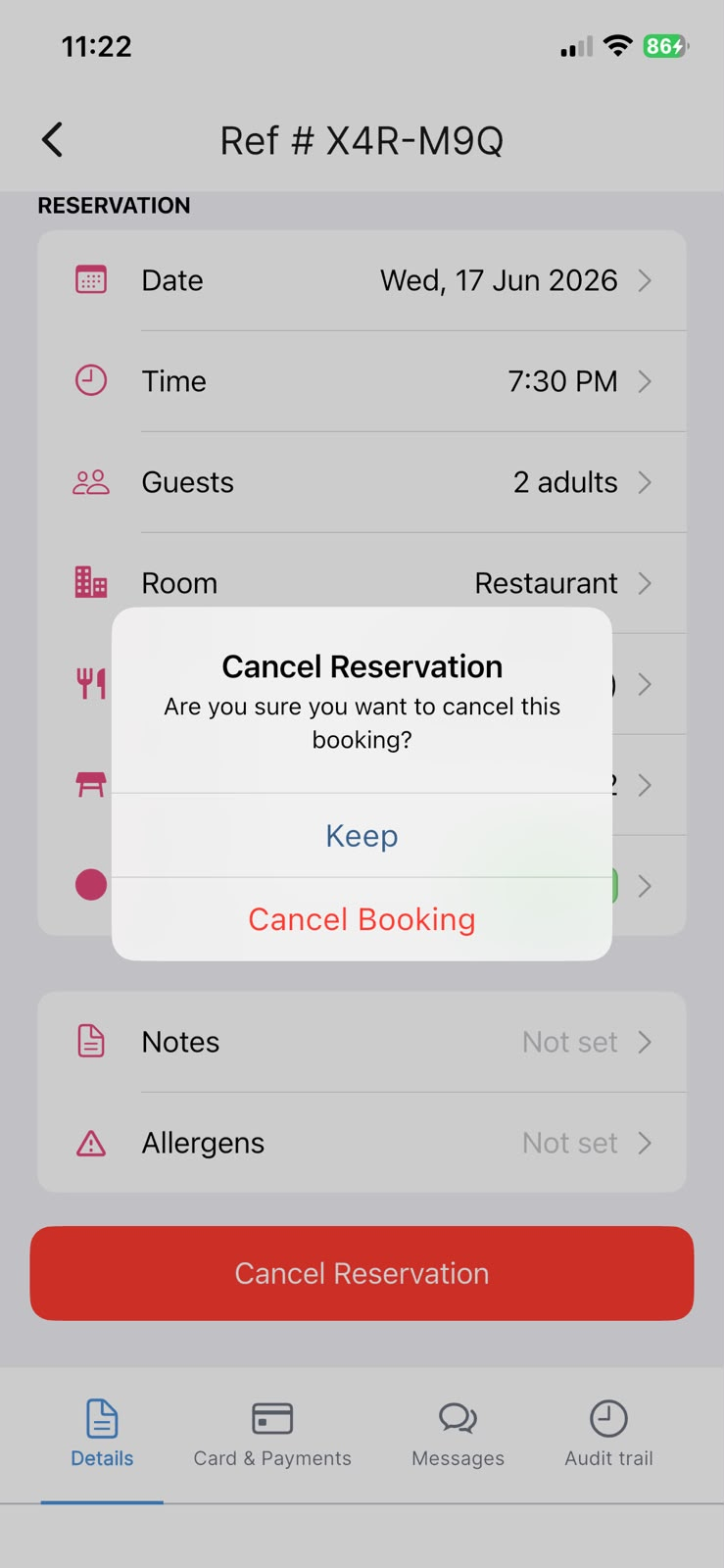
On the booking's Details tab, scroll to the bottom and tap the red Cancel Reservation button. You'll be asked to confirm with a prompt titled Cancel Reservation that reads "Are you sure you want to cancel this booking?" — choose Keep to back out or Cancel Booking to go ahead.
Once cancelled, the booking shows a banner reading "This reservation has been cancelled" and its details are locked until you restore it.
In the app: Open a booking → Details tab → Cancel Reservation.
Restoring a cancelled booking
Changed your mind? Open the cancelled booking and tap the orange Restore Reservation button. The booking comes back and you can edit it again as normal.
In the app: Open a cancelled booking → Restore Reservation.
Marking a guest as a no-show
A no-show is recorded by changing the booking's status rather than cancelling it. There are two ways to do this, and they behave slightly differently:
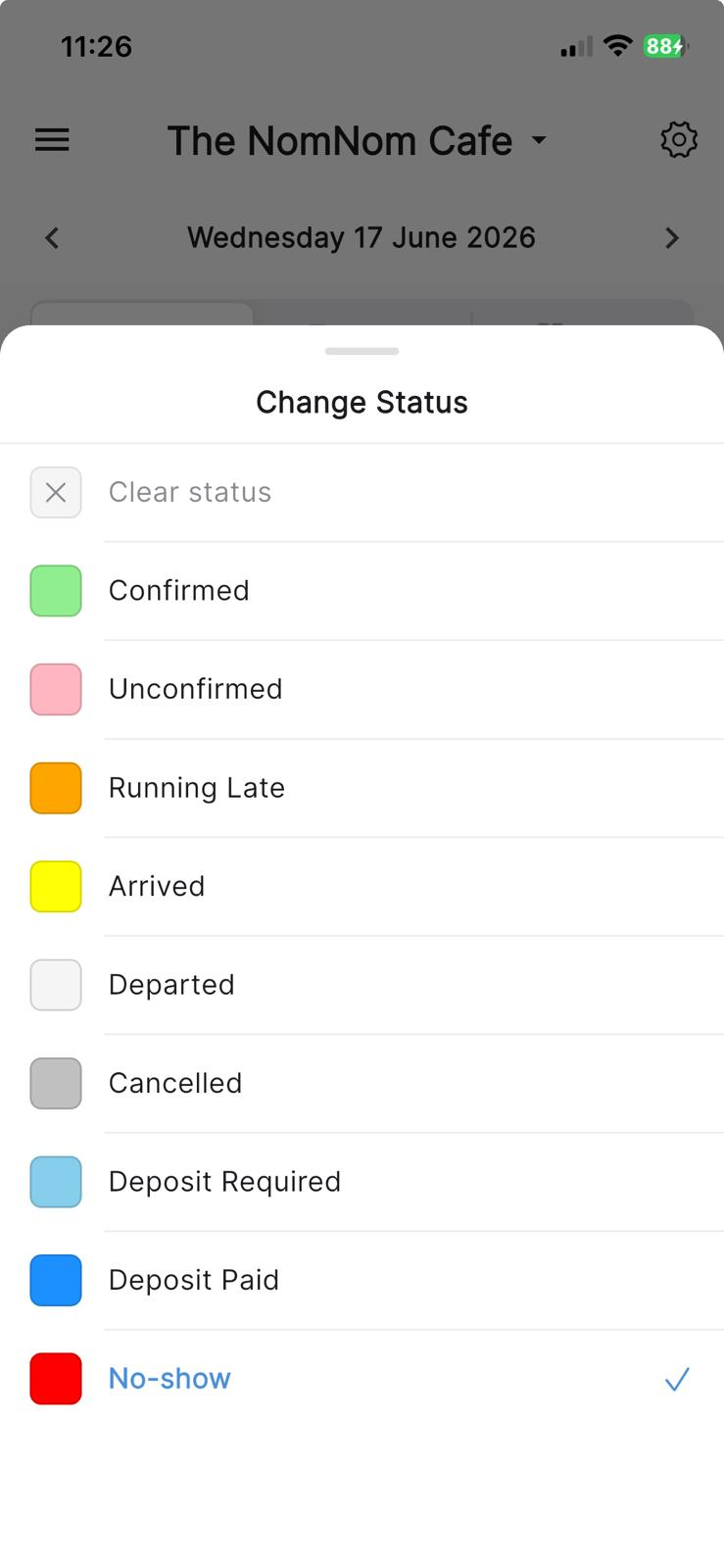
- From the reservations list: tap the booking and choose Change Status from its action menu. Pick your no-show status and you'll see a confirmation prompt — "Mark as …?" with a Cancel or Confirm choice — before the change is saved straight away.
- From the booking itself: open the Details tab and tap the Status row to open the Change Status sheet, then pick your no-show status. Here the change isn't applied right away — it's saved together with the rest of the booking when you tap Save Reservation, so you'll see the usual unsaved-changes prompt rather than a separate "Mark as …?" confirmation.
Please note: the statuses available (and their names) are set up for your venue, so the exact wording of your no-show status — for example "No Show" or "No-Show" — may differ from one venue to another. Cancelled bookings can't have their status changed until they're restored.
In the app: Open a booking → Details tab → tap the Status row (opens the Change Status sheet).
What the guest is told
When you cancel a booking or change its status in the app, the app itself does not show you a message saying the guest will be contacted, and it does not ask you to send one — so you won't accidentally notify anyone just by tapping these buttons. If you'd like to let the guest know, you can send them a message yourself from the Messages tab on the booking.
Whether any automatic email is sent on cancellation depends on your account's settings rather than the app, so if you're unsure what your guests receive, it's worth checking with us.