Now and then a guest wants a table every day for a few days — somebody staying nearby for a week, or a group in for lunch each day of a course. Rather than typing the same booking in again and again, you can make it once and repeat it a day at a time.
How to do it
1. Make the first booking. In NomNom Web, book the guest in exactly as you normally would, and save it.
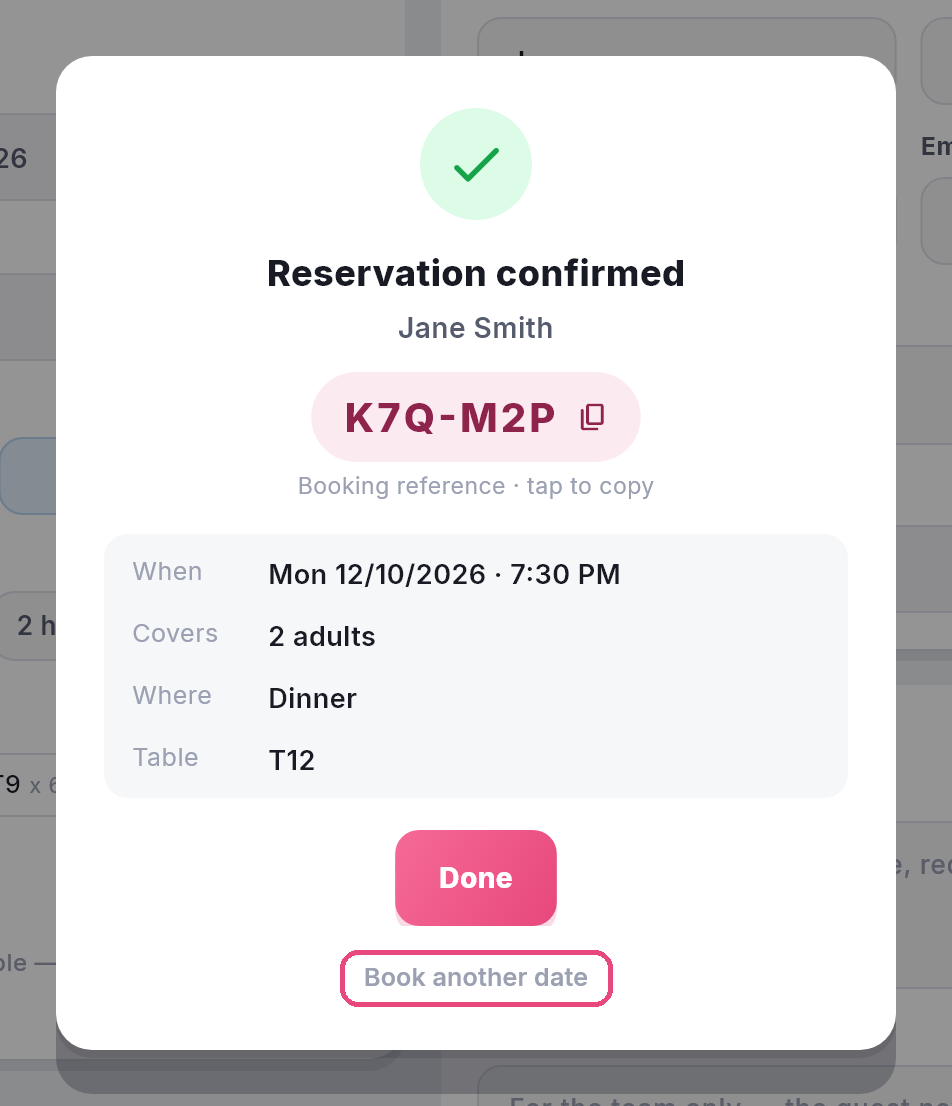
2. Click Book another date. The Reservation confirmed window appears. Underneath the Done button there's a small link: Book another date.
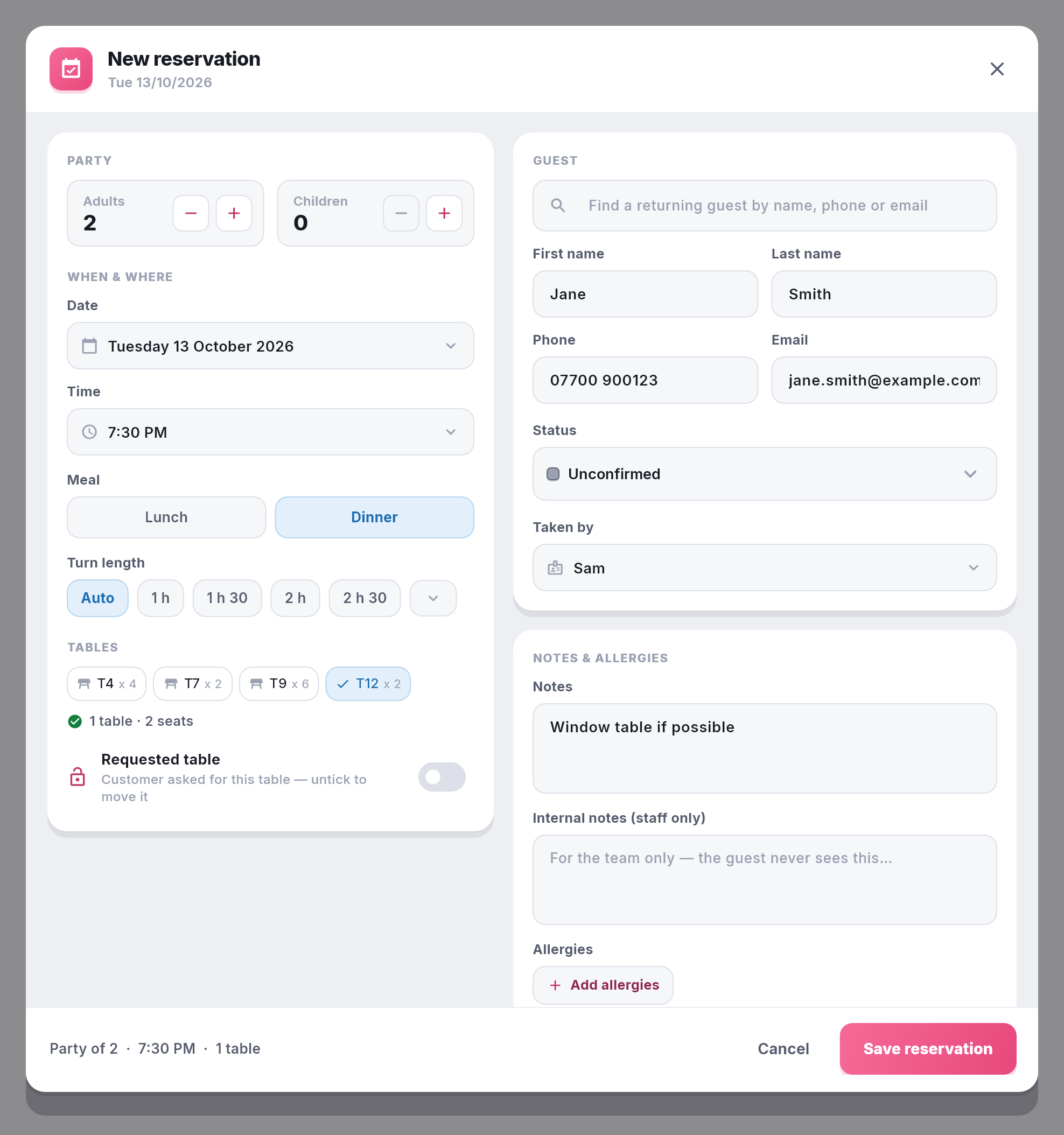
3. Check it over and save. A new booking opens on the next day, with everything already filled in from the booking you just made. Have a quick look over it, then click Save reservation.
4. Repeat for each day. The link appears again after every booking. When you've booked the last day, click Done.
Each link moves on one day from the booking you've just saved, so a week-long stay is the first booking plus six clicks. If the guest wants to skip a day, change the date in the form before you save — the next link carries on from whichever date you booked.
Starting from a booking you've already made
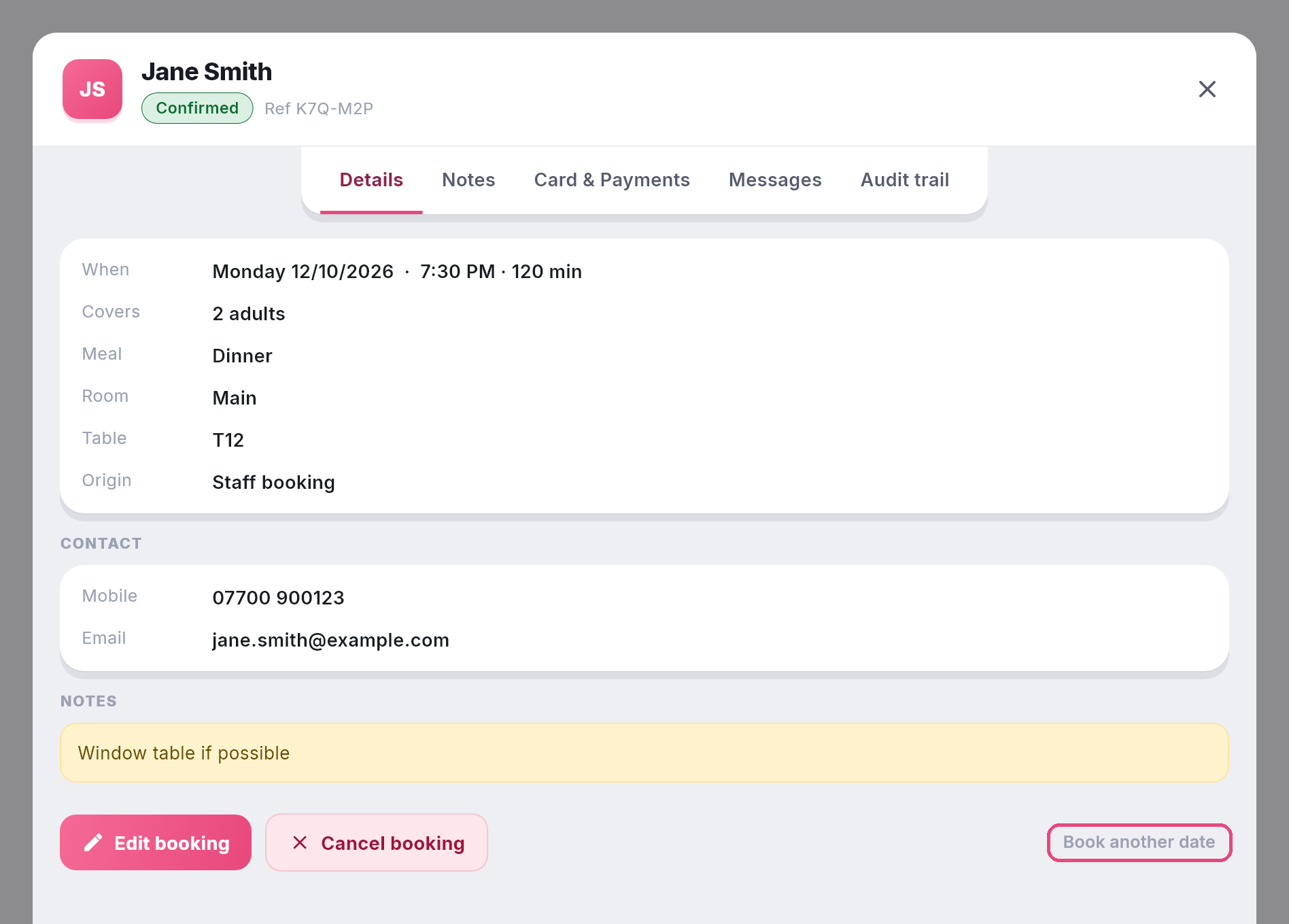
If the guest is already booked in and wants the same again on the following days, open their booking. On the Details tab, at the end of the row with Edit and Cancel, you'll find the same small Book another date link. It opens a new booking on the day after that one, filled in just the same, and the Reservation confirmed window then offers the next day as usual.
The booking you started from isn't changed at all.
What gets copied
The guest's name, mobile and email; the number of adults and children; the room, meal and time; the turn length; notes and internal notes; allergies; high chairs; dogs; and the table.
A few things deliberately aren't copied:
- The status. Each new booking starts with the usual status for a new booking, so a guest marked as arrived today doesn't turn up as already arrived tomorrow.
- Who took the booking. It's filled in the same way as any new booking. If your venue asks for a PIN before saving, you'll be asked for it again for each booking.
- Event bookings. An event is for one particular date, so bookings made against an event don't show the link at all.
Walk-ins and cancelled bookings don't offer the link either.
If their table isn't free
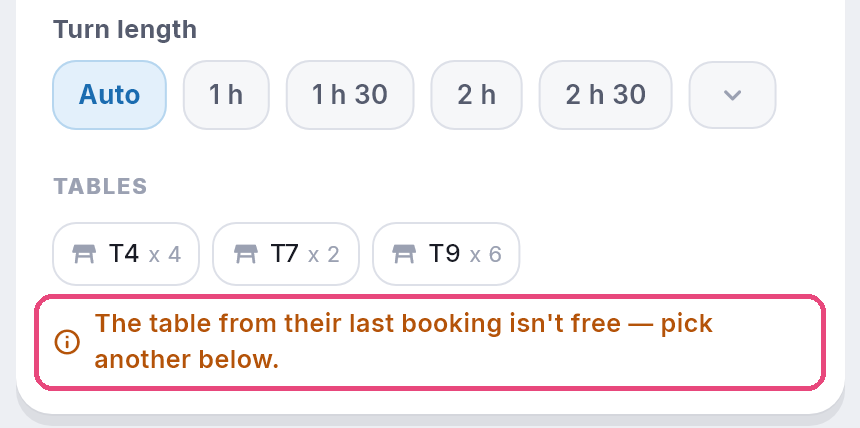
The new booking takes the same table if it's free on the new day. If it isn't, NomNom doesn't guess at a different one — the table is left empty, and you'll see The table from their last booking isn't free — pick another below. Choose a table from the list, or leave it unallocated.
The same goes for bookings across more than one table: they're taken again only if all of them are free, so a party of eight never ends up squeezed onto half their tables without anyone noticing.
If the time or meal isn't on that day
Some venues don't serve every meal every day. If the new day doesn't offer the same meal or time, the booking keeps them anyway rather than quietly moving the guest to a different time. The time shows in red, and when you save you'll be asked Time not available: choose Go back to change it, or Save anyway if you're happy to book it outside your usual times.
Good to know
Each day is its own, ordinary booking with its own reference number. You can move, edit or cancel any one of them without touching the others.
Because they're separate bookings, your guest receives whatever your venue normally sends for each one — a confirmation email per booking, a text if you use them, and a follow-up email after each visit if you've switched those on. It's worth mentioning to the guest that they'll get one for each day.
Book another date is in NomNom Web, the browser version of NomNom, at the moment.