Every booking with a pre-order shows who has chosen what, on the booking itself in the phone app. From there you can send the party their link, fill in choices for them — even after their deadline — or mark that a booking doesn’t need a pre-order after all.
Pre-orders are switched on for each venue by NomNom. If you don’t see Pre-orders in Settings, email support@nomnom-app.net and we’ll switch them on for you.
See a booking’s pre-order
1. Open the booking. In the phone app, tap the booking, then View Details. If your venue asks for a PIN, you’ll enter it first.
2. Scroll down to PRE-ORDER. It’s on the Details tab, below the notes and dogs (under Notes & Extras if you use the newer layout). It only appears on bookings with a pre-order.
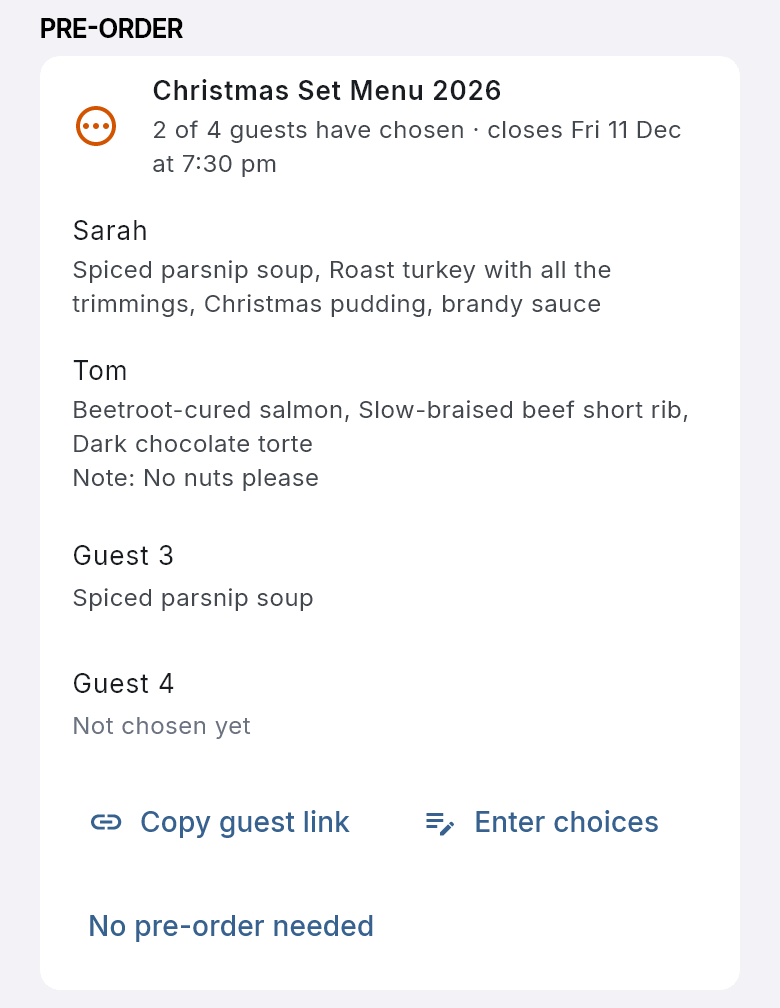
The top line names the menu and how far the party has got, such as 2 of 4 guests have chosen · closes Fri 11 Dec at 7:30 pm, with an orange icon. When everyone has chosen it says All 4 guests have chosen with a green tick. Below that, each guest is listed by name (or Guest 3, if they didn’t give one) with their dishes, Not chosen yet, and any note they left as Note:. Anything left for the whole party shows under Notes for the table.
In the phone app: tap the booking → View Details → Details → PRE-ORDER.
To see every party’s choices for a day on your computer, print the Kitchen Sheet in NomNom Web (see Printing the kitchen sheet of pre-ordered dishes).
Send the party their link
Tap Copy guest link. You’ll see Link copied; paste it into a text, a WhatsApp message or an email. It’s the same link as the Pre-order your meal button in their confirmation. It’s handy for a party who has lost the email, or a booking made before the menu was attached to its meal.
You can also send the confirmation again: open the booking’s Messages, choose Send email and Reservation confirmation. While Pre-order link in confirmation emails is on in Settings, it carries the button (see Checking what was sent to a guest: the Messages section).
Fill in or change choices yourself
A guest rings with their order, or wants to swap a dish after the deadline? Do it for them.
1. Tap Enter choices. It opens the same page your guests use, with a blue note at the top: Staff link: you can make changes after the guests’ deadline. Please don’t share this link with guests.
2. Make the changes. Pick the dishes for each guest and tap Save on each card you change.
3. Close the page. Open the booking again to see the new choices in PRE-ORDER.
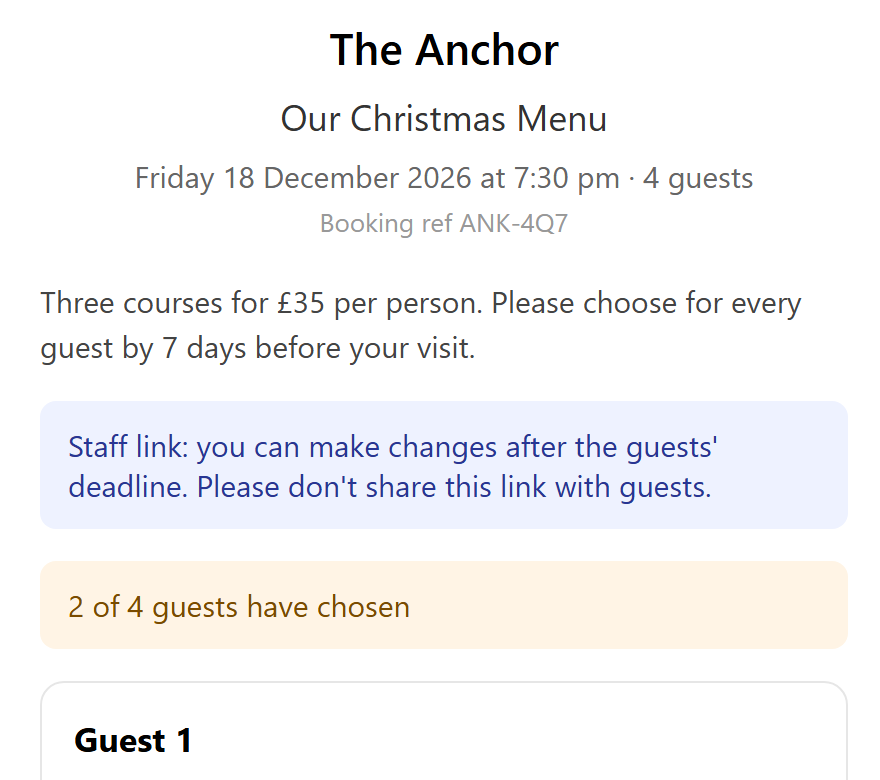
The staff page works for 12 hours. After that, open the booking again and tap Enter choices for a fresh one. It works after the guests’ deadline, but not once the booking has started.
When a booking doesn’t need a pre-order
Tap No pre-order needed. The section then just says Not needed for this booking, and:
- the guest’s page no longer takes choices, and tells them the booking no longer needs a pre-order;
- no pre-order reminders are sent, and a confirmation sent again has no Pre-order your meal button;
- the Kitchen Sheet lists the booking as No pre-order needed and doesn’t count its dishes.
Choices already made are kept. Tap Ask for a pre-order again to bring them back and re-open the page.
When the party size changes
Change the number of guests on the booking as usual (see Changing a booking’s date, time, party size or table) and the pre-order follows:
- More guests get new, empty places, and the pre-order isn’t complete until they’re filled in.
- Fewer guests removes the last places. If those guests had already chosen, their choices are set aside rather than lost, and the section says, for example, 1 choice is for a guest no longer on this booking. Set-aside choices aren’t counted on the Kitchen Sheet. If the party grows again, they come back.
Good to know
- Which bookings have one. A booking has a pre-order when its meal has a pre-order menu and the party is big enough for the menu’s Ask parties of, or when the party has already started choosing. See Setting up pre-orders: building a menu and attaching it to a meal.
- Choices stay as chosen. If you rename or re-price a dish later, guests who already chose it keep the name and price they saw.
- Cancelled bookings. Cancelling a booking closes its pre-order page, and the booking is left off the Kitchen Sheet.
- Want everyone reminded automatically? See Reminding guests to finish their pre-order.