Popup notes are short reminders tied to a specific date. When you open your main booking screen on that day, the note appears as a banner across the top so your team can't miss it — handy for a large allergy group, a VIP arriving, a kitchen change, or any "everyone needs to know this today" message.
What a popup note is (and isn't)
A popup note is attached to a date, not to an individual customer or a single booking. There is one note per date, and it shows for the whole day to anyone viewing that date in the app. It's a day-level reminder rather than a private note on a single guest's record.
If you're looking to record something against one guest or one reservation specifically, that's handled separately from popup notes.
Adding a popup note
Popup notes live on their own screen, reached from the slide-out menu.
In the app: open the menu (the ☰ icon, top-left) → Popup Notes.
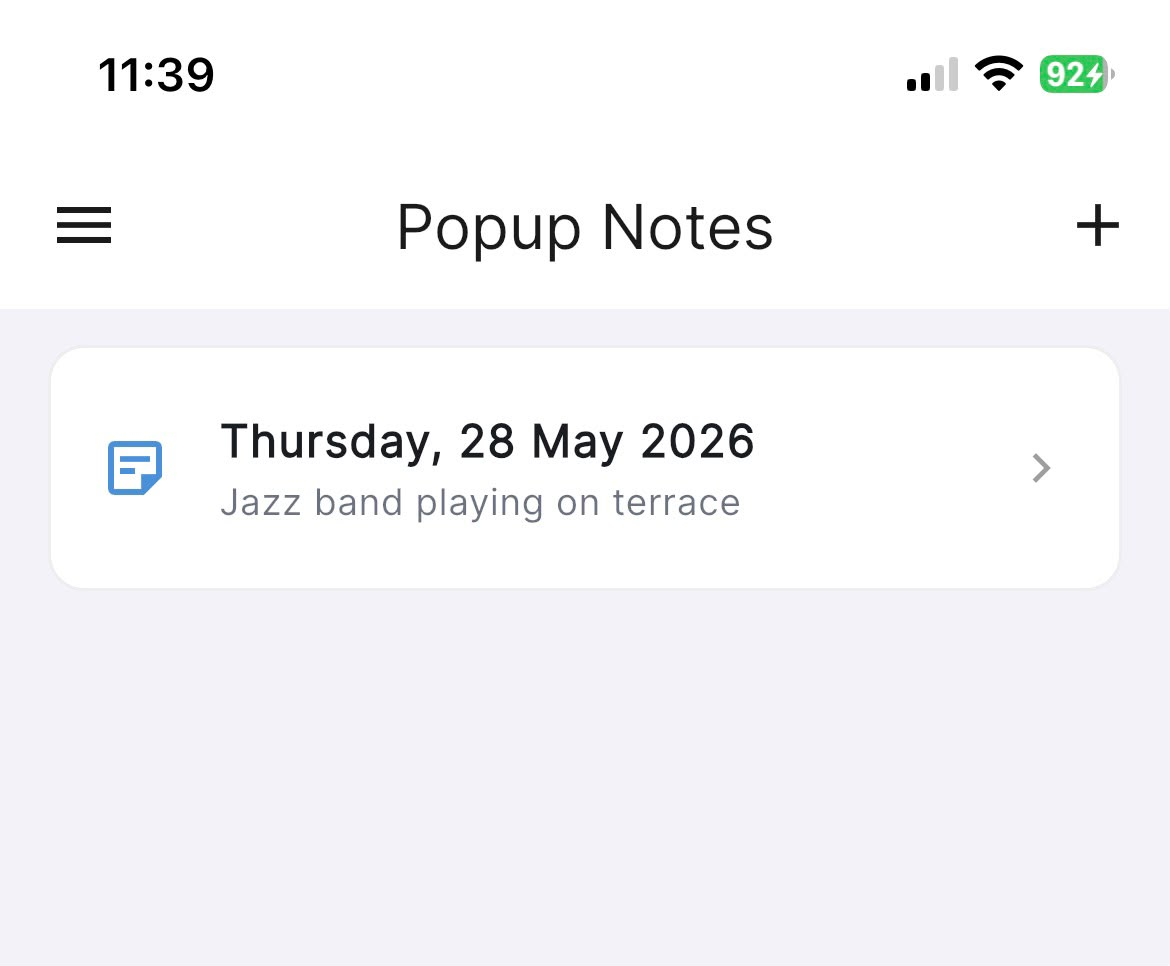
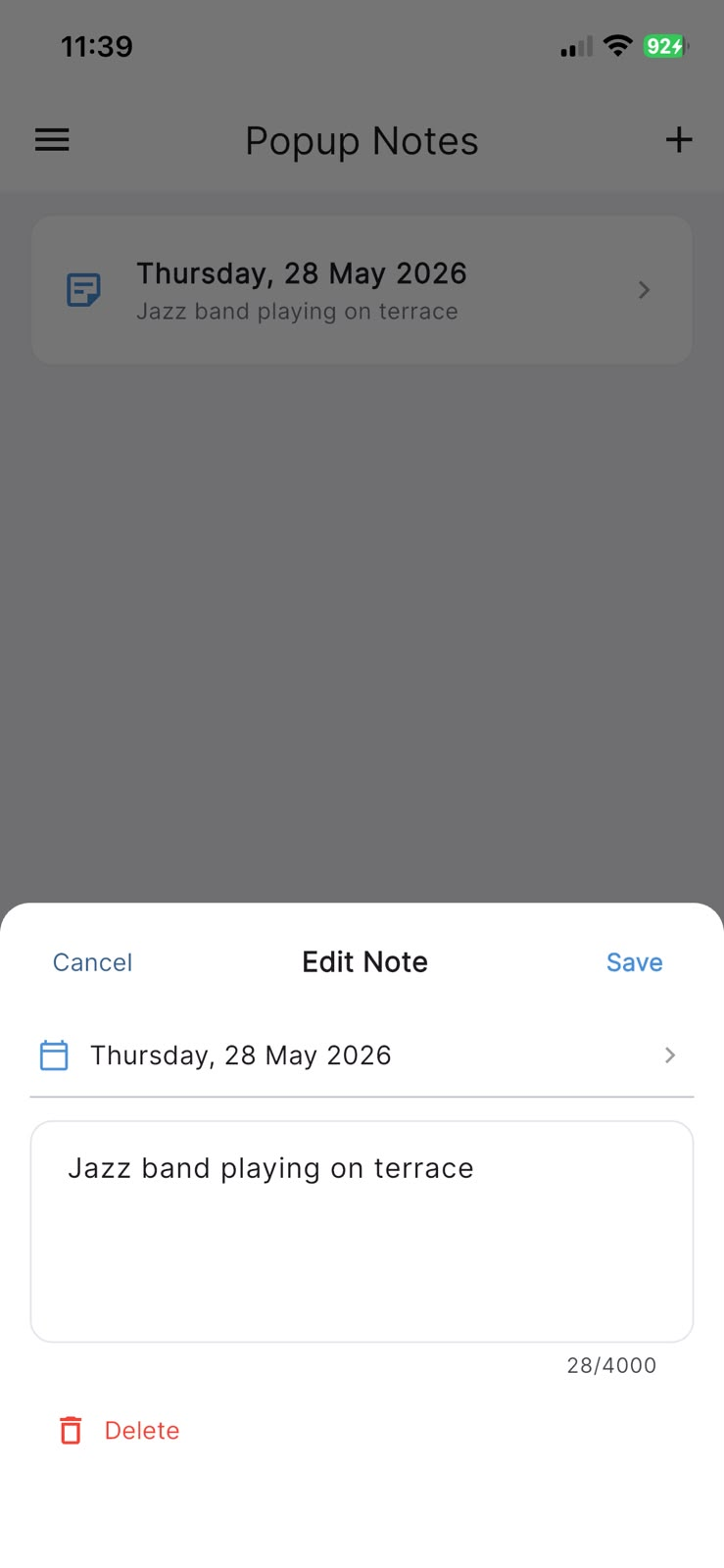
On the Popup Notes screen, tap the + button in the top-right to start a new note. A New Note sheet opens where you:
- Tap the date row to choose the day the note applies to.
- Type your message in the text box.
- Tap Save.
If you'd rather not continue, Cancel closes the sheet without saving. Before you've added anything, the screen simply shows "No popup notes yet. Tap + to add one." — so an empty list is perfectly normal.
When it pops up
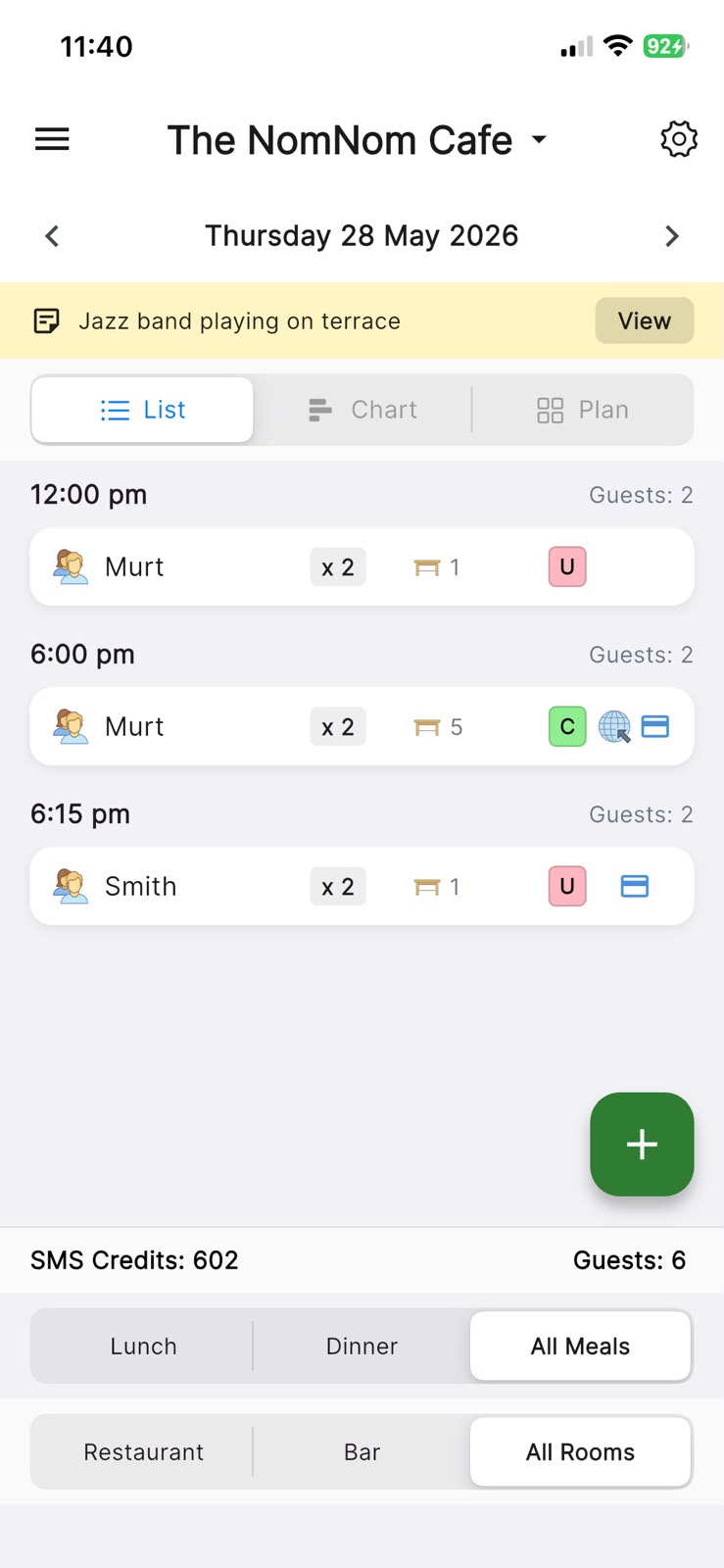
The note appears automatically on your main booking screen whenever you're viewing that date. It shows as a soft yellow banner just below the date bar at the top. Move to a different date and the banner goes away; come back to the noted date and it reappears.
The banner shows the start of your note. Tap View on the banner to read the full note, and from there tap Edit if you need to change it.
In the app: the main booking screen (the home screen you land on), with that date selected.
Editing or removing a note
You can update or clear a note at any time.
In the app: open the menu → Popup Notes, then tap the note in the list to open the Edit Note sheet. Change the date or text and tap Save, or tap Delete to remove it. You can also reach the same editor straight from the banner's View button by then tapping Edit.
Good uses for popup notes
Because a note covers a whole day, it works best for things the whole team should see on a given date:
- A large allergy or dietary requirement to brief the kitchen on.
- A VIP or special guest arriving that day.
- A staffing, menu, or opening-hours change for the day.
- Any reminder you'd otherwise leave on a sticky note by the diary.