NomNom gives you a single place to decide how cancellations work: whether guests can cancel themselves online, how much notice they must give, what happens to a deposit, and what a no-show costs. It's all on the Cancellations & No-shows screen.
In the app: Settings → Cancellations & No-shows (in the Reservations section).
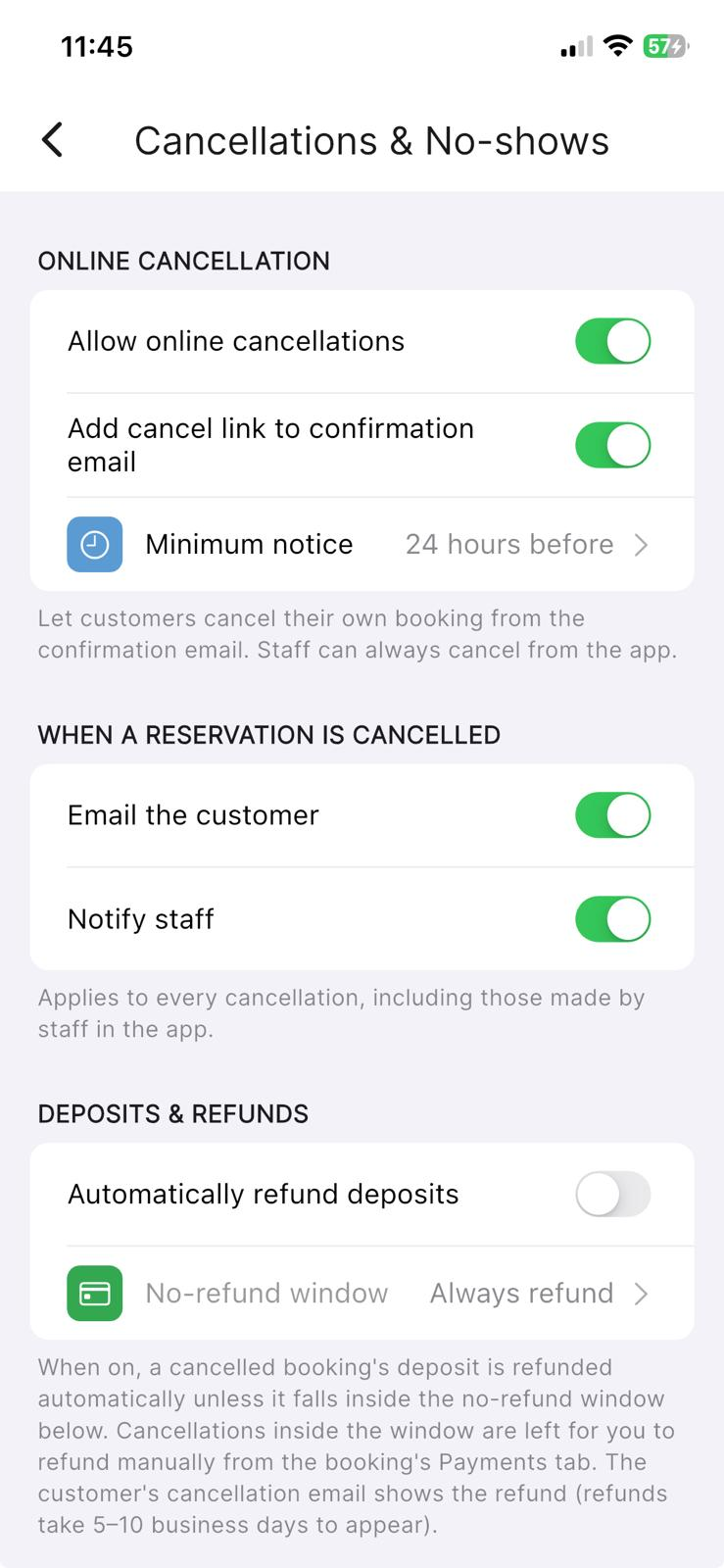
Example: require 24 hours' notice and keep a late-cancellation charge
A common policy is "guests can cancel online up to 24 hours before, and after that the deposit is kept." Here's how that maps to the settings below:
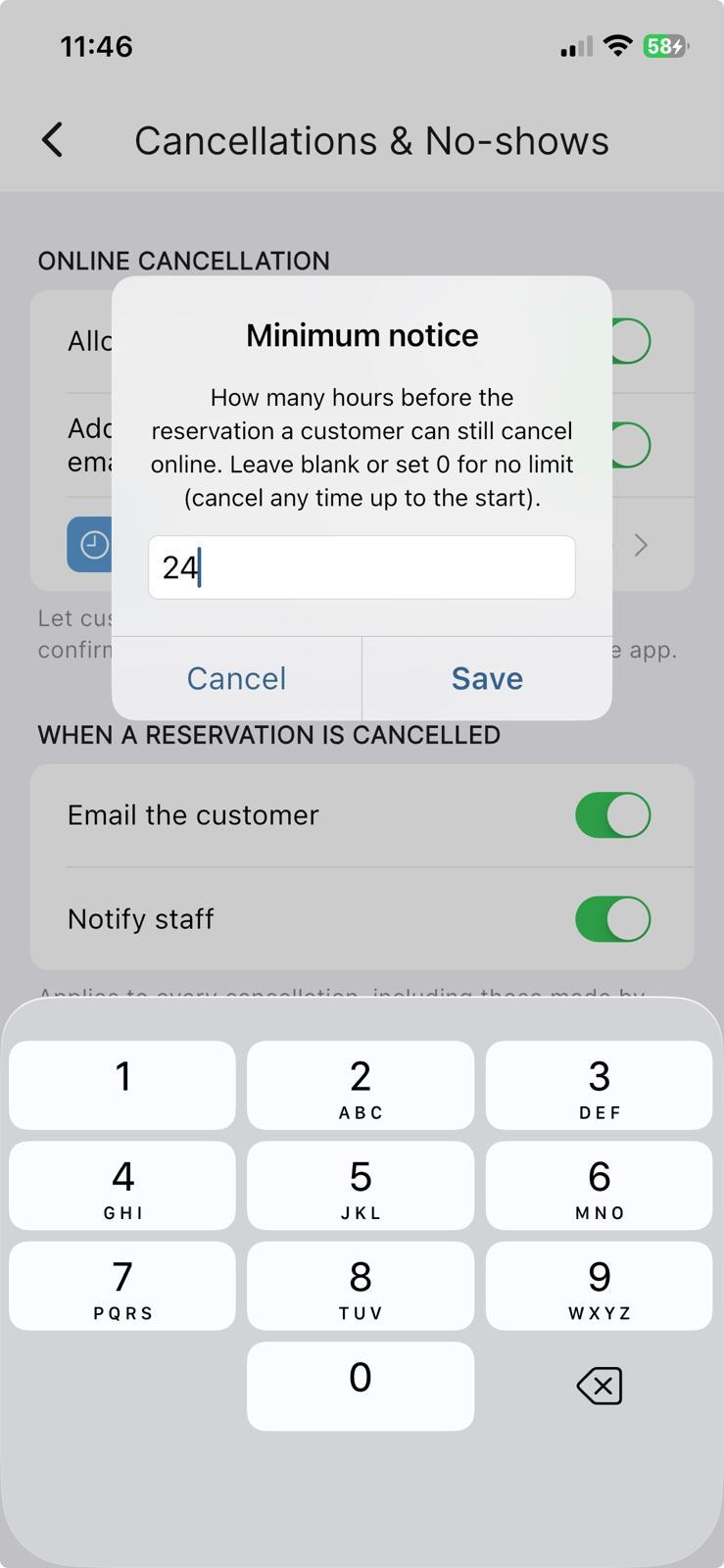
- Set Minimum notice to 24. Inside 24 hours of the booking, the online cancel link stops working — the guest can't cancel themselves online. You and your team can still cancel any booking from the app at any time.
- Turn on Automatically refund deposits and set the No-refund window to 24 hours. A cancellation made earlier than 24 hours is refunded automatically; a cancellation inside 24 hours keeps the deposit as your charge, ready for you to refund manually only if you choose to.
(If you'd rather never refund automatically, simply leave Automatically refund deposits off — then every deposit is kept and you refund by hand when you want to.)
Letting guests cancel online
Under ONLINE CANCELLATION:
- Allow online cancellations — the master switch for guests cancelling their own booking. Turn it off and only your team can cancel.
- Add cancel link to confirmation email — puts a "cancel my booking" link in the confirmation email so guests can cancel from their inbox.
- Minimum notice — how many hours before the booking a guest can still cancel online. It shows No limit when unset (cancel any time up to the start), or e.g. 24 hours before. Tap it to set the number of hours.
The reminder on this section says it plainly: guests cancel from the confirmation email, and staff can always cancel from the app regardless of these settings.
Who's told when a booking is cancelled
Under WHEN A RESERVATION IS CANCELLED:
- Email the customer — sends the guest a cancellation confirmation.
- Notify staff — alerts your team so a last-minute cancellation doesn't go unnoticed.
These apply to every cancellation, including ones your team makes in the app — so if you'd like to know whenever a table frees up, keep Notify staff on.
Deposits and refunds
Under DEPOSITS & REFUNDS:
- Automatically refund deposits — when on, a cancelled booking's deposit is refunded automatically (unless it falls inside the no-refund window below). When off, the deposit is simply kept and you can refund it by hand from the booking's Card & Payments tab.
- No-refund window — how many hours before the booking the deposit stops being auto-refunded. A cancellation inside this window is left for you to handle manually, which is how you keep a late-cancellation charge. It shows Always refund when unset, or e.g. 48 hours (2 days) before.
Automatic refunds appear on the guest's cancellation email and typically take 5–10 business days to land back on their card.
Setting a no-show charge
Under NO-SHOWS, No-show charge (per person) lets you show guests a per-person fee on the online booking form when they enter their card details, so they know what a no-show may cost. It only appears on bookings that already require a card or deposit. It shows Not set until you add an amount.
Your cancellation policy wording
Under POLICY, Cancellation policy is the text guests see — it appears on the booking confirmation email and the cancellation page. Tap it to write your own; leave it blank to use the built-in wording.
Reviewing cancellations
Cancelled bookings stay visible in your diary, marked as cancelled, so you can see what happened — and you can restore one if it was a mistake. With Notify staff turned on, you'll also be alerted each time a booking is cancelled.