Pre-orders let a party choose their dishes before they arrive — just the thing for a Christmas set menu, a big birthday table or a tasting night. You build a menu of courses and dishes once, attach it to a meal, and every booking for that meal gets its own pre-order page. The guest books (and pays any deposit) as usual, then shares the page with their party so everyone picks their own. Nothing is charged on the page.
Pre-orders are switched on for each venue by NomNom. If you don’t see Pre-orders in Settings, email support@nomnom-app.net and we’ll switch them on for you.
Build a menu
1. Open Pre-orders. In NomNom Web, open Settings from the account menu at the top right, or from the button at the bottom of the left-hand bar, and choose Pre-orders. In the phone app, open the menu, tap Settings, then Pre-orders. You’ll need to be an admin.
2. Click New menu. It’s at the bottom of the MENUS list. A new menu starts with three courses, Starter, Main and Dessert, ready for your dishes.
3. Name it. Under MENU, the Name is for your team. Heading guests see is the title at the top of their page; leave it empty and they see the name. The Description appears under the heading — a good place for the price and the date to choose by.
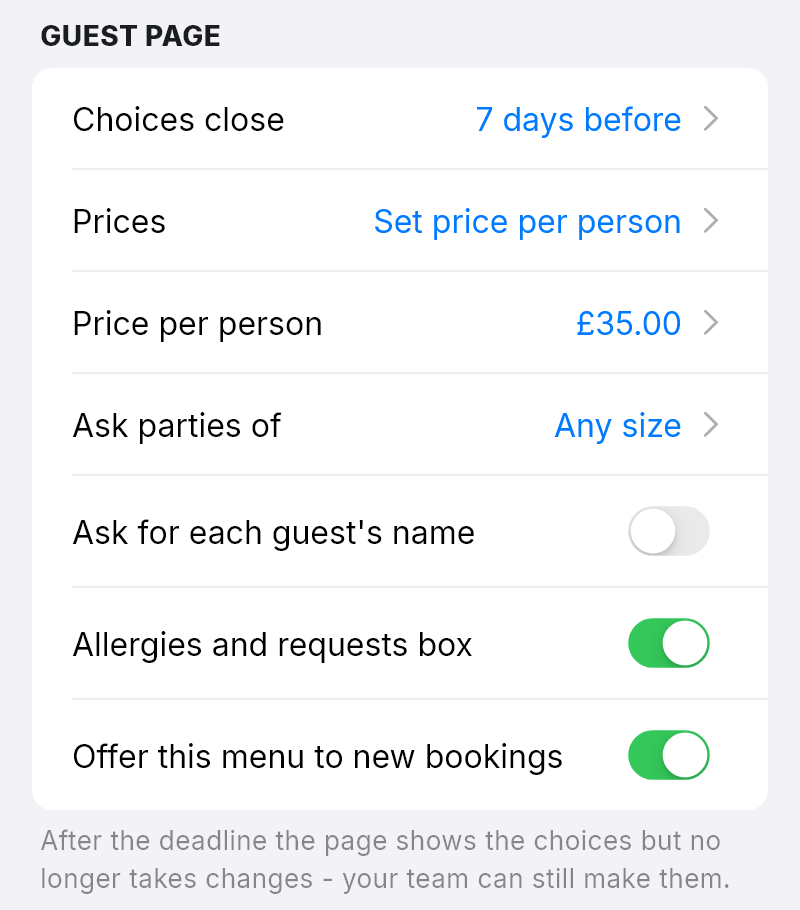
4. Decide how the guest page works. Under GUEST PAGE:
- Choices close is the pre-order deadline, from Until the booking starts to 14 days before. New menus start at 7 days before. After the deadline guests can still see their choices but can’t change them. Your team still can.
- Prices is No prices, Price per dish, or Set price per person. For a set price, fill in Price per person; each dish can then carry a supplement.
- Ask parties of is Any size, or only parties of a certain size or more (2 or more up to 20 or more). Smaller parties aren’t asked.
- Ask for each guest’s name makes a name compulsory for every guest. Otherwise it’s optional.
- Allergies and requests box gives every guest a box for allergies or requests, and the party a box for anything else for the table.
- Offer this menu to new bookings stays on. Turning it off pauses the menu (see below).
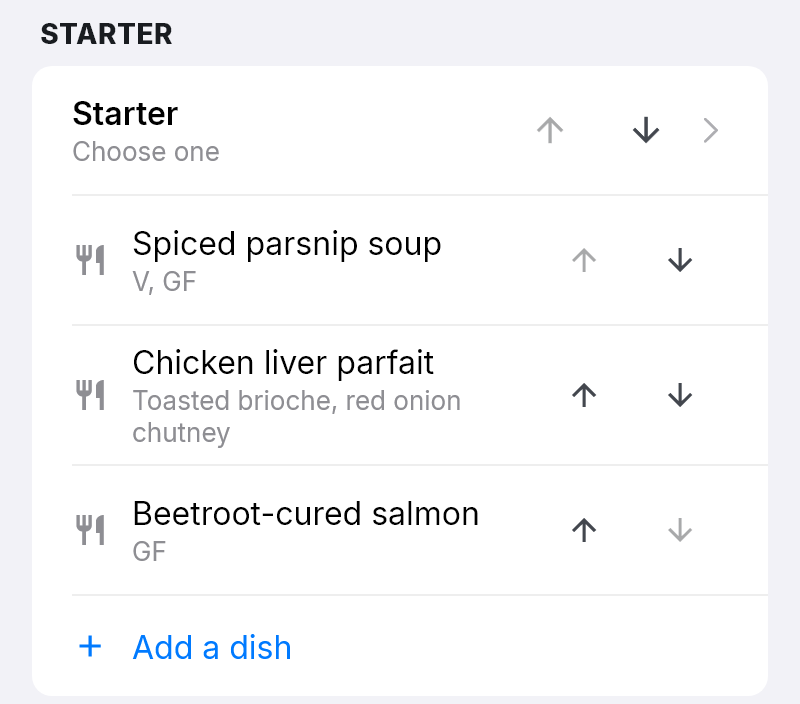
5. Set up each course. Click a course to rename it and choose what Each guest can do: Choose one (required), Choose one, or skip it, or Choose any number (sides, extras). Anything you put in Note under the course (optional) appears under the course on the guest page. Click OK. Add a course, at the very bottom, adds another; Delete course is in the course’s window.
6. Add the dishes. Click Add a dish under a course and fill in the Dish. You can also add a Description (optional), a Price (on a menu priced per dish) or Supplement (optional) (on a set-price menu), Dietary tags (optional) such as v, vg or gf, and Allergens (optional). Click OK. The arrows beside each course and dish move it up or down.
7. Click Save. It’s at the top right. If something is missing, a red note says what — for example "Dessert" has no dishes yet. — and nothing is saved until you fix it.
In NomNom Web: Settings → Pre-orders → New menu. In the phone app: menu → Settings → Pre-orders → New menu.
Attach the menu to a meal
A menu does nothing until a meal uses it. Once it does, every booking for that meal gets a pre-order.
1. Open Meals. In NomNom Web, open Configuration from the account menu or the button at the bottom of the left-hand bar, then Meals. In the phone app, open the menu, tap Configuration, then the Meals tab.
2. Open the meal. If you have more than one area, pick the area first. Click the meal and stay on Details.
3. Choose the Pre-order menu. It’s just below Confirmation email. Pick your menu, or No pre-order to stop asking. In NomNom Web the change saves itself; in the phone app, tap your choice, then Save. The phone’s list also has Manage menus…, a shortcut back to your menus.
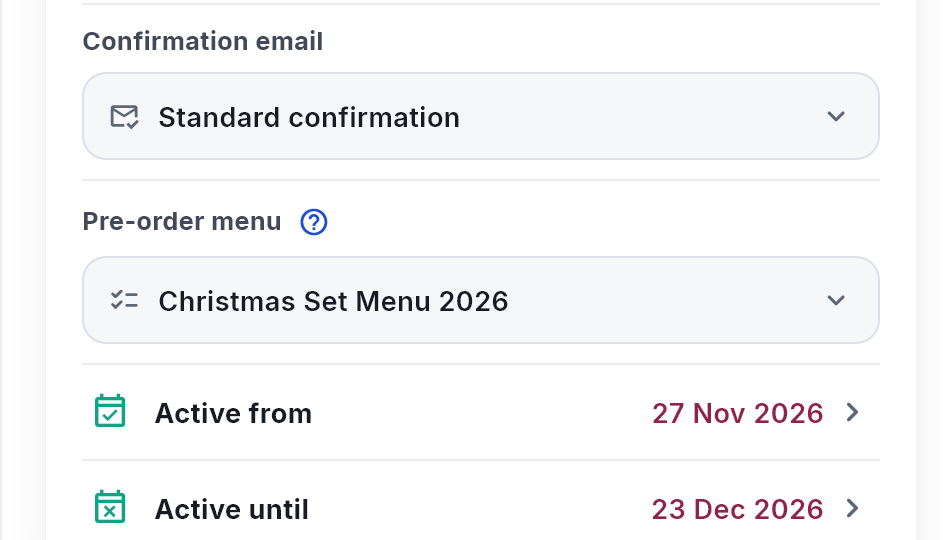
In NomNom Web: Configuration → Meals → the meal → Pre-order menu. In the phone app: Configuration → Meals → the meal → Pre-order menu → Save.
Send guests the link
Back in Settings → Pre-orders, switch on Pre-order link in confirmation emails. From then on, the confirmation email for every booking with a pre-order has a Pre-order your meal button. It’s off until you switch it on, so you can build and check your menus before any guest sees them. While it’s on, you can also send reminders to parties who haven’t finished: see Reminding guests to finish their pre-order.
To see the page your guests get, see What your guests see when they pre-order their meal.
Pausing, copying and archiving a menu
- Pause it. Turn off Offer this menu to new bookings and save. Bookings whose party hasn’t saved anything on their page yet stop being asked; parties who have already started keep the menu. The menu shows as paused in your list.
- Copy it. Open the menu, click the three dots at the top and choose Duplicate menu. The copy opens with (copy) after its name, so last year’s Christmas menu can become this year’s. Click Save to keep it.
- Archive it. The three dots → Archive menu. Archived menus aren’t offered to new bookings, but orders already made from them are kept. Turn on Show archived menus under ARCHIVED to find one again, and Restore menu to bring it back. Menus are never deleted.
Good to know
- Nothing is charged. Prices and the table’s total are there for information only. To take money up front, ask for a deposit on the meal (see Setting up deposits and card requirements on a meal).
- Every guest gets a place. A booking for four adults and two children has six guests to choose for.
- Bookings already made are included. Attaching a menu gives the meal’s existing bookings a pre-order too. Their confirmation emails have already gone, so send them the link yourself (see Checking, changing or completing a party’s pre-order) or switch on reminders.
- Changing a menu people are using. A dish already chosen keeps the name and price it had when it was chosen, so renaming or re-pricing it doesn’t change anyone’s order. Remove a dish, or turn off its Available switch, and the guests who chose it are asked to choose again. Add a course that needs a choice and every party has to make one.
- A party keeps the menu it started with. Pointing the meal at a different menu only affects parties who haven’t saved anything on their page yet.
- The menu follows the meal’s name. If a meal runs in more than one area, the menu chosen for it in one area is used for its bookings in every area. Give each area the same menu, or none, rather than different ones (see Serving the same meal in more than one area).
- Not on events yet. Only your regular meals have a Pre-order menu choice. One-off events don’t have it yet.
- Your own pre-order link. If your email templates already have a Pre-order link (a Google Form, say), NomNom’s link takes its place for bookings with a pre-order menu while Pre-order link in confirmation emails is on. Other bookings keep yours (see Customising your confirmation emails).
- Admins only. Settings and Configuration are for admins (see What Admin, Standard and Read-only staff can do).