When a booking has a pre-order, your guest gets a link to a page where the whole party chooses their dishes, one guest at a time. Here’s what they see, from the button in their confirmation email to the page after the deadline, so you can answer their questions.
Pre-orders are switched on for each venue by NomNom. If you don’t see Pre-orders in Settings, email support@nomnom-app.net and we’ll switch them on for you.
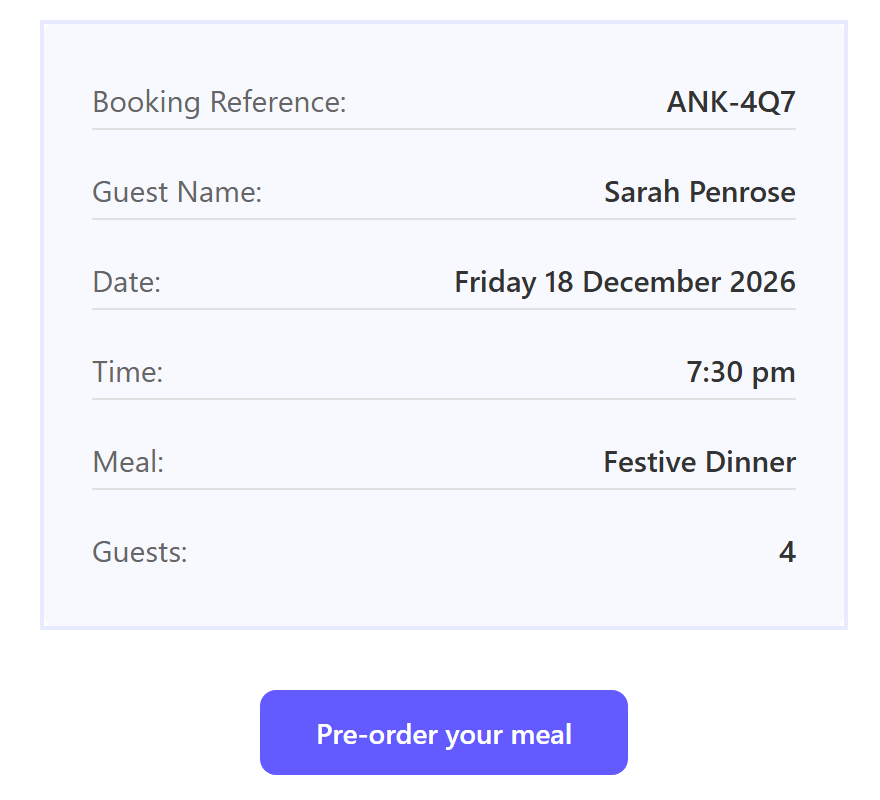
The button in their confirmation
Guests book, and pay any deposit, exactly as usual. If you’ve switched on Pre-order link in confirmation emails, their confirmation email has a Pre-order your meal button under the booking details. It opens their party’s own pre-order page. The same link goes out in any pre-order reminder, and your team can copy it from the booking to send by text or email.
The top of the page
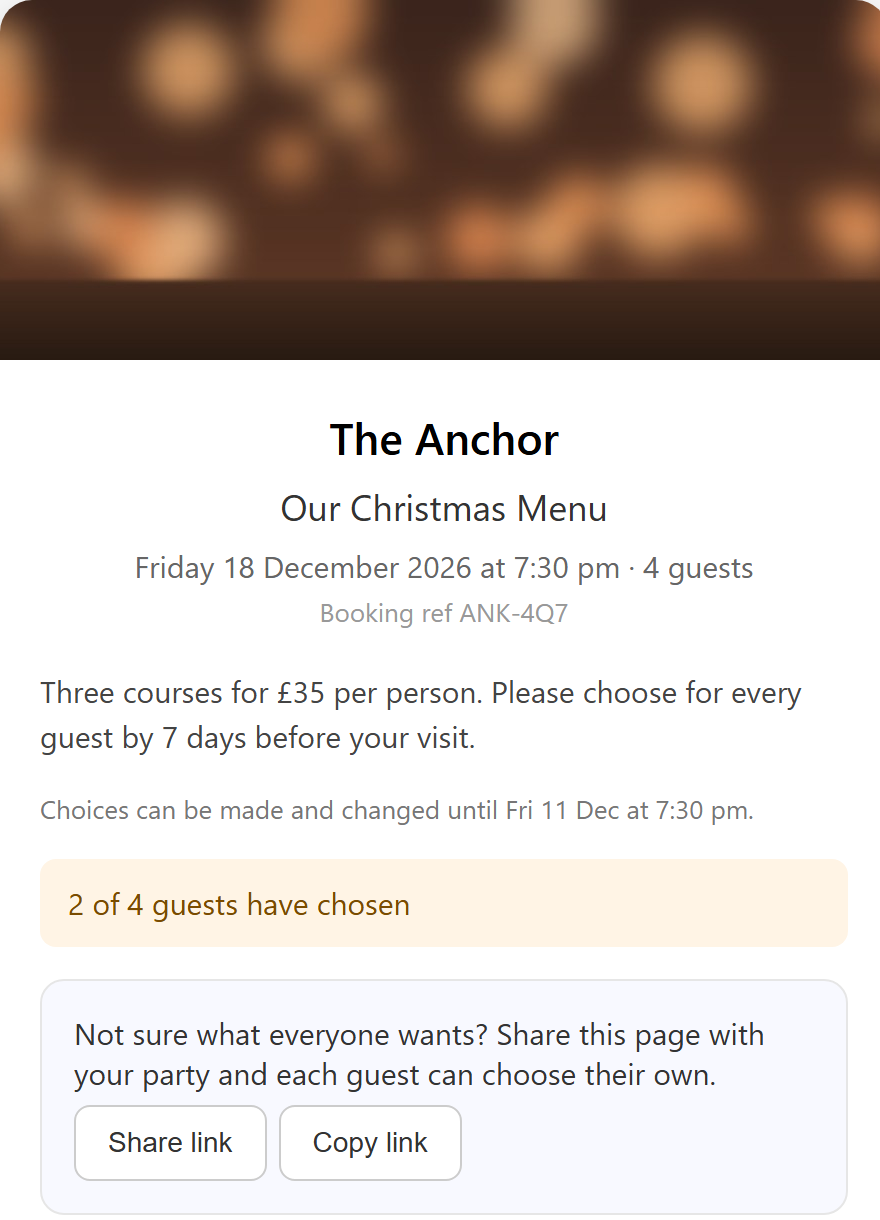
The page shows your restaurant’s name and header photo, the menu’s heading, the date, time and number of guests, and the booking reference. Under your menu’s description, a line says how long they have, such as Choices can be made and changed until Fri 11 Dec at 7:30 pm.
A banner shows how far the party has got: 2 of 4 guests have chosen, turning green with All 4 guests have chosen - thank you! once everyone has.
For a party of two or more, a box says Not sure what everyone wants? Share this page with your party and each guest can choose their own. Share link opens the phone’s share options (it’s hidden in browsers that can’t share) and Copy link copies it. Everyone in the party uses the same link.
Choosing, guest by guest
Each guest has a card, Guest 1, Guest 2 and so on, with:
- Name (optional), or Name (required) if you ask for names.
- A choice for each course. A drop-down where each guest has one dish, starting on Please choose... (or No thank you on a course they can skip), and tick boxes where they can have several. A course’s rule, such as (Optional) or (Choose any), sits beside its name.
- Dish details. Dietary tags show in capitals after the dish, like [V, GF], with a supplement such as (+£4.00) or a price. Descriptions and allergens (Contains: ...) are listed under each course.
- Allergies or requests, if your menu has the box.
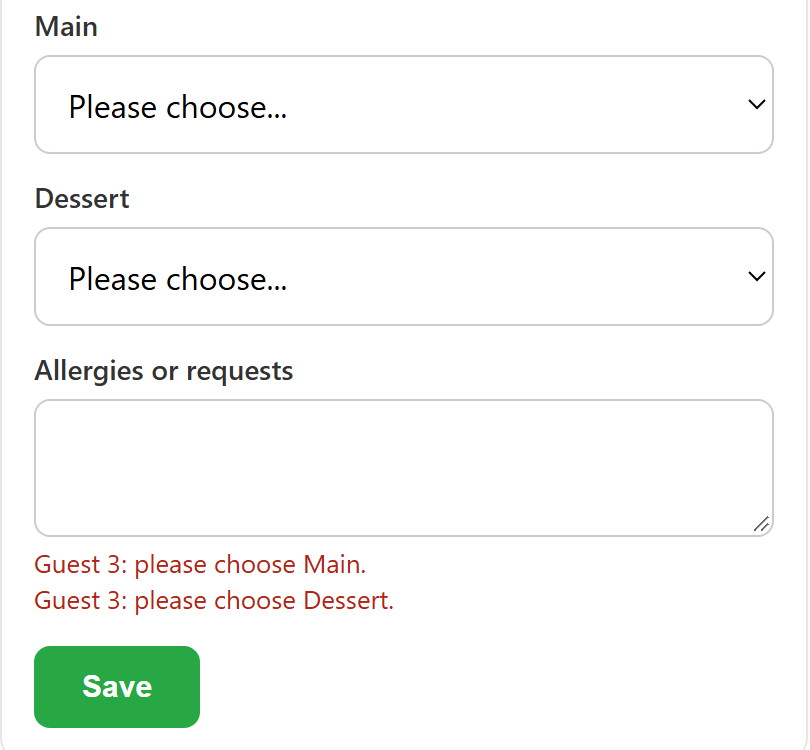
- Save. Each card has its own. Saved appears for a moment, and the banner updates.
Anything still missing shows in red on the card, such as Guest 3: please choose Main.
At the bottom there’s Anything else for the table? with its own Save, if your menu has the allergies box. If your menu shows prices, the total follows: Pre-order total for your table: £144.00. You don’t pay anything on this page.
There’s no Submit button
Saving is all there is. The pre-order counts as complete as soon as every guest’s card is complete, and the party can come back and change their minds until the deadline. If a guest leaves the page with changes they haven’t saved, their browser asks them first.
When the page can’t be changed
- After the deadline the page still opens and lists everyone’s choices, with: The deadline for pre-orders has passed, so these choices can no longer be changed online. Please contact the restaurant if anything needs to change. Your team can still make changes (see Checking, changing or completing a party’s pre-order).
- Once the booking has started, it says This booking has already started.
- If the booking is cancelled, or your team has marked it No pre-order needed, it says This booking no longer needs a pre-order. Please contact the restaurant if you think this is wrong.
- If the booking no longer qualifies and nobody in the party had saved anything yet — it’s been moved to a meal without a pre-order menu, say, or the party is now smaller than the menu asks for — they see No Pre-order Needed: This booking does not have a pre-order menu.
- If the link doesn’t work at all — it’s been mistyped, the booking has been deleted, or pre-orders have been switched off for your venue — they see Invalid Link: This link is not valid, or the booking no longer exists.
Good to know
- One link for the whole party. Anyone with the link can fill in or change any guest’s card, so the booker can do it for everyone. A save only changes the cards changed on that screen: choices other people have saved in the meantime are kept, and appear after saving. If two people change the same guest’s card, the last save counts.
- No sign-in. Guests don’t need an account or a password.
- If the party size changes, the page follows: new guests get empty cards to fill in, and the pre-order isn’t complete until they do. See Checking, changing or completing a party’s pre-order.
- The page is in English, whatever language your booking page shows (see Is my booking page available in other languages?).
- Setting it up? See Setting up pre-orders: building a menu and attaching it to a meal.