If a party hasn’t finished choosing their dishes, NomNom can email the person who booked their pre-order link again, a set number of days before the pre-order deadline. Reminders stop as soon as everyone has chosen.
Pre-orders are switched on for each venue by NomNom. If you don’t see Pre-orders in Settings, email support@nomnom-app.net and we’ll switch them on for you.
Switch reminders on
1. Open Pre-orders. In NomNom Web, open Settings from the account menu at the top right, or from the button at the bottom of the left-hand bar, and choose Pre-orders. In the phone app, open the menu, tap Settings, then Pre-orders. You’ll need to be an admin.
2. Check Pre-order link in confirmation emails is on. Reminders repeat that link, so REMINDERS only appears while it’s on.
3. Pick when to remind. Under REMINDERS, tap 14 days before, 7 days before, 5 days before, 3 days before, 2 days before or 1 day before. Pick as many as you like; a tick shows each one chosen, and it saves straight away. Tap one again to turn it off. With none picked, no reminders are sent.
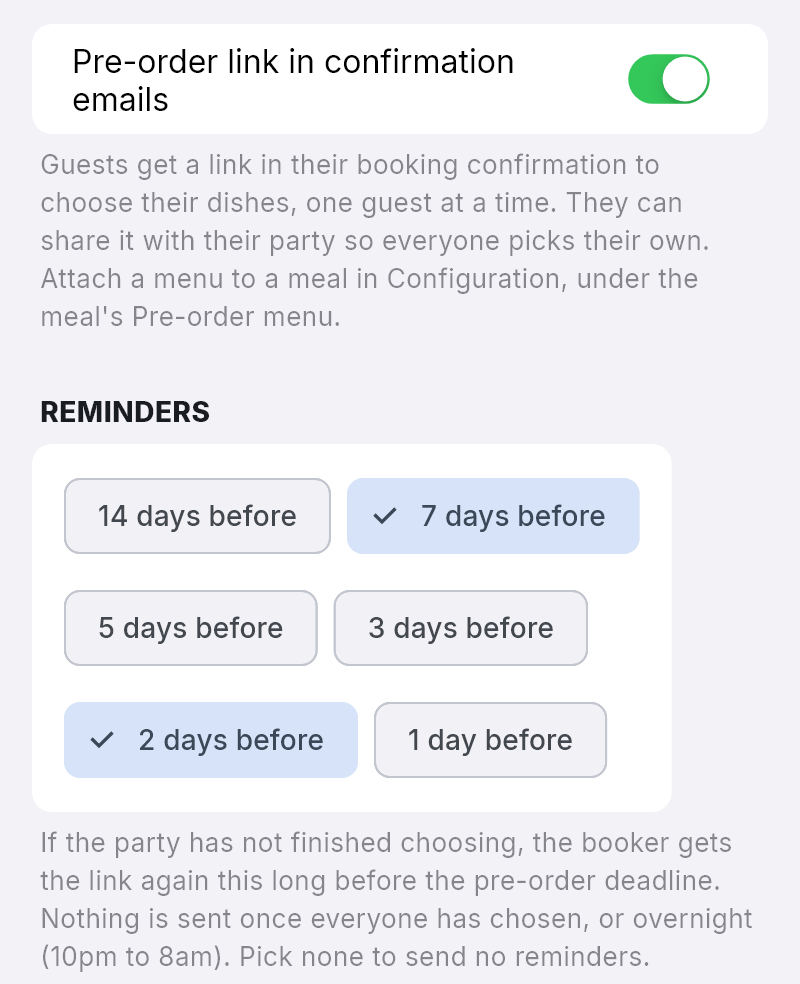
In NomNom Web: Settings → Pre-orders → REMINDERS. In the phone app: menu → Settings → Pre-orders → REMINDERS.
When reminders go
The days count back from the pre-order deadline, not from the booking. The deadline is the booking time less the menu’s Choices close (see Setting up pre-orders: building a menu and attaching it to a meal). For a booking on Friday 18 December at 7:30 pm with choices closing 7 days before, the deadline is Friday 11 December at 7:30 pm. With 7 days before and 2 days before picked, reminders go on Friday 4 December and Wednesday 9 December, shortly after 7:30 pm. If the menu’s choices stay open Until the booking starts, the deadline is the booking time itself.
A reminder is only sent when:
- the party still hasn’t finished choosing;
- the deadline hasn’t passed, and the booking hasn’t been cancelled or marked No pre-order needed;
- it’s daytime at your venue. Nothing goes between 10pm and 8am: a reminder due overnight goes after 8am instead, as long as the deadline hasn’t passed;
- the reminder day came after the booking was made. Someone who books two days before the deadline has just had the link in their confirmation, so the 7-day reminder is skipped.
Each reminder day is sent once. If more than one has already passed when a booking first qualifies — because you’ve just switched reminders on, say — it gets one reminder, not several.
Who gets it, and what it says
It goes to the email address on the booking, the person who booked. Each guest has their own place on the same page, so the email asks them to pass the link on. You don’t get a copy, and bookings without an email address, and walk-ins, aren’t sent one.
The subject is Choose your dishes for your restaurant’s name by the deadline, such as Choose your dishes for The Anchor by Fri 11 Dec at 7:30 pm. The email shows the menu’s heading and how far the party has got, says Your party hasn’t finished choosing their dishes yet, gives the deadline, and has a Choose your dishes button, followed by the booking details and your contact details.
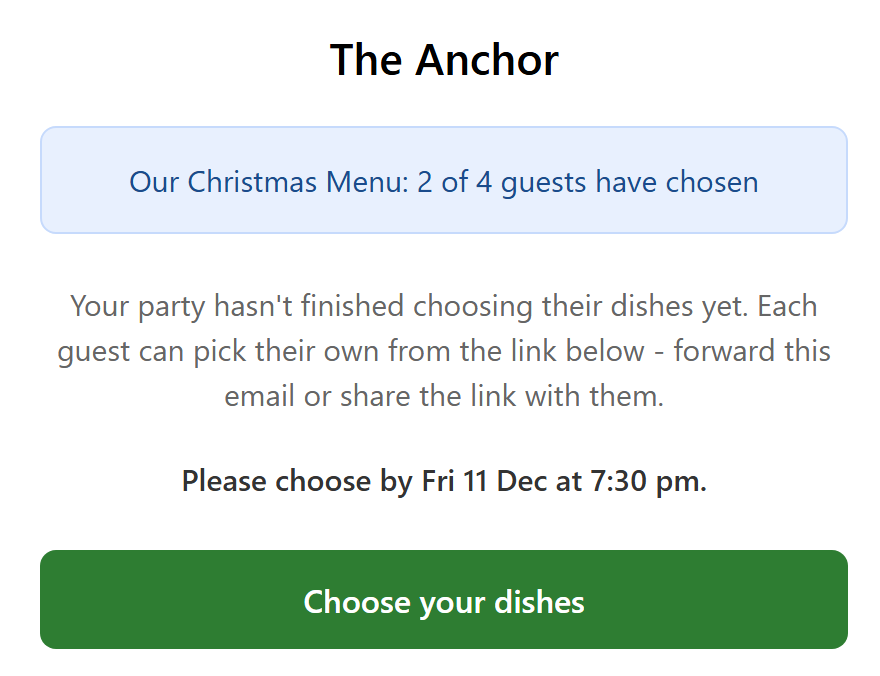
Every reminder sent is listed in the booking’s Messages (see Checking what was sent to a guest: the Messages section).
Good to know
- Bookings already made are included. Switch reminders on and bookings made earlier are reminded too. If one of your reminder days has already passed since they booked, they get a single reminder soon after, in daytime.
- Moved bookings start again. Move a booking to another date or time and its reminders are worked out afresh from the new deadline.
- Turning the link off stops them. Switch off Pre-order link in confirmation emails and no more reminders go.
- Need to nudge someone now? Copy their link from the booking and send it yourself (see Checking, changing or completing a party’s pre-order).
- Not the same as booking reminders. These are separate from the reminders about the visit itself (see Booking confirmations and reminders).