When a guest books a table, NomNom can let them know by email and by text message, and can send a reminder before their visit. This article explains what guests receive and which parts you can adjust.
What a guest receives
Guests can receive two kinds of message:
- A booking confirmation — sent shortly after a booking is made, so the guest has the date, time, party size and a booking reference.
- A reminder — sent a few hours before the visit, as a gentle nudge so fewer guests forget.
Confirmations can go out by email and/or SMS; reminders are sent by SMS. Email is used for confirmations only.
Confirmation emails
Bookings made through your online booking page send a confirmation email to the guest automatically (as long as they gave a valid email address). For a booking you take yourself in the app, you can send the confirmation email from the booking's Messages tab using Resend confirmation email. If a booking has no email address on file, no confirmation email is sent.
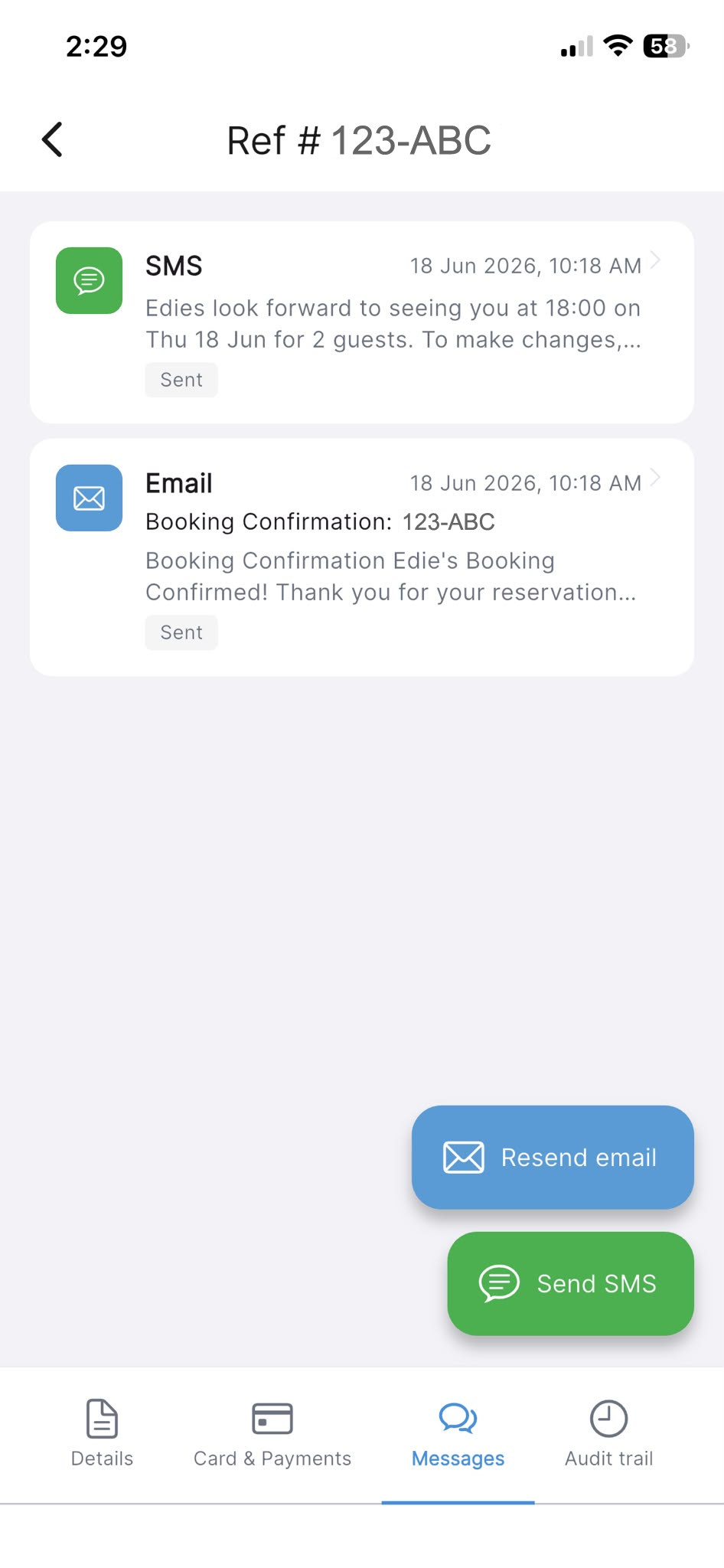
In the app: open a reservation and go to its Messages tab, then tap Resend confirmation email (or Resend email).
What you can customise on the confirmation email
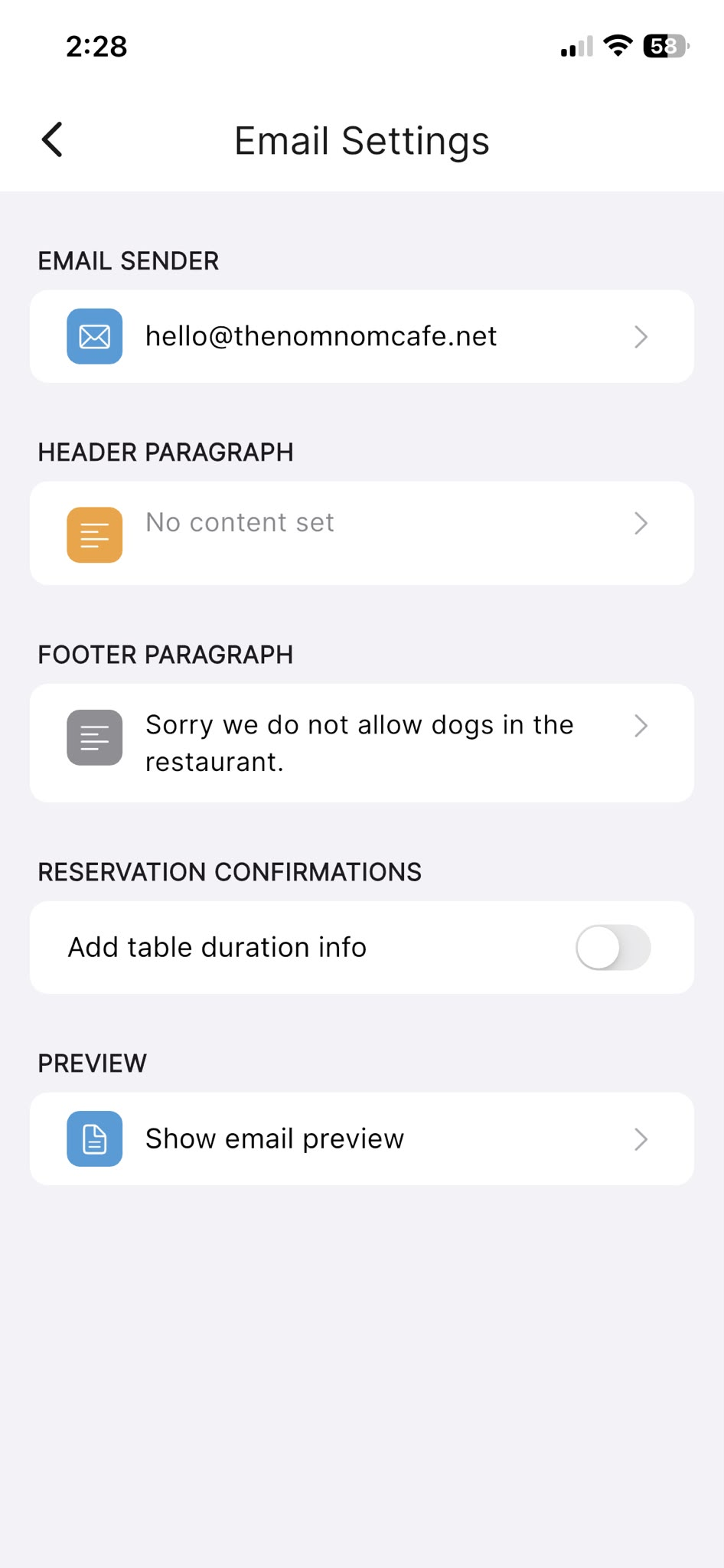
You control the look and wording of the confirmation email from Email Settings.
- Email Sender — the address shown to guests.
- Header Paragraph and Footer Paragraph — your own wording added above and below the booking details.
- Add table duration info — an optional note telling the guest how long their table is held (under Reservation Confirmations; off by default).
- Show email preview — opens a preview of the confirmation email so you can check it before guests see it.
The header photo used at the top of the confirmation email is the same image you set under your online booking settings.
In the app: Settings → Email Settings.
In the app: Settings → Online Booking → Header Photo (this image is also used as the header in confirmation emails).
Text messages (SMS)
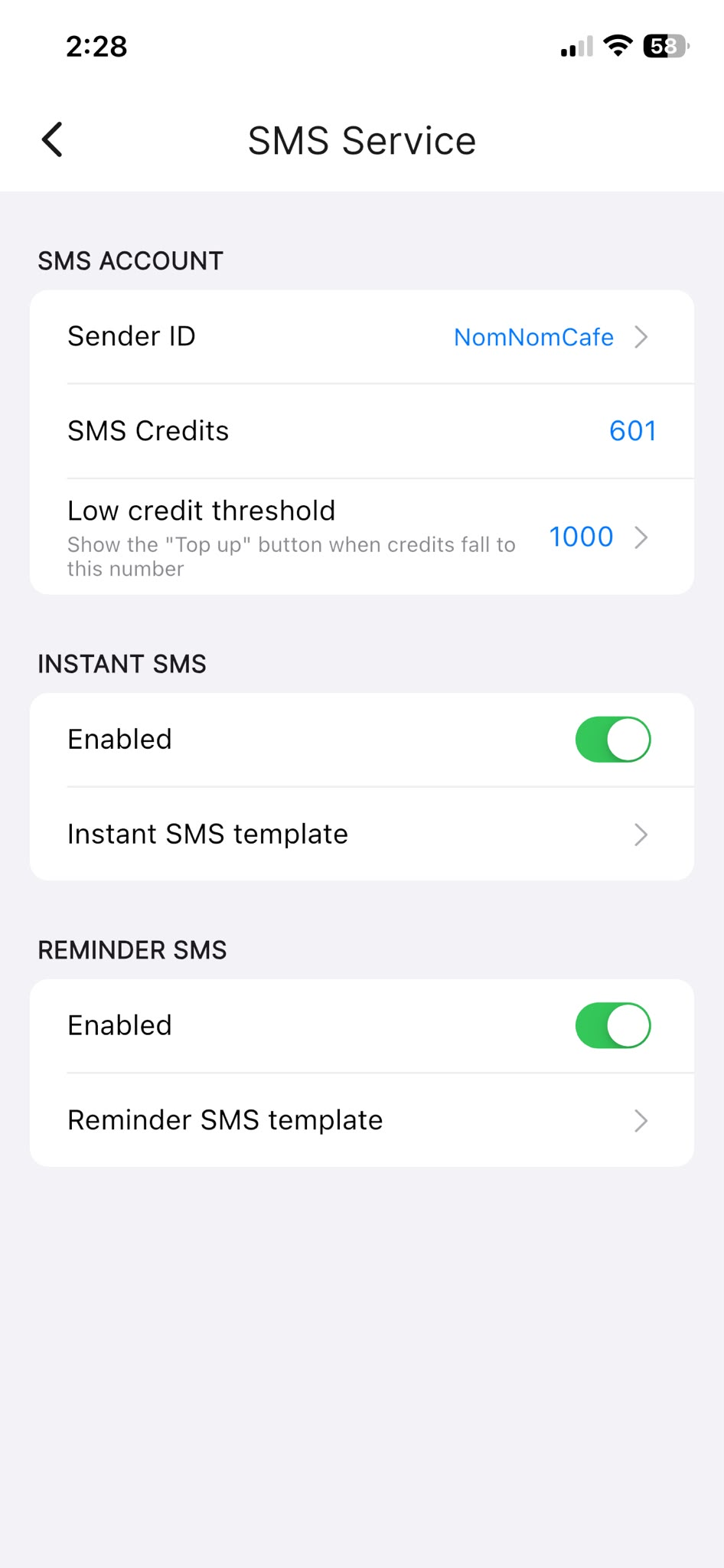
SMS messages are sent using your SMS credits, and there are two separate types you can switch on independently: an instant message when a booking is made, and a reminder before the visit. Both are off until you enable them, and both have a template you can edit.
- Instant SMS — turn on Enabled and edit the Instant SMS template. This is the booking-confirmation text.
- Reminder SMS — turn on Enabled and edit the Reminder SMS template. This is the pre-visit reminder.
You also set your Sender ID (the name guests see the text from, up to 11 characters) here, and you can see your remaining SMS Credits. A text message only goes out if you have credits available and a valid UK mobile number is on the booking.
In the app: Settings → SMS Service.
Personalising your message templates
When editing an email paragraph or an SMS template, you can drop in details that are filled in for each guest. Tap Insert Field in the editor to add one. The available fields are [FIRST_NAME], [LAST_NAME], [DATE], [TIME], [GUESTS], [DURATION], [REF] and [RESTAURANT].
What happens automatically (and what you can't change)
A few things are handled for you and aren't adjustable:
- When the reminder is sent — the reminder goes out automatically in the hours before the booking; the exact timing is set by NomNom and isn't a setting you change.
- Quiet hours — text messages are only sent during the daytime, so guests aren't messaged late at night or very early in the morning.
- The instant message timing — the booking-confirmation text is intended for bookings made well ahead of the visit rather than last-minute ones.
- Migrated bookings — guests whose bookings were brought over from a previous system don't receive a duplicate confirmation text, but they do still get their reminder.
Checking what was sent
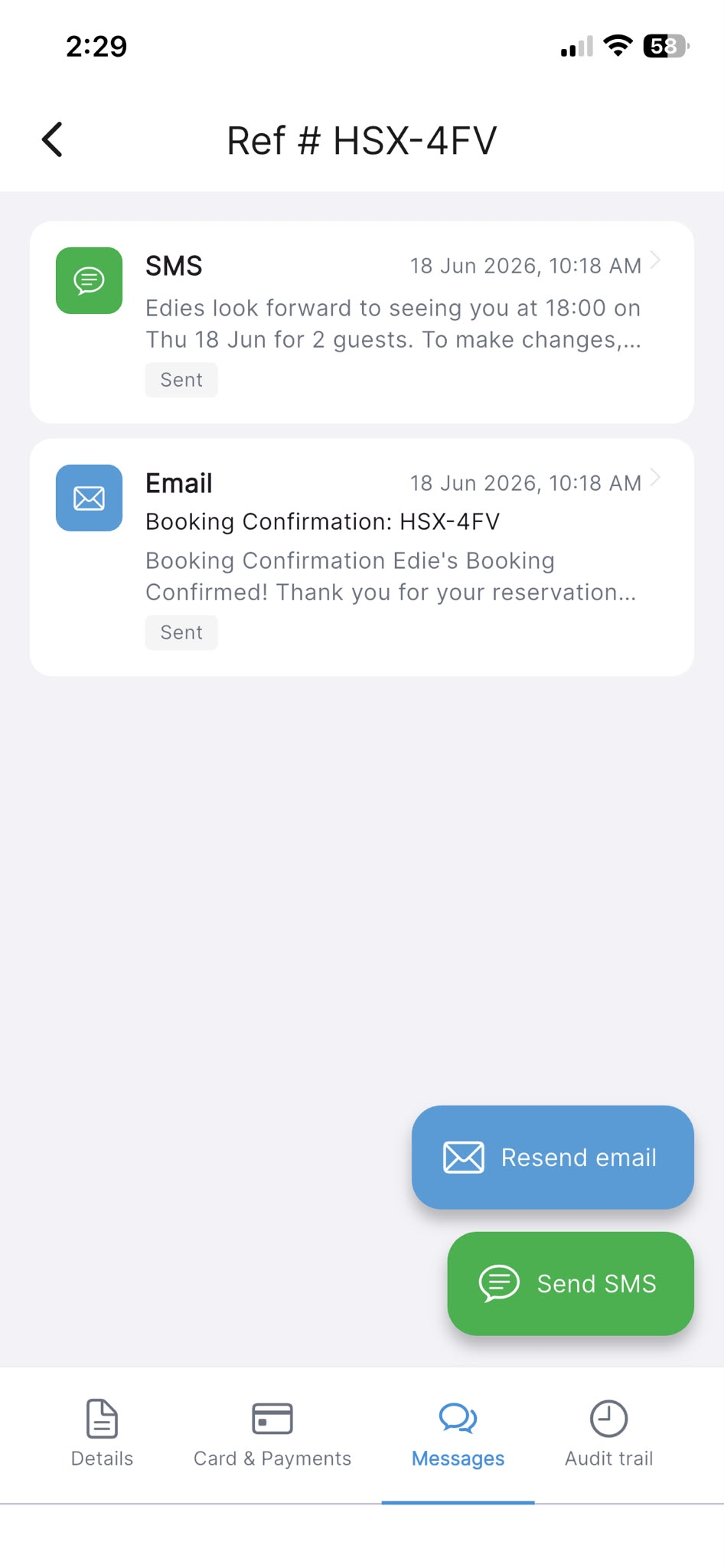
Each booking keeps a record of the emails and texts sent to that guest. Open the reservation and look at its Messages tab to see the history, send a one-off Send SMS, or resend the confirmation email.
In the app: open a reservation → Messages tab.