NomNom lets you send a quick text message to a guest straight from their reservation, and each message you send uses one SMS credit from your balance. This guide covers sending a text and keeping your credits topped up.
Sending a text to a guest
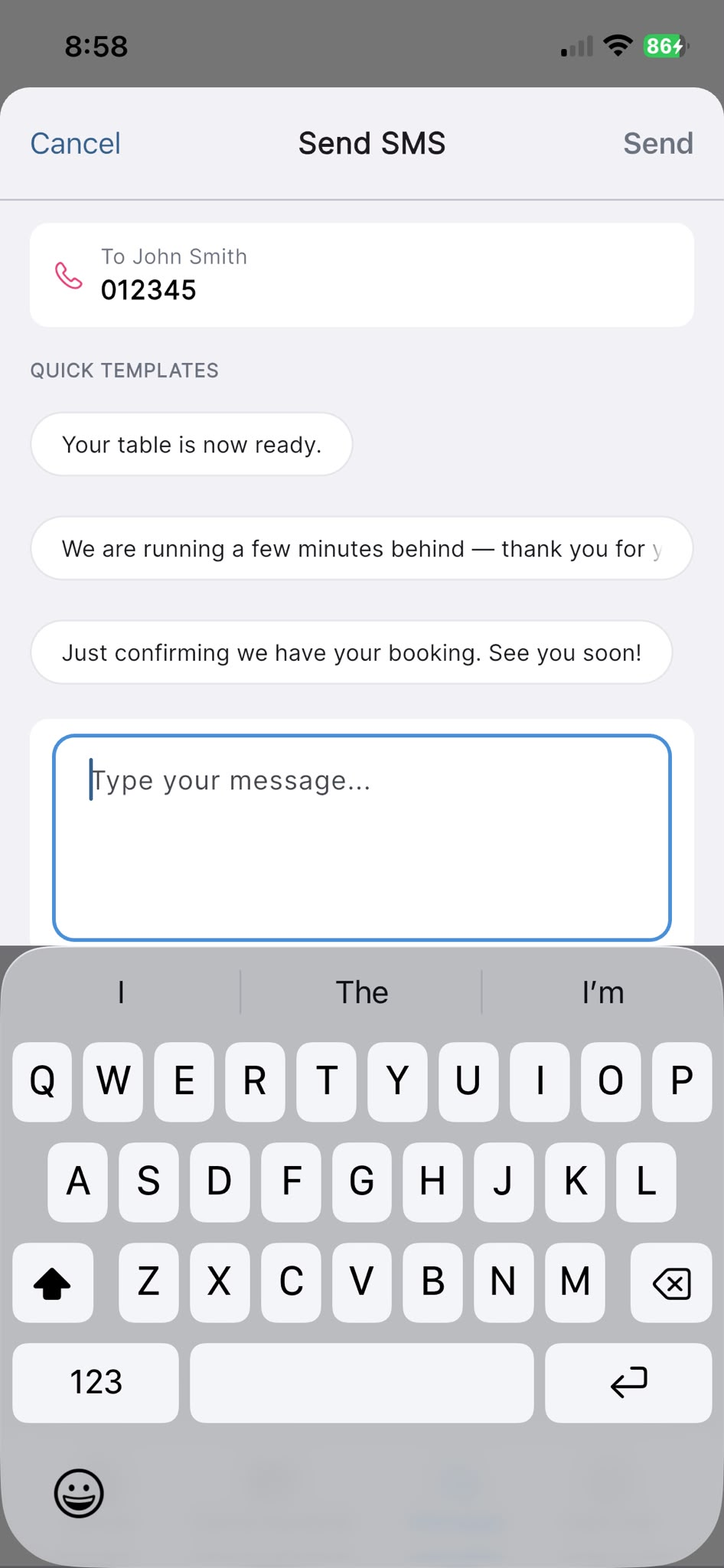
You send a one-off text from the guest's reservation. Open the reservation, go to the Messages tab, and tap Send SMS. A panel headed Send SMS appears showing who the message is going to (their name and mobile number).
You can tap one of the QUICK TEMPLATES chips to pre-fill a common message — for example "Your table is now ready." — and then edit it, or simply type your own in the message box. When you're happy, tap Send. Tap Cancel to close without sending.
If the reservation has no mobile number saved, you'll see a note that there's no mobile on file — add a mobile to the guest's details first, then send.
In the app: open a reservation → Messages tab → Send SMS.
Checking your SMS credit balance
Sending a text uses one credit, so it helps to keep an eye on your balance. Your current balance is shown along the bottom of the main reservations screen as SMS Credits followed by the number remaining.
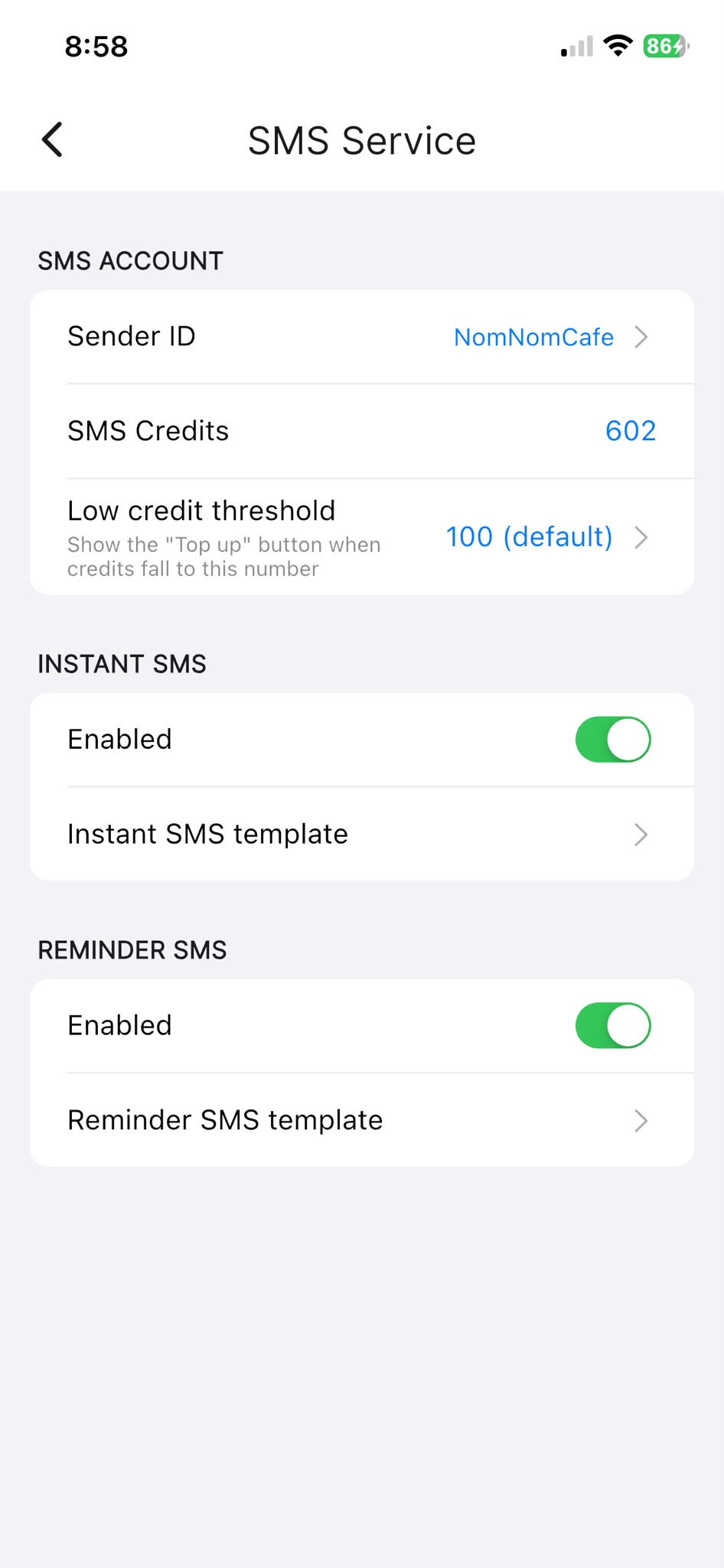
You can also see it in your SMS settings, where the SMS ACCOUNT section shows SMS Credits with your current total.
In the app: Settings → EMAIL & SMS → SMS Service.
Topping up your credits
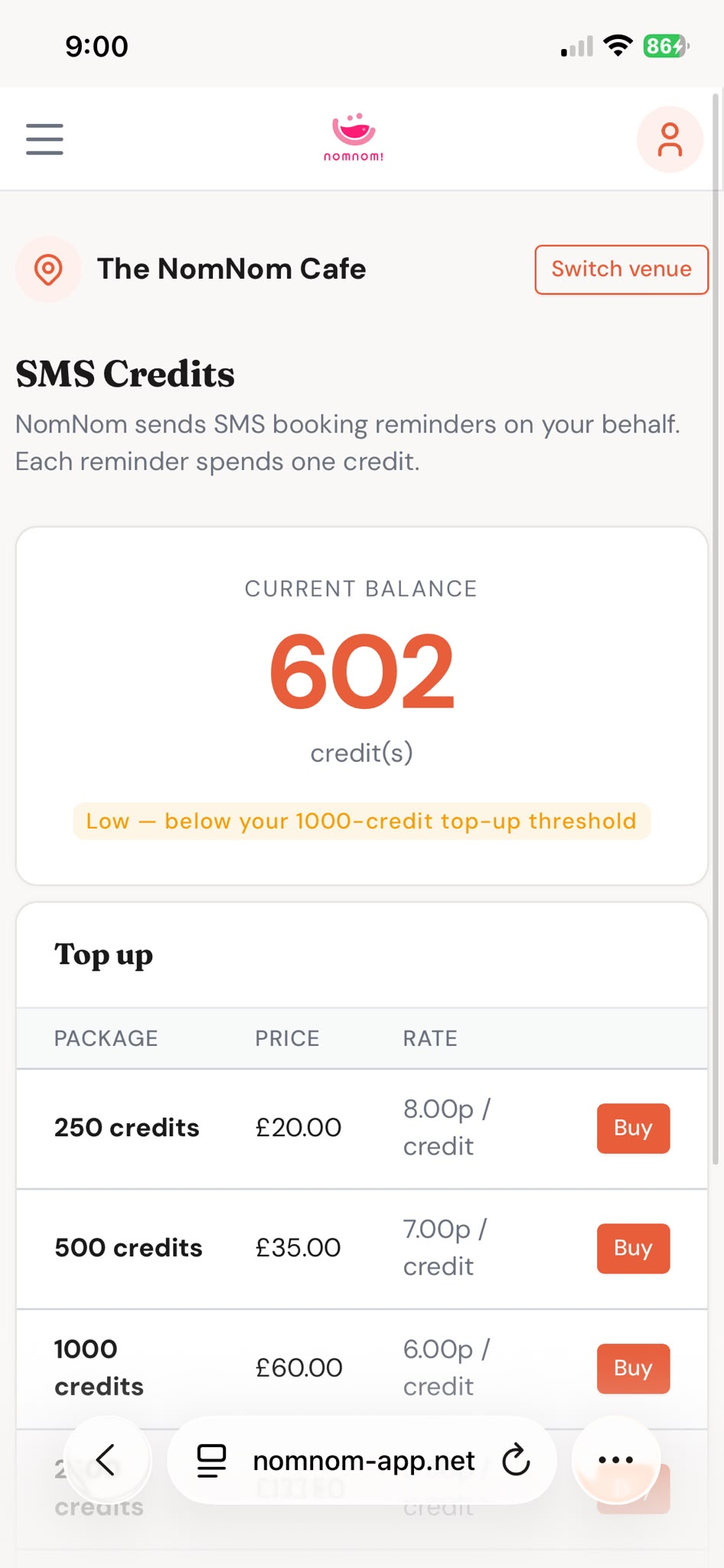
When your balance runs low, a Top up button appears next to the SMS Credits figure at the bottom of the main screen. Tapping it opens a secure checkout page in your web browser where you choose a credit package and pay through Stripe. Your new credits appear in your balance a short time after the payment is confirmed.
You can also top up from the web admin portal. The SMS Credits page shows your Current balance and a Top up table listing the available packages, prices and rates — choose a package to be taken to Stripe checkout. After a successful purchase you'll see a confirmation that the credits will appear in the balance within about a minute.
In the app: main screen footer → Top up (shown when credits are low).
In the web admin portal: SMS Credits.
Controlling when the "Top up" button appears
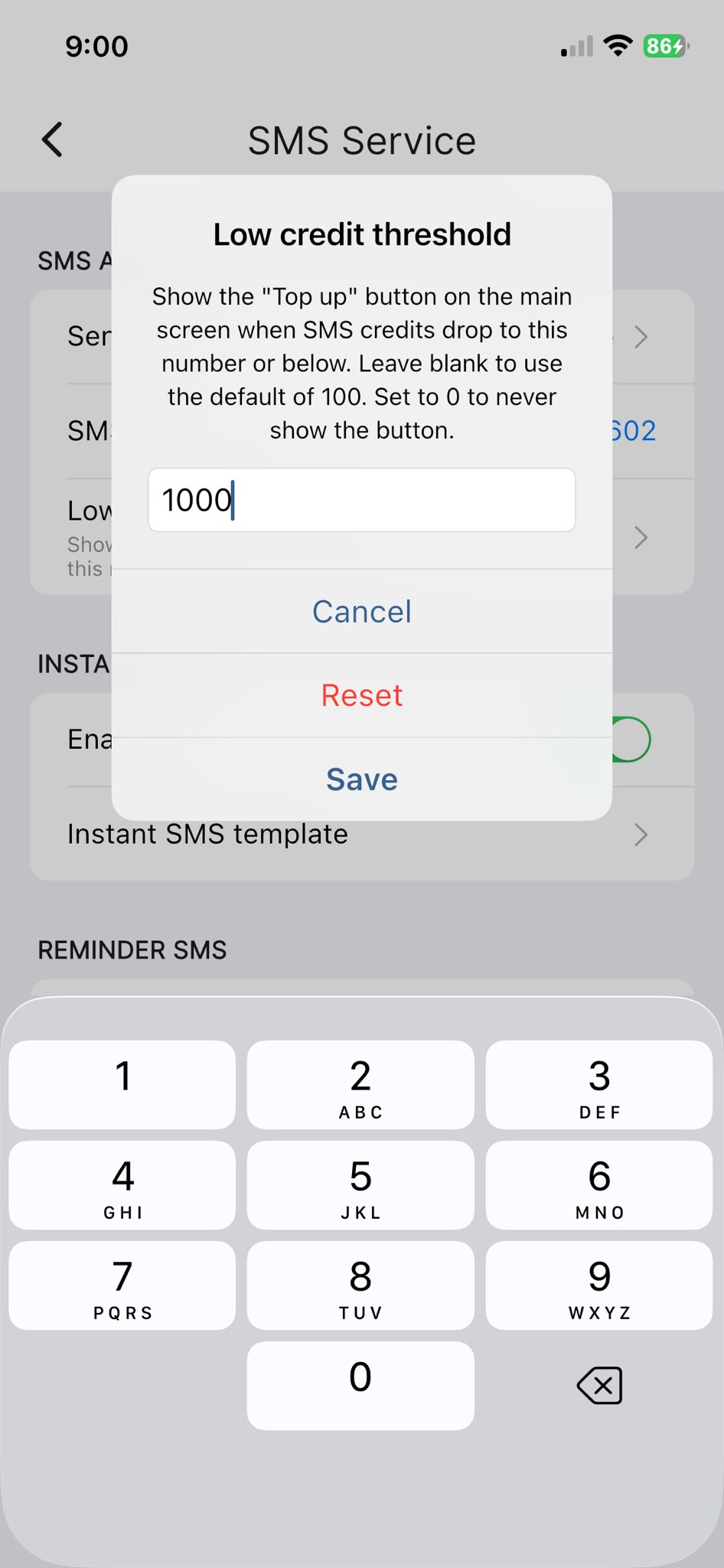
You decide how low your balance has to get before the Top up button shows on the main screen. In your SMS settings, the Low credit threshold row sets that number — when your credits fall to it or below, the button appears. Leave it blank to use the default, or set it to 0 to never show the button.
In the app: Settings → EMAIL & SMS → SMS Service → Low credit threshold.