A reminder email reaches your guest before their visit with the date, time and number of guests, and an I’m coming button. One tap tells you they’re still coming, and a green tick appears on the booking. If they can’t make it, the same email can let them change or cancel, so you can offer the table to someone else. Reminder emails are free (they don’t use SMS credits) and they’re off until you switch them on.
Switch on reminder emails
1. Open Email Settings. In NomNom Web, open Settings from the account menu (top right) or the button at the bottom of the left-hand bar, then choose Email Settings. Settings is for admins only.
2. Click Reminder. It’s the middle tab, between Confirmation and Follow-up.
3. Turn on Send reminder email. It’s under REMINDER EMAIL and saves as soon as you switch it.
4. Choose when it goes. Under TIMING, click Send and pick 24 hours before, 48 hours before or 3 days before. It starts on 24 hours before.
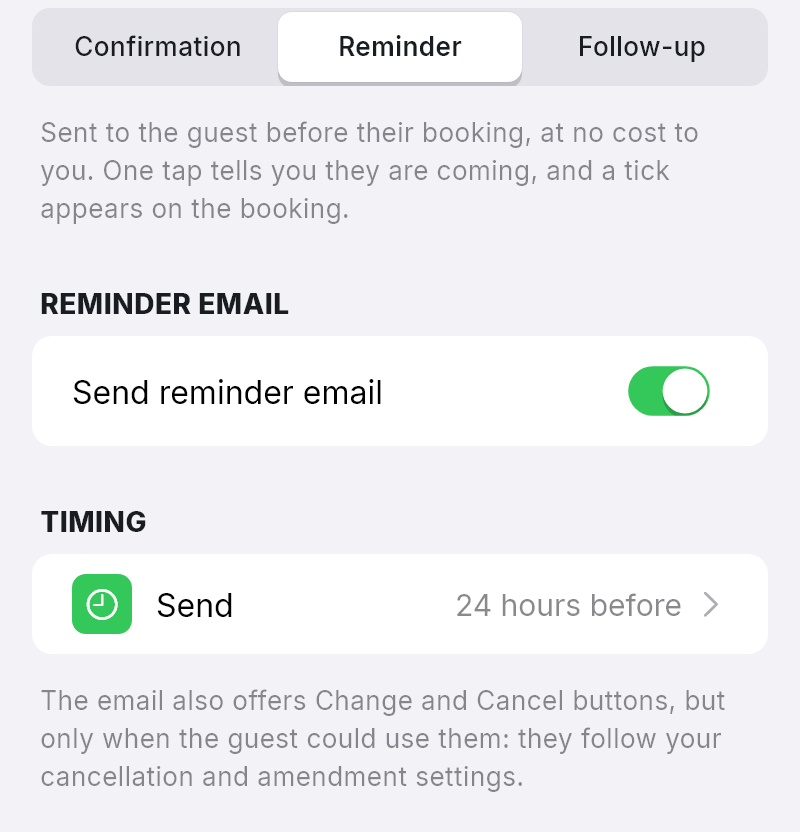
In NomNom Web: Settings → Email Settings → Reminder. In the phone app: Settings → Email Settings → Reminder.
What your guest receives
The subject reads like Reminder: your booking at The Anchor tomorrow at 7:30 pm. The email opens with your header image, if you’ve added one, then your venue’s name and See you tomorrow (or today, the day’s name, or the date). Then come the booking reference, the guest’s name, the date, time, meal and number of guests, and up to three buttons:
- I’m coming — always there.
- Change my booking — only while the guest could change it online: Allow online changes is on and the booking is outside its Minimum notice (see Letting guests change their own booking online).
- Cancel my booking — only while the guest could cancel it online: Allow online cancellations is on and the booking is outside its Minimum notice. Above it, the email says Can no longer make it? Cancelling lets someone else have the table.
Underneath are your cancellation policy, if you’ve written one (see Setting your cancellation and no-show policy), and your contact details, as at the foot of your other emails.
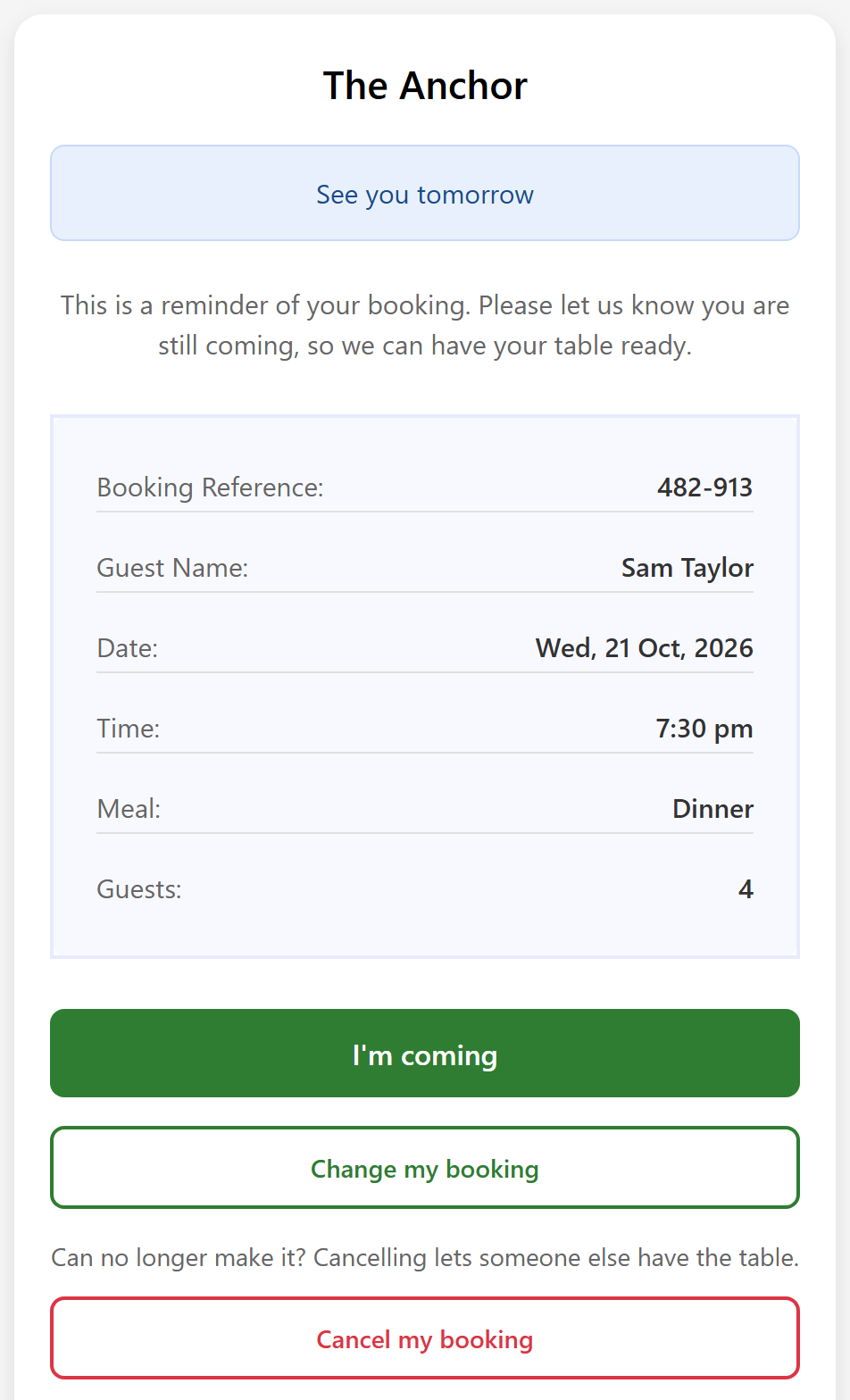
When the guest taps I’m coming
A page opens showing your venue and their booking, and asks them to confirm they’re still coming. They tap Yes, I’m coming and see Thank you, see you soon. If they tap the button again later, they’re told they’ve already confirmed.
On your side, a green person-with-a-tick icon appears on the booking:
- In NomNom Web, in the List view, beside the booking’s other icons. Hover over it to see Guest confirmed they’re coming.
- In the phone app, on the booking in the day’s list, and under FLAGS when you open it, as Guest Confirmed (Reminder Email).
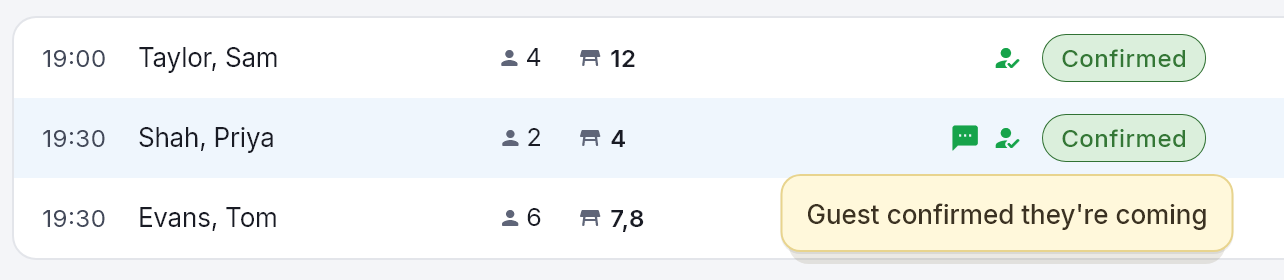
The tick only records that the guest said they’re coming. It doesn’t change the booking’s status, so mark them arrived and seated as usual (see Marking guests as arrived, seated or left during service).
Which bookings get one
Each booking is reminded once. NomNom checks every few minutes, and sends the reminder once the booking is within the time you chose (24 hours, 48 hours or 3 days away), as long as:
- It has an email address. A booking without one is skipped. The reminder is never sent to you instead.
- It isn’t a walk-in, and isn’t cancelled.
- It was made before that time. With 24 hours chosen, a booking made less than 24 hours ahead gets no reminder: the guest has only just had their confirmation. The same goes for a booking moved to a new date or time less than 24 hours ahead.
- It’s more than 2 hours away. Nobody is reminded of a table they’re about to sit down at.
- It’s daytime at your venue. Reminders only go between 8am and 10pm, your venue’s time. One that falls due overnight waits until 8am, so with 24 hours chosen, a 10.30pm booking is reminded at 8am on the day.
The longer the time you choose, the more short-notice bookings miss out: with 3 days before, anything booked less than 3 days ahead gets no reminder.
If the booking moves
When a booking moves to a new date or time — because your team moved it, or the guest used Change my booking — NomNom forgets both its reminder and its tick. The new time gets its own reminder by the rules above, and the guest can tap I’m coming again. Changing the table or the number of guests doesn’t touch either. Does the guest hear about it when you change their booking? covers what else the guest is sent when a booking changes.
Good to know
- Emails and texts are separate. Reminder texts have their own switch in SMS Service and use SMS credits. You can use either, or both (see When NomNom sends confirmation and reminder texts).
- Switching on part-way through. Bookings already inside your chosen time that were made before it get their reminder within a few minutes, between 8am and 10pm.
- No copy for you. Unlike confirmations, you’re not sent a copy. Each reminder shows in the booking’s Messages (see Checking what was sent to a guest: the Messages section).
- The wording is fixed. The reminder isn’t in Email Templates, so you can’t change what it says. Its buttons follow your online change and cancellation settings, not the Add change link to confirmation email or Add cancel link to confirmation email switches.
- No button to send one by hand. Send email in a booking’s Messages offers the confirmation and the follow-up, not the reminder.
- Not in the audit trail. The guest’s confirmation shows as the tick only (see Seeing who changed a booking: the audit trail).
- Searching Settings for “reminder” in NomNom Web finds SMS Service, which is the reminder text. The reminder email is in Email Settings.