The Kitchen Sheet is a printout of one day’s pre-orders. For each meal it counts how many of each dish your parties have chosen, so the chef knows what to prepare, then lists every booking’s guests and their choices, with allergies in red. Print it on the morning of service, or a few days ahead to order in.
Pre-orders are switched on for each venue by NomNom, and Kitchen Sheet only appears once they are. If you don’t see it, email support@nomnom-app.net.
Print it from NomNom Web
1. Open Reports. Click the printer icon in the top bar, Reports & printing. In a narrow window it moves into the More menu (the three dots) instead.
2. Pick Kitchen Sheet. It’s under Report, marked One day, pre-ordered dishes.
3. Choose the day. Use the arrows under Day, or click the date to pick another. The sheet always covers the whole day, every meal and every area, so there’s no room or meal to choose.
4. Print. The sheet appears on the right. Click Print to open your browser’s print window, or Download to save it as a PDF.
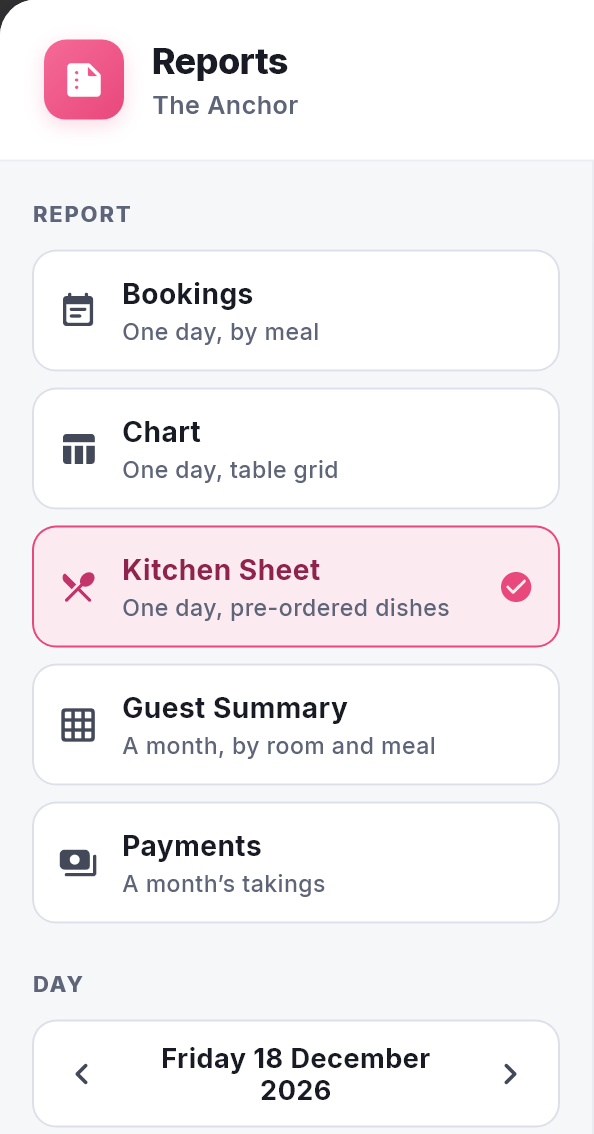
In NomNom Web: Reports & printing (printer icon, top bar) → Kitchen Sheet.
Print it from the phone app
Open the menu and tap Reports, then Kitchen in the row of report types. Use the arrows to change the day, or tap the date. Once the sheet shows, tap the three dots at the top right and choose Print, or Share to send the PDF on.
In the phone app: menu → Reports → Kitchen.
What’s on the sheet
It’s headed Kitchen sheet, with the date and how many bookings with a pre-order and covers there are. Then, for each meal, in the order they start:
- The meal’s heading, such as Festive Dinner - 6 bookings, 24 covers, and in red how many guests still have dishes to choose.
- The count. Each course with the number of each dish chosen — what the chef works from — and, in red, how many guests still have that course to choose.
- Every booking, in time order. A bold line gives the time, name, party size, table and booking reference, with All chosen, 2 of 4 chosen or No pre-order needed on the right. Under it come the booking’s Allergies in red, its Notes, any Staff note, and the party’s note for the table.
- Each guest’s choices, course by course, such as Starter: Spiced parsnip soup; Main: Roast turkey; Dessert: not chosen, in red until they’re complete, with the guest’s allergies or requests underneath.
Good to know
- Parties who haven’t chosen yet are on it. Every booking that should have a pre-order is listed, and their guests count as still to choose. Chase them from the booking (see Checking, changing or completing a party’s pre-order).
- What isn’t counted. Bookings marked No pre-order needed are listed but add nothing to the count. Cancelled bookings are left off. Choices set aside when a party got smaller aren’t counted, and the booking says so.
- Dishes are counted as chosen. If you rename a dish after guests have chosen it, it’s still counted as one dish, under the name the first of them chose.
- It’s for your team. It prints staff notes, so keep it in the kitchen (see Booking notes and internal notes: what your guest can see).
- It’s a snapshot. Choices made after you print won’t be on it, so print again closer to service.
- Nothing to show? A day without pre-orders prints No pre-orders for this day.
- The service sheet doesn’t show pre-orders. Print both for a pre-order night (see Printing tonight’s service sheet).