The chart printout is a picture of the day’s tables: a landscape A4 page with your tables down the left, the times across the top, and each booking drawn as a bar on its table. Pin it up at the front desk to see at a glance which tables are free when, and where a walk-in could go. For the day’s bookings as a list in time order, with allergies and notes, print the service sheet instead (see Printing tonight’s service sheet).
Print it from NomNom Web
1. Open Reports. Click the printer icon in the top bar, Reports & printing. In a narrow window it moves into the More menu (the three dots) instead.
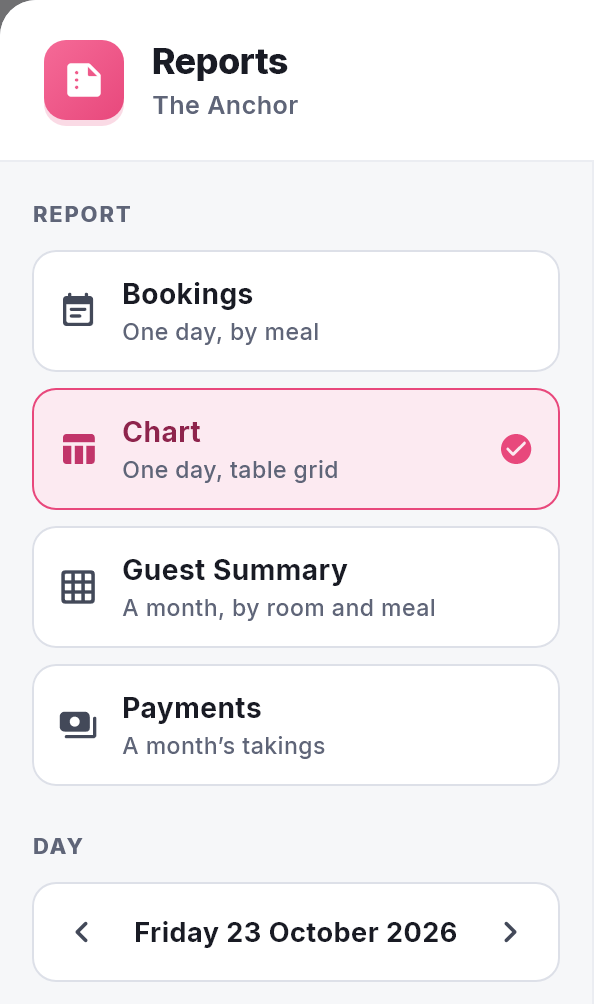
2. Pick Chart. Under Report, click Chart (One day, table grid).
3. Choose the day. It starts on the day you were looking at. Use the arrows under Day, or click the date to pick another.
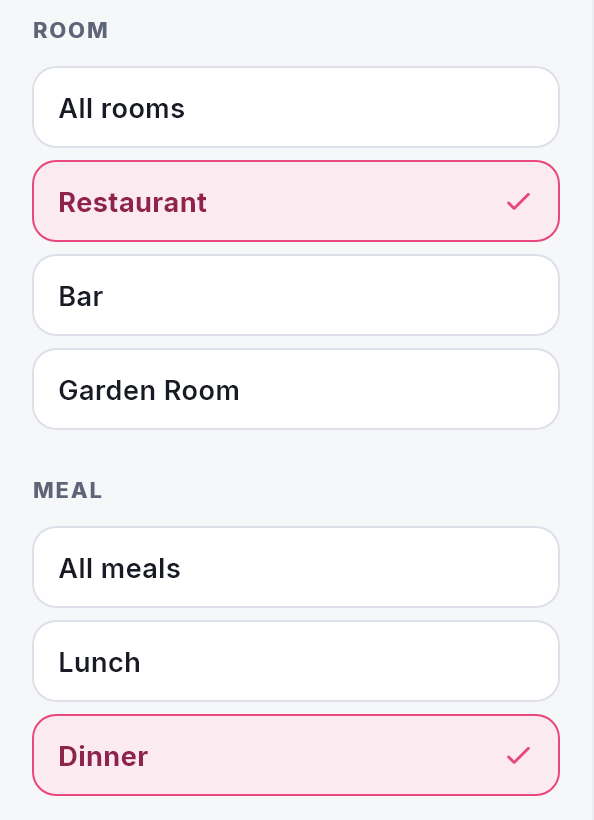
4. Choose the area and the meal. If you have more than one area, pick one under Room or choose All rooms; it starts on the one you were viewing. Under Meal, choose All meals or one of the meals you serve that day.
5. Print. The chart appears on the right as you choose. Click Print to open your browser’s print window, or Download to save it as a PDF.
In NomNom Web: Reports & printing (printer icon, top bar) → Chart.
Print it from the phone app
1. Go to the day. On the bookings screen, show the day, area and meal you want on the chart.
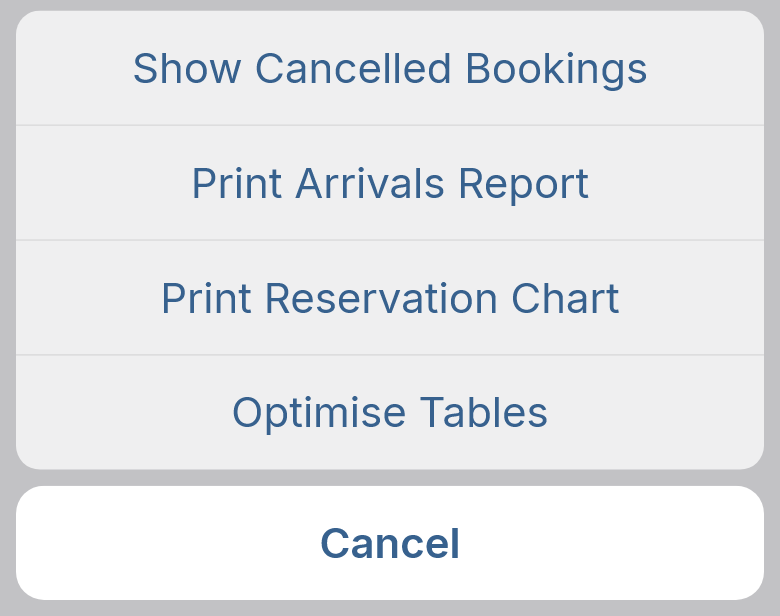
2. Tap the three dots at the top right, then Print Reservation Chart.
3. Tap the printer icon to print, or the share icon to send the PDF on.
Reports in the app’s menu has the same chart under Chart, always for every area.
In the phone app: bookings screen → three dots → Print Reservation Chart.
What’s on the chart
- A heading, Reservation Chart, with the date and the area and meal you chose. Page numbers are at the bottom.
- Times across the top in half-hour columns on the 24-hour clock, with the hours in bold.
- A row for every table in the area, labelled with its name and seats, such as Table 12 and 4 pax. Tables with nothing booked are printed too, so you can see they’re free.
- A bar for each booking, from its start time for the length of the booking, labelled with the guest’s surname and the number of guests. Long names are cut short, and a very short bar has no label.
- Coloured by status. Each bar is a pale shade of its booking status colour with a darker outline (see Creating your own booking statuses). A booking whose status has no colour prints grey.
- Unallocated — bookings without a table go in a row of their own at the top. It only appears when there are some.
- Nothing is hidden. If two bookings overlap on the same table, its row gets taller and shows them one above the other.
- Bookings on more than one table, including tables you’ve combined, appear on each of their tables.
Which times it covers
With one meal chosen, the chart starts on the hour of that meal’s first booking time and ends an hour after its last, stretching to fit any booking that starts earlier or runs later. With All meals, it runs from the hour of the day’s first booking to the end of its last.
Good to know
- Cancelled bookings are left off. Everything else is printed, including walk-ins and parties who have left.
- Your chart display options don’t apply. The printout always uses the pale colours and always shows parties who have left, whatever’s set under Reservation Editing (see Chart display options: bold colours and fading or hiding parties who have left).
- Lots of tables? The chart carries on over as many pages as it needs, with the times repeated at the top of each.
- No detail options. Full, Compact and Minimal are for the service sheet only.
- It’s a snapshot. Bookings made or moved after you print won’t be on it, so print again if the day changes.
- No tables to display for this room and meal. This means the area you picked has no tables and no bookings without a table. Choose another area, or All rooms.
- Anyone on your team can print it, including Read-only staff (see What Admin, Standard and Read-only staff can do).