When you signed up, the setup wizard asked a few questions about your venue and built your areas, meals, booking times and tables from the answers, so you could take a booking straight away. A few things it chose for you. Here’s what each step set up, and where to change it now.
Everything below is in NomNom Web, and only admins can change it (see What Admin, Standard and Read-only staff can do).
Your details
If you picked your venue from Google at the start, NomNom filled in your address, phone number, email, website, social links and, if you said yes, a photo for your booking page. Check them under Settings → Restaurant Details (see Updating your restaurant’s name, address, phone, website and photo and Checking the photo and description we set up at signup).
Rooms
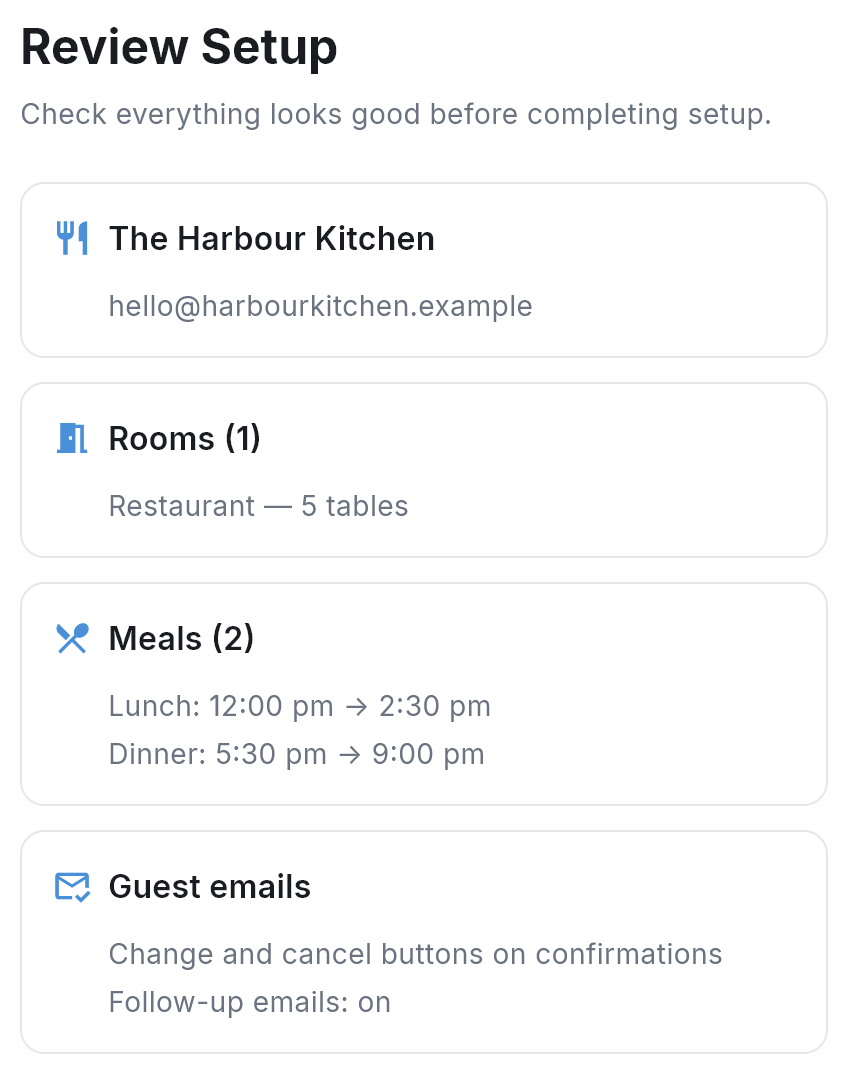
Each space you marked Included became an area, in the order you dragged them into. Those you turned Bookable online on for are offered on your booking page.
Change it: Configuration → Areas. Click an area for its Bookable online switch. See Renaming, reordering or deleting an area: what happens and Keeping part of your restaurant off online booking.
Services
Each service you Offered in an area became a meal there. Two choices carried over:
- Accept online bookings became the meal’s Bookable online switch in that area.
- Default sitting length (2 hours unless you changed it) became the meal’s Default duration: how long every booking holds its table, whatever the party size, until you set longer times for bigger parties.
Change it: Configuration → Meals → click the meal. The sitting length is on its Durations tab. See Creating meals and your booking times and Setting how long a table is held, including different times on certain days.
Hours & days
From each service’s First sitting and Last sitting, NomNom made a booking time every 15 minutes, both ends included, on the days you ticked under RUNS ON THESE DAYS. Lunch from 12:00 to 2:30 pm, for example, gives eleven times: 12:00, 12:15 and so on up to 2:30.
Each of those times has a MAX of 10. That means at most 10 guests can book that exact time online, counting everyone already booked for it. Your team isn’t limited by it. If you’ve plenty of tables, raise it, or set it to 0 for no limit (see What the MAX number on a booking time really counts).
If you gave an area its own times, that area has its own list of times for that meal (see Different booking times for different rooms).
Change it: Configuration → Times. To change the MAX or the days on lots of times at once, see Changing lots of tables or times at once.
Tables
Each table you added has the seats, Online and Dog-friendly settings you gave it. New tables started at 2 seats, online, and not dog-friendly.
Change it: Configuration → Tables. The SIZE, WEB and DOG columns show what each table is set to. See Setting up your areas and tables, Joining tables for bigger parties: table groups and Welcoming guests with dogs.
Guest emails
- Change and cancel buttons. Every new venue starts with these on: guests can change their time or party size, or cancel, from their confirmation email. Change them under Settings → Cancellations & No-shows, with Allow online changes, Add change link to confirmation email, Allow online cancellations and Add cancel link to confirmation email. See Letting guests change their own booking online and Setting your cancellation and no-show policy.
- Follow-up emails are on unless you unticked Send follow-up emails. After their visit, each guest is emailed to ask how it went. Change it under Settings → Email Settings → Follow-up, with Send follow-up email (see Following up with guests and collecting reviews).
- Your Tripadvisor page, if you gave one, is the Tripadvisor link on the same Follow-up tab. If you picked your venue from Google, your Google review link was set up from your listing (see Ask guests for a Google or Tripadvisor review).
Password
The password you chose is the one you sign in to NomNom Web with, using the email address you signed up with. To change it, see Changing your own password.
Also switched on for you
- Online booking, with your own booking link (see Turning on online booking and sharing your link).
- The Discover-style booking page (see Your booking page style: classic or Discover-style).
- Starter booking terms and a privacy policy, so neither page is blank. Swap in your own (see Adding your booking terms and privacy policy).
- Confirmation and reminder texts, for venues in the UK, using the free credits your trial comes with (see Buying SMS credits, and the free credits on your trial).
Good to know
- Signed up in the phone app? The app asked fewer questions. Every meal runs every day, takes online bookings and has a 2-hour default duration, and follow-up emails are on. Your booking times, their MAX of 10 and your tables were set up just as above.
- Nothing here is fixed. The wizard only gave you a starting point. Changing any of it later doesn’t move bookings you’ve already taken.
- See it as a guest does. Book a table on your own booking page to check the times you’re offering (see Testing your booking page).
- Next steps. For the order to work through the rest of your setup, see Getting started: setting up your restaurant.