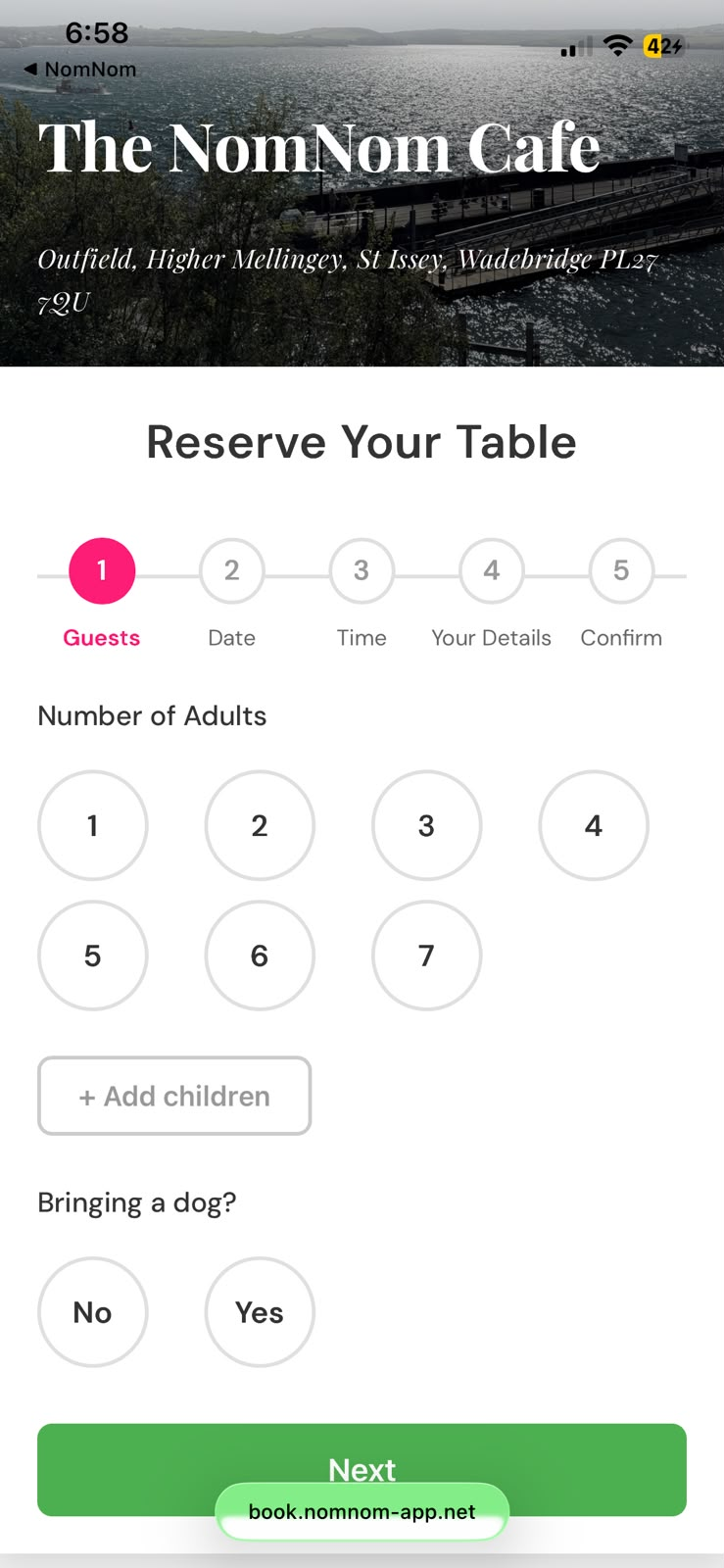
Your online booking page lets guests reserve a table from your website, social profiles, or a link you share directly. You set everything up in the app, and the booking page itself is a public web page your guests open in their browser. There's no rush — work through this at whatever pace suits you.
Find the Online Booking screen
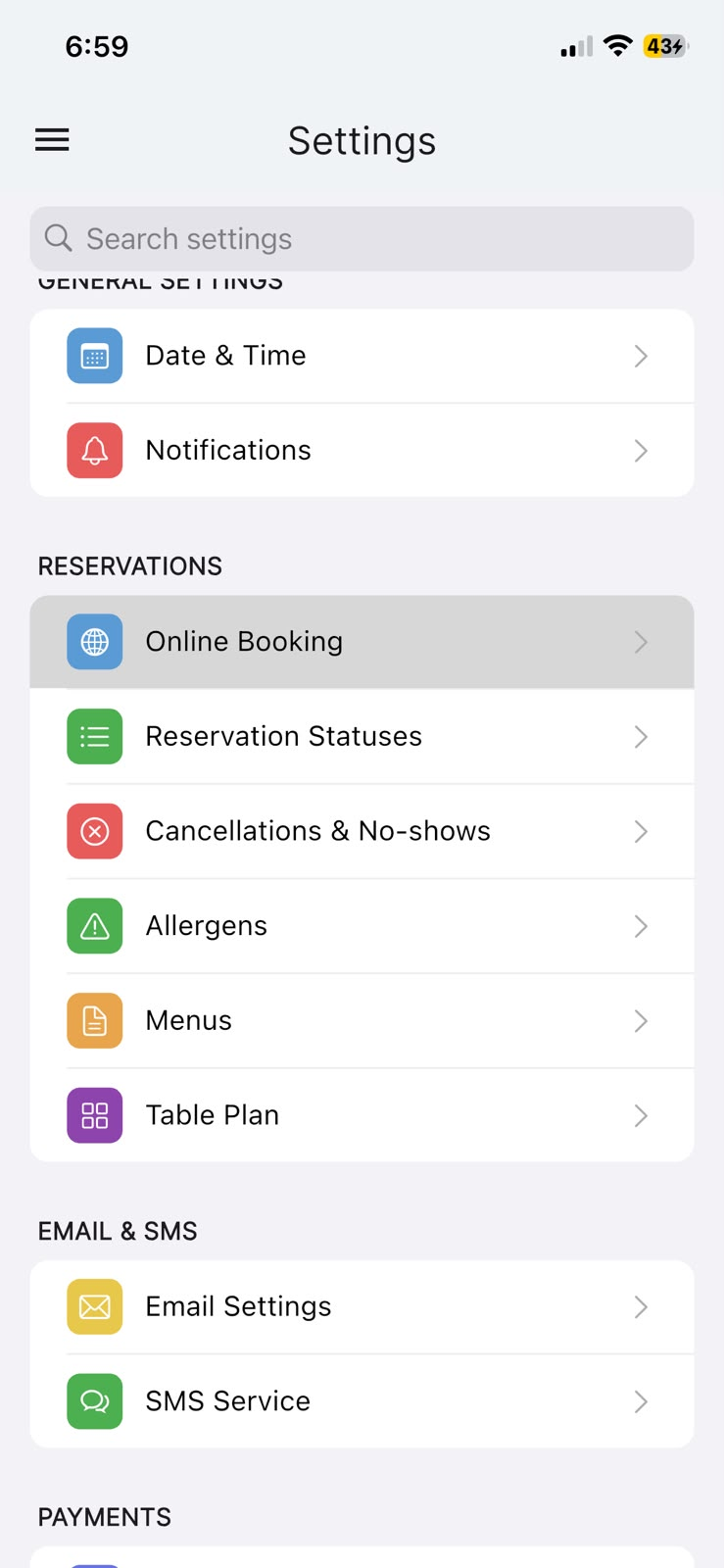
Everything below lives on one screen in the app. Open the menu, choose Settings, then under RESERVATIONS tap Online Booking.
In the app: Settings → Online Booking.
Choose when you're notified about new bookings
Under DEVICE NOTIFICATIONS, the Notifications enabled switch controls whether this device is alerted when an online booking comes in. With it on, Send notification for lets you choose which bookings notify you — for example every booking, or only larger parties.
In the app: Settings → Online Booking → DEVICE NOTIFICATIONS.
Set your booking options
The BOOKING OPTIONS section decides what guests can do on the booking page. You can turn each one on or off as you like:
- Allow notes — lets guests add a note with their booking.
- Children selection — lets guests say how many children are in the party.
- Allergen selection — lets guests flag allergens.
- Mailing list option — invites guests to opt in to your mailing list.
The same section has a No bookings within setting, which stops guests booking a slot that's too close to the current time, and a Dog bookings option.
In the app: Settings → Online Booking → BOOKING OPTIONS.
Set your party-size limits
Under ONLINE BOOKING PARTY SIZE, set the largest party that can book online. You'll see Maximum guests (this becomes Maximum adults, with a separate Maximum children, when Children selection is on). The optional Large party message appears under the guest selection — a good place to ask bigger groups to phone instead.
In the app: Settings → Online Booking → ONLINE BOOKING PARTY SIZE.
Add a header photo and description
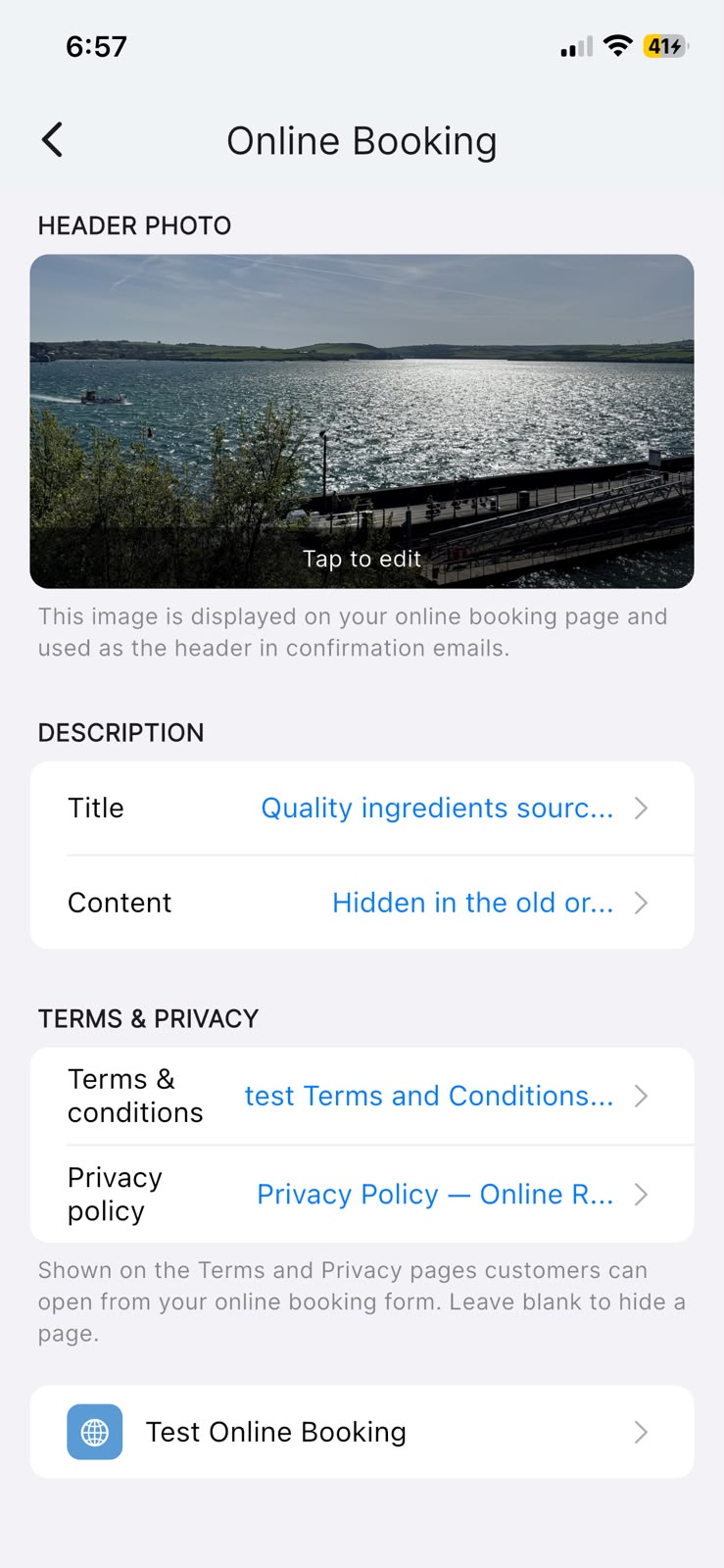
Under HEADER PHOTO, tap the photo area to set the image shown at the top of your booking page (it's also used in confirmation emails). Under DESCRIPTION, the Title and Content fields let you add a welcome message guests see when they open the page.
In the app: Settings → Online Booking → HEADER PHOTO and DESCRIPTION.
Add your terms and privacy policy
Under TERMS & PRIVACY, tap Terms & conditions and Privacy policy to add the text guests can open from your booking form. Leaving one blank simply hides that page.
In the app: Settings → Online Booking → TERMS & PRIVACY.
Preview and share your booking link
When you're happy with how things look, tap Test Online Booking at the bottom of the screen. This opens your live public booking page exactly as guests will see it, so you can check it over. To grab the link to add to your website or social profiles, tap the more button (the circle with three dots) in the top corner of the preview, then choose Copy URL — or Open in Browser if you'd rather view it outside the app. Tap Close when you're done.
In the app: Settings → Online Booking → Test Online Booking.