People & Access is where you look after your team. You can add the people who sign in, choose what each of them can do and which venues they work at, and sign their phones in. You can also keep a list of names for staff who take bookings but never sign in. It’s the same screen in NomNom Web and the phone app, and only admins can open it.
In NomNom Web: account menu (your name, top right) → People & Access. In the phone app: menu → Settings → People & Access (under ADMIN).
Two tabs: Team and Taken by names
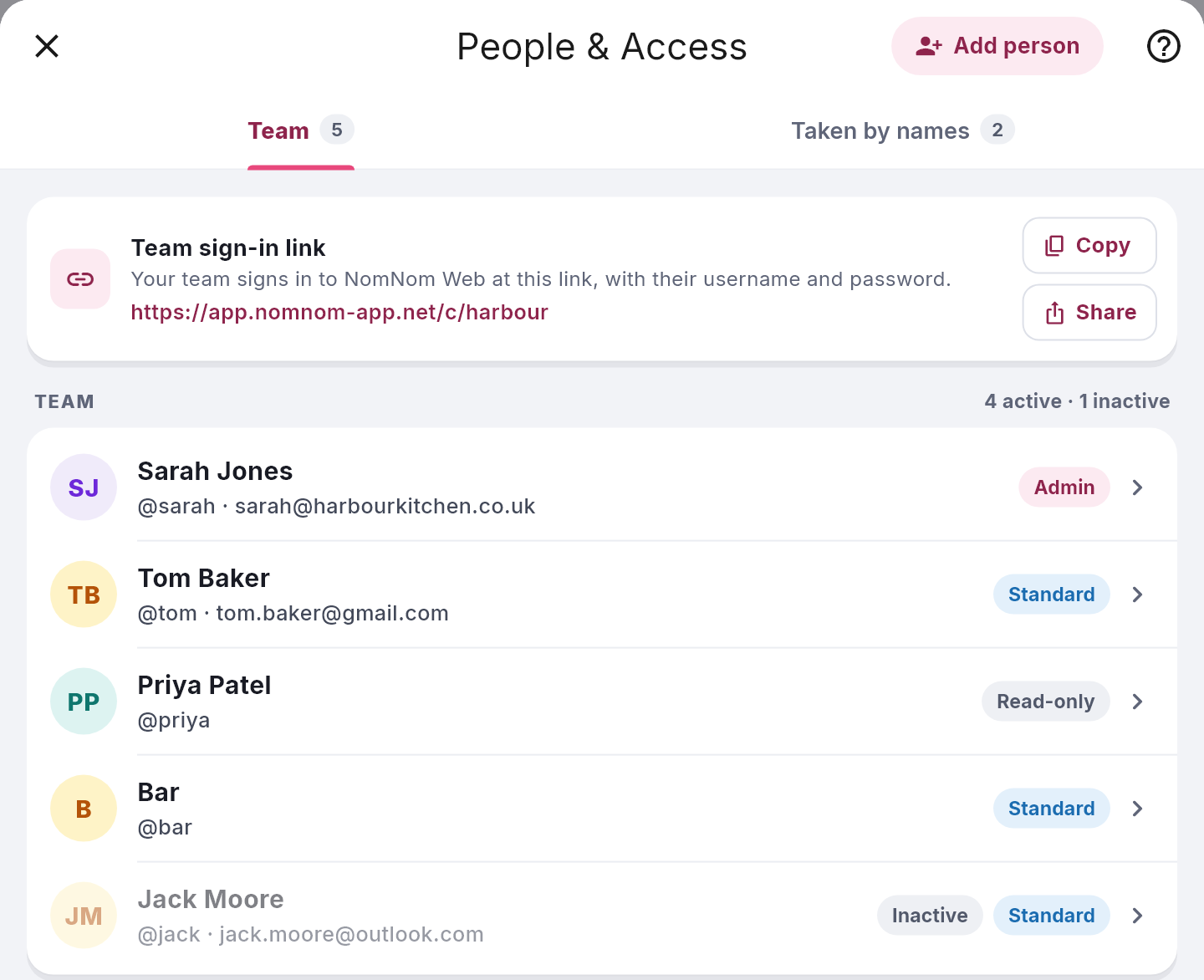
- Team is everyone who signs in, each with their own username and a role. Your Team sign-in link sits at the top (see Your team’s sign-in link for NomNom Web). Under each name is the username they sign in with, after @, and their email if they have one. A pill on the right shows their role, and Inactive shows if they’ve been switched off.
- Taken by names is for staff who take bookings but don’t sign in, so you can still credit each booking to the right person.
The number on each tab is how many it holds. The button at the top right follows the tab: Add person on Team, Add name on Taken by names. Once a list has six or more people, a Search people… box appears above it.
Add someone who signs in
1. Open People & Access and stay on Team.
2. Click Add person. It’s at the top right.
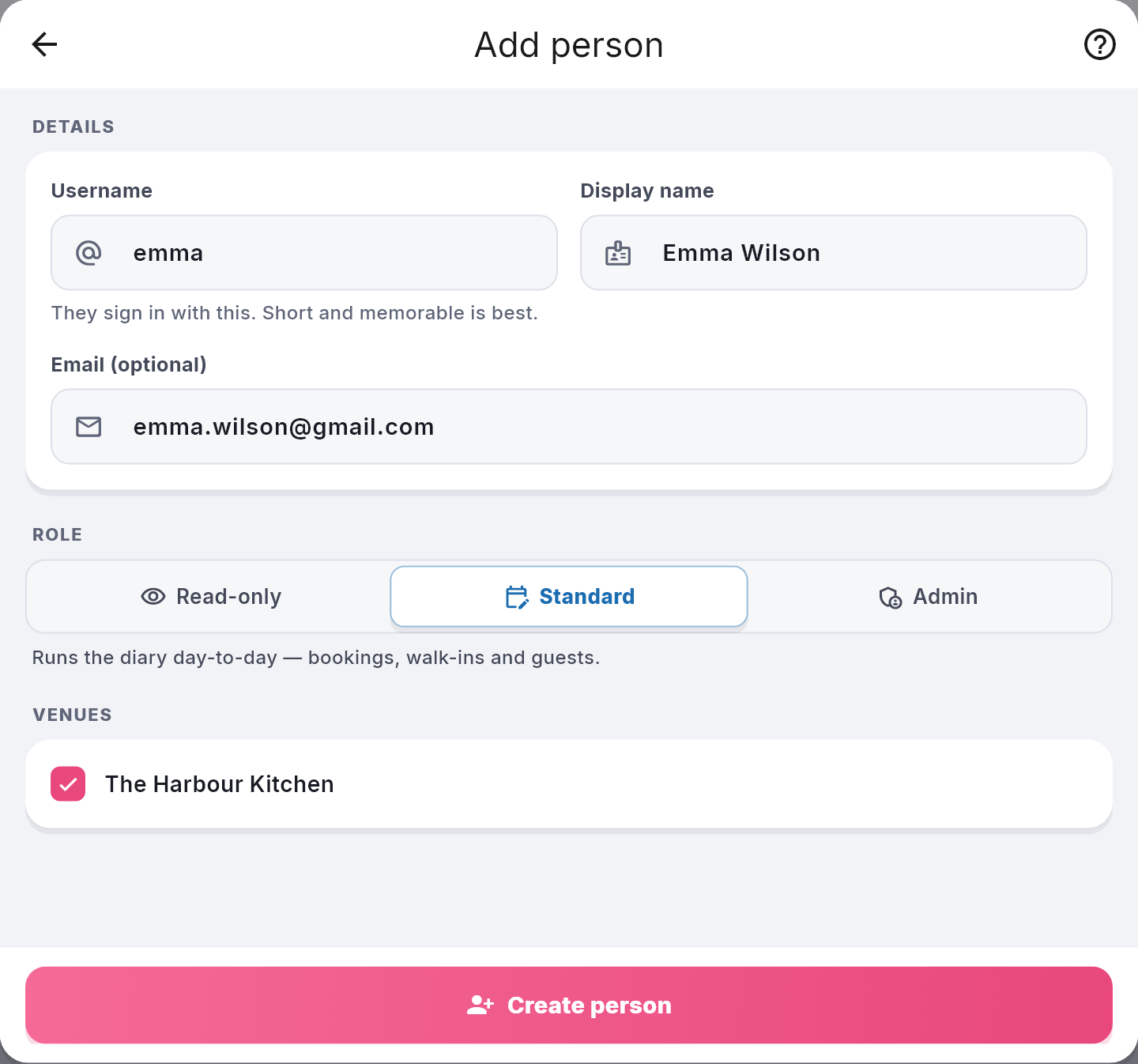
3. Fill in their details. The Username is what they sign in with (“They sign in with this. Short and memorable is best.”). The Display name is the name your team sees, such as Emma Wilson. The Email (optional) is for password resets and emailed sign-in codes.
4. Choose a Role. Click Read-only, Standard or Admin. New people start on Standard. The line underneath says what the chosen role can do (see Roles below).
5. Tick their venues. If you have one venue it’s ticked already. With several, tick each one they work at, or use Select all.
6. Click Create person. It’s at the bottom. You’ll see Emma Wilson has been added, with a reminder that they can’t sign in yet. Click Got it.
If something is missing, NomNom tells you before saving: A username is required. or Select at least one venue.
Give them a way to sign in
A new person has no password yet. As the reminder says, open them from the list and use Reset password to give them a one-time password, or New code under Devices to sign a phone in with an access code.
- For NomNom Web: click them, then Reset password on the Details tab. Confirm with Reset, and a One-time password appears for you to pass on. It works once, and they choose their own password when they first sign in. Or email them their sign-in details instead (see Emailing a member of staff their sign-in details).
- For a phone: click them, open the Devices tab and click New code. If they work at more than one venue, pick the one the phone is for. A Device access code appears. On a new phone they tap Already have an account? on the welcome screen and enter it. The code expires in 48 hours (see Signing in on another device).
In NomNom Web they type their username at your team link. If they can’t get in, see A team member can’t sign in to NomNom Web.
A person’s own screen
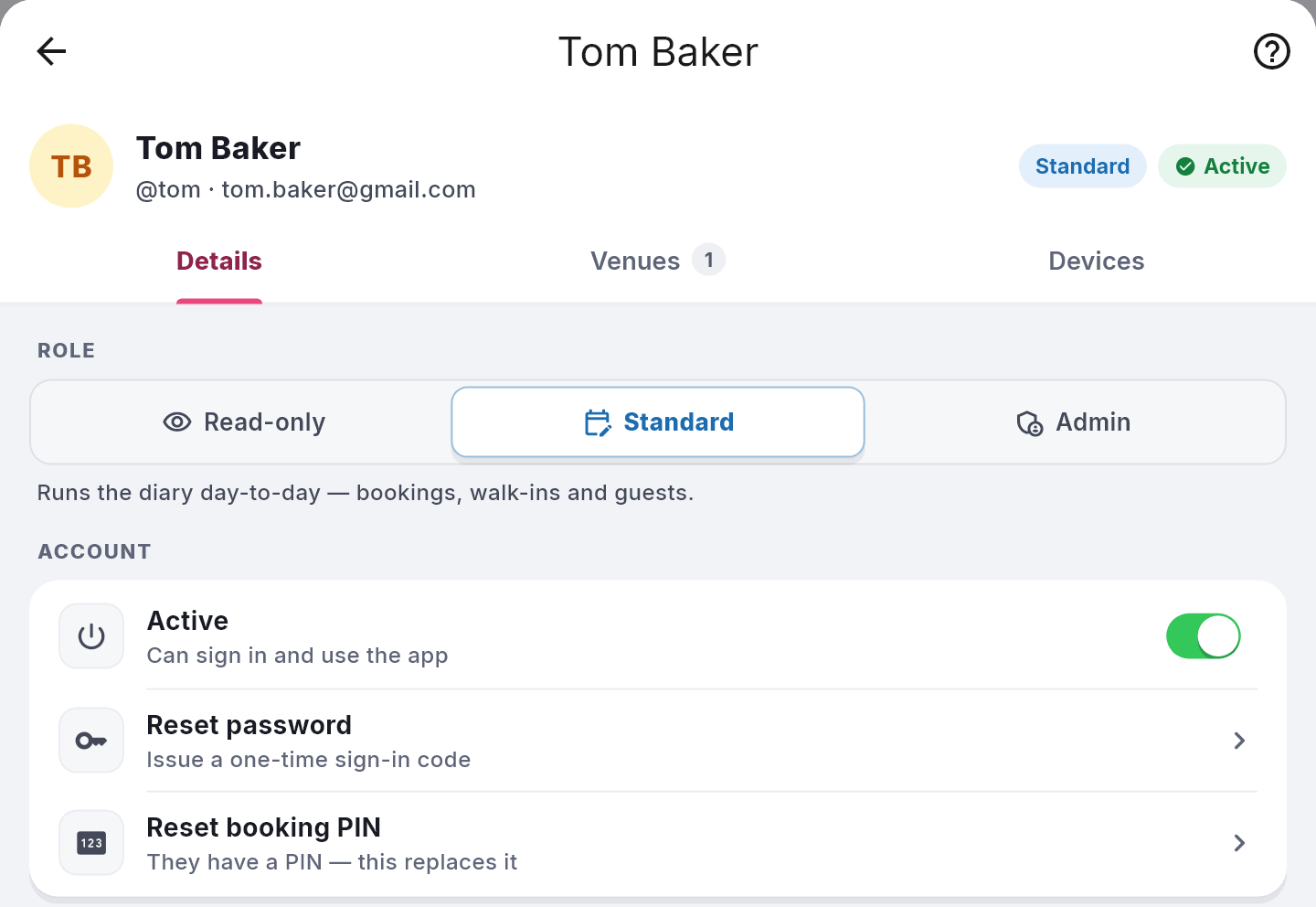
Click anyone on the Team tab. At the top you’ll see their name, their @username and email, their role and whether they’re Active or Inactive. Underneath are three tabs.
Details
- Role: click another role to change it. It saves straight away.
- Signs in: only for a company with more than one venue (see below).
- Active: on, they “Can sign in and use the app”. Off, they’re “Signed out everywhere; cannot sign in” (see When someone leaves: deactivating a member of staff).
- Reset password: “Issue a one-time sign-in code”, as above (see Resetting a member of staff’s password).
- Set booking PIN: “Four digits, entered when saving a booking” (see Requiring a PIN before staff save a booking). Once they have one, it reads Reset booking PIN.
Venues
“The venues Emma Wilson can work at.” Tick or untick them. A Save changes button appears, and you’ll see Venues updated. once it’s saved. Everyone needs at least one venue: untick them all and you’ll see A person must have access to at least one venue.
Devices
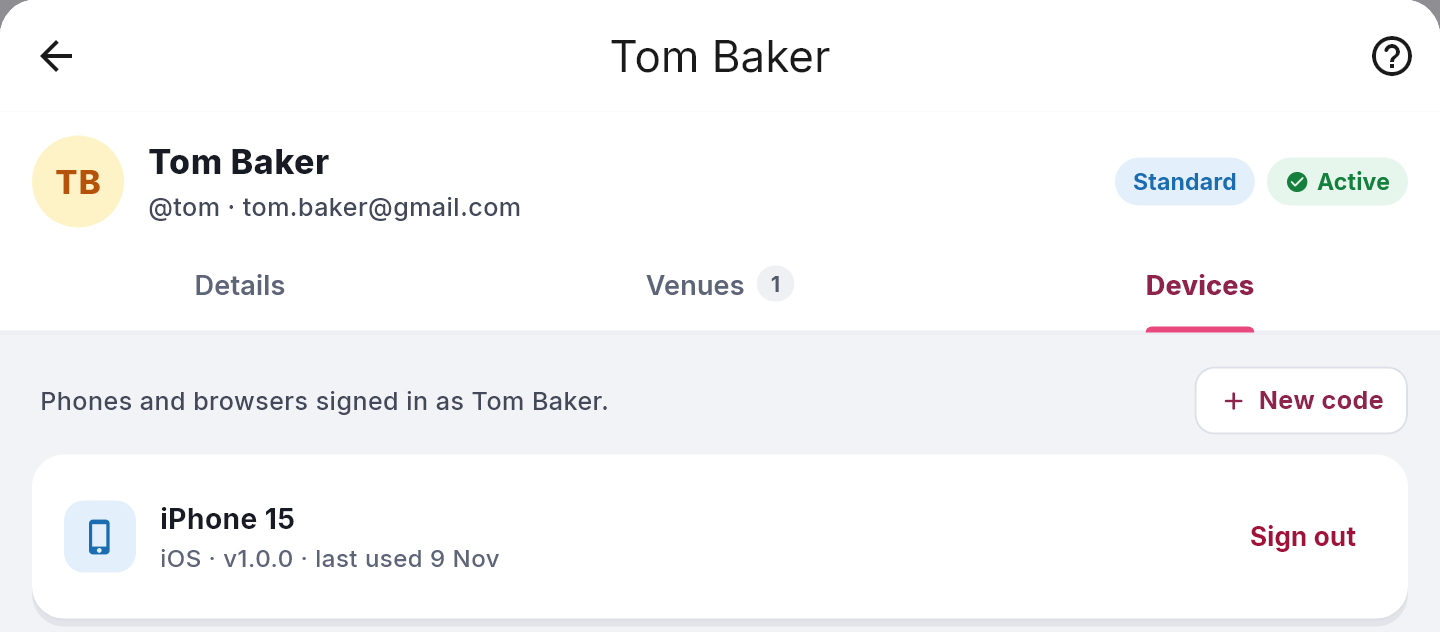
“Phones and browsers signed in as” the person. New code signs another phone in. Sign out beside a device signs just that one out (see Checking which devices are signed in, and signing one out). With nothing signed in, it says No devices signed in.
Roles
- Read-only: “Can view the diary and bookings, but can’t change anything.”
- Standard: “Runs the diary day-to-day — bookings, walk-ins and guests.”
- Admin: “Full access, including settings, configuration and people.”
A person’s role is the same at every venue they work at. The full list is in What Admin, Standard and Read-only staff can do.
Add a name for Taken by
For staff on a shared login who still need credit for the bookings they take:
1. Open the Taken by names tab.
2. Click Add name. It’s at the top right.
3. Type their Name and click Add.
Each name shows Taken by list only underneath, or its venue’s name if you have several venues. Click a name to Change name, switch In the Taken by list off to hide it (it then shows Hidden), or Set booking PIN. A name can’t sign in or have a role, venues or devices. See Recording who took a booking: Taken by.
If you run more than one venue
An admin who looks after the whole company can choose how each person signs in. On Add person, or under Signs in on a person’s Details tab, pick:
- This venue only: “Signs in with a username at this venue.” They have one venue, ticked under Their venue. Tick two and you’ll see A local login belongs to one venue. Untick the others first.
- Across the company: “Signs in with their email, at any venue you tick.” The email becomes Email (required). Their screen shows a Company user pill.
A company with more than one venue also gets an Invite by email card on the Team tab, so the person chooses their own password. Where it’s offered, Add person points you to it instead of the choice above (see Inviting someone by email). To move someone you’ve already added, use Signs in on their Details tab. The account owner always stays Across the company.
An admin of just one venue in a group sees: “You manage the logins at The Quay Bar. Your company admin manages people who work across venues.” Their new people are added to that venue only.
Good to know
- “Verify it’s you”? Some devices must confirm before they can manage people. Click Email me a code, type the code emailed to the account owner, then click Unlock.
- Usernames belong to a venue. Two venues in a group can each have their own “admin” or “bar”.
- “That email address is already in use”? See “That email address is already in use” when adding someone.
- Can’t see People & Access? It’s for admins only. Ask an admin to open it, or to change your role.