Most of your team sign in with a username at one venue, such as admin, bar or tom. That never changes, and nothing here affects those logins.
For someone who works across several of your venues, such as an operations manager, you can invite them by email instead. They get one account, signed in with their email address, and switch between the venues you invite them to. They choose their own password, so you never have to pass one on.
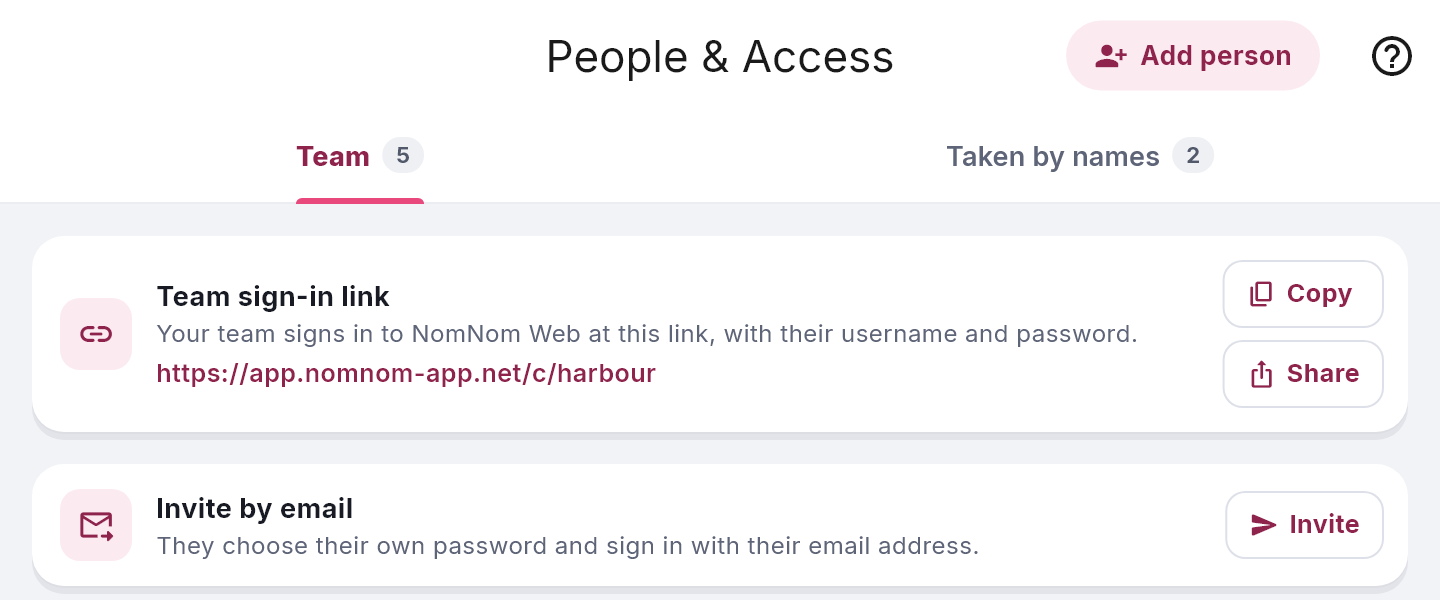
The Invite by email card appears on People & Access when your company has more than one venue.
Sending an invitation
- Open People & Access from your account menu and stay on Team.
- On the Invite by email card, click Invite.
- Enter their Email (“We’ll email them a link to join.”) and Name, choose their Role, and tick the venues they work at.
- Click Send invitation. You’ll see Invitation sent. They get an email with a link that works once, for 7 days.
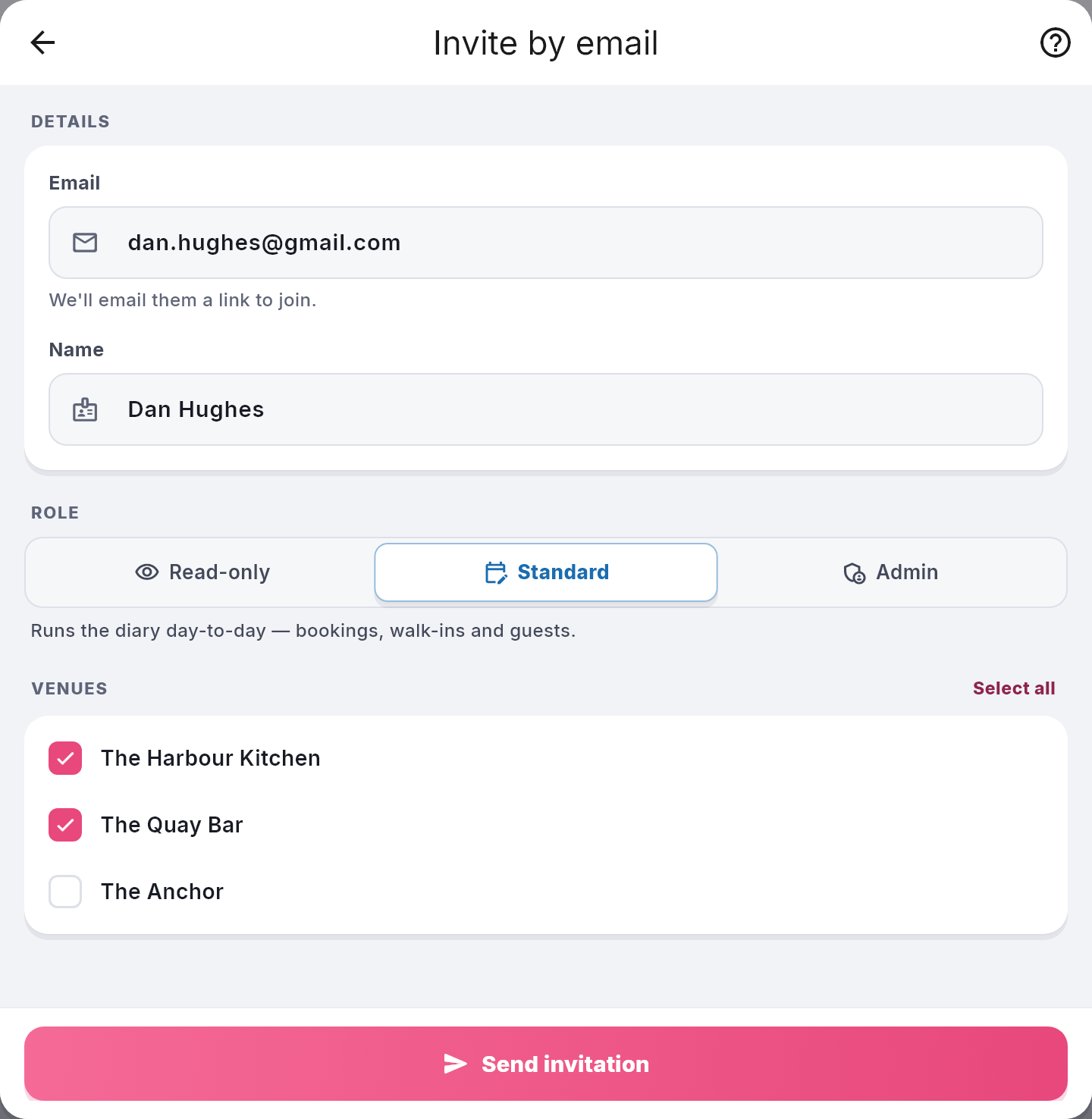
Their role is the same at every one of your venues they’re invited to (see What Admin, Standard and Read-only staff can do).
Pending invitations
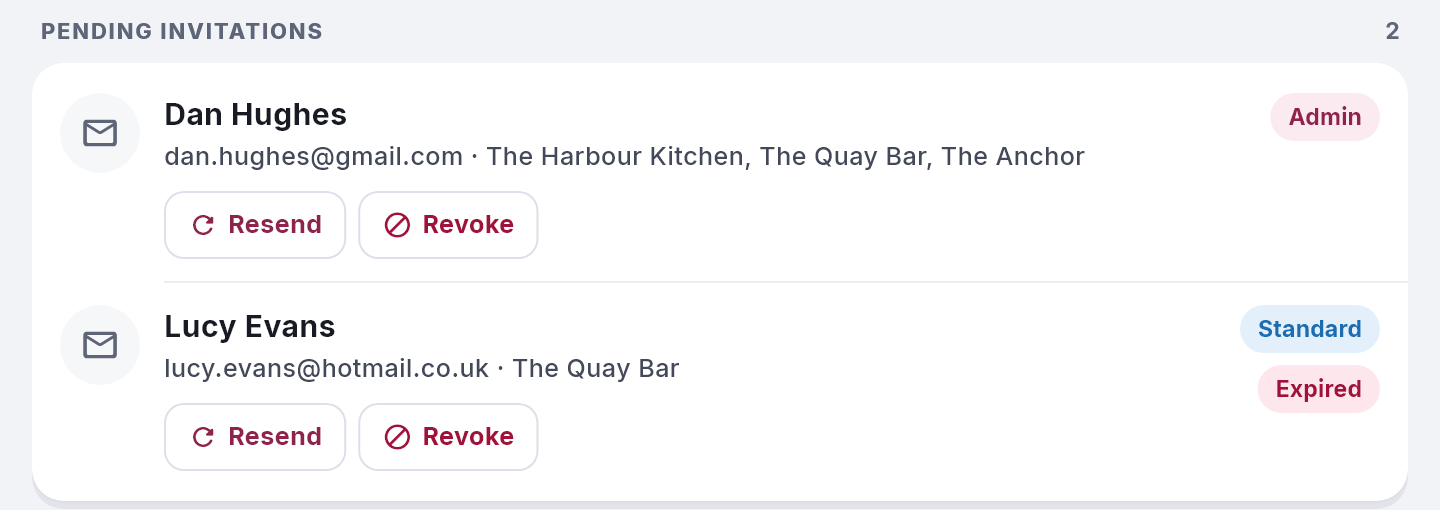
Until they accept, the invitation is listed under Pending invitations on the Team tab, with the venues and role you chose.
- Resend emails a fresh link. The old link stops working.
- Revoke withdraws it. The link stops working, and you can invite them again later.
- An Expired pill means the 7 days are up. Click Resend to send a new link.
What they do
They open the link, check their name, choose a password and click Accept invitation. If they already sign in to NomNom with that email address, they enter their current password instead, and your venues are added to their account.
NomNom Web is for desktop and laptop browsers. If they open the link on a phone, they can still accept it there, and then sign in with their email in the NomNom app or on a computer.
Good to know
- Admins of one venue in a group can invite people to their own venue only. Company admins can invite to any of the company’s venues.
- An address that already belongs to a login at one of your venues can’t be invited. NomNom says so. To give that person more venues, open them in People & Access and make them a company user under Signs in (see Adding someone to your team in People & Access).
- Someone from another company? They can accept with their existing account. See Working for more than one company.
- For a phone, give them an access code from People & Access as usual.