Your team is managed from the web admin portal, not from inside the app. There you can add each staff member, choose what they're allowed to do, and create a code that signs their device in as that person.
Where this lives
User management is a web admin portal feature. The app itself doesn't have a team-management screen — instead, each device is signed in using a code you generate here.
In the web admin portal: sign in, then choose Users from the sidebar.
Adding a team member
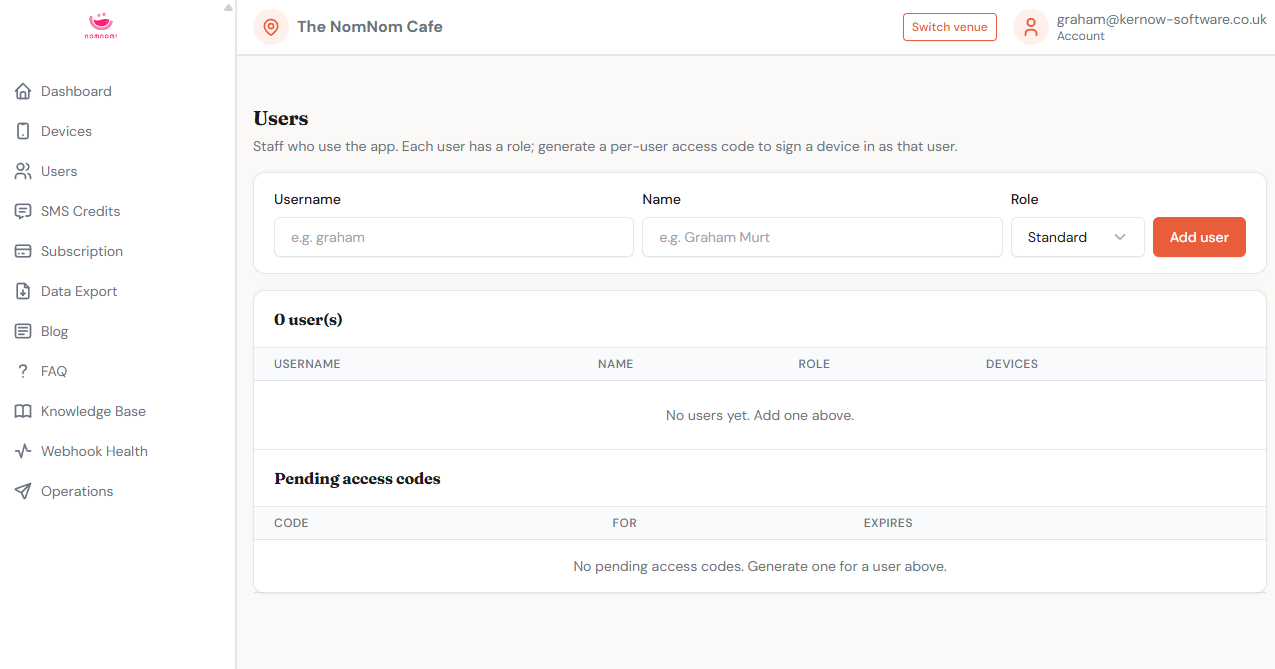
At the top of the Users page there's a short form. Fill it in and the new person is added straight away.
- Username — a short sign-in name (for example, a first name).
- Name — the person's full display name.
- Role — what they're allowed to do (see below). New users default to Standard.
When you're ready, choose Add user and they'll appear in the list underneath.
Choosing a role
Each user has one of three roles, which you can set when adding them or change later from the dropdown in their row:
- Read-only — can view information but can't make changes anywhere.
- Standard — can handle day-to-day reservation work (creating, editing, cancelling and searching bookings) but can't change settings or configuration.
- Admin — full access, including all settings and configuration.
A note on existing team members: anyone without a deliberately chosen lower role keeps full access. Roles only ever restrict people you've intentionally set to Read-only or Standard, so nobody loses access unexpectedly.
Signing a device in for someone
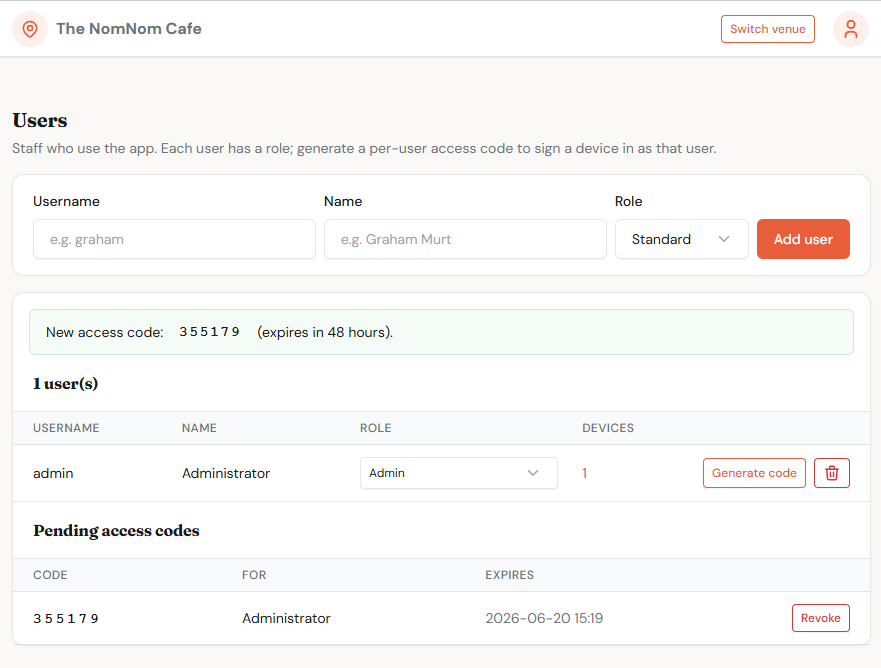
Devices sign in using a 6-digit access code that you generate per user. In that user's row, choose Generate code. The new code appears at the top of the list with the message "New access code:" and it expires in 48 hours.
Hand the code to the team member. On their device, in the app, they enter it on the Enter Access Code screen and tap Verify — the device is then signed in as that user with their role.
In the app: the code is entered on the Enter Access Code screen during sign-in (and can be reached again from Settings → Locations → Add Restaurant → Login to an Existing Account).
Pending access codes
Below the user list, the Pending access codes section shows any codes you've generated that haven't been used or expired yet, along with who each one is for and when it expires. If a code was created by mistake or is no longer needed, choose Revoke on that row.
Changing roles or removing someone
To change what a team member can do, pick a different option from the Role dropdown in their row — the change saves immediately. To remove someone entirely, use the delete (bin) button at the end of their row; you'll be asked to confirm, and deleting a user also signs out all of their devices.
To see which devices are currently signed in and who each belongs to, open the Devices page from the sidebar. Revoking a device there signs it out, and it will need a fresh access code to sign in again.
In the web admin portal: sidebar → Devices.
Locking the app on a device
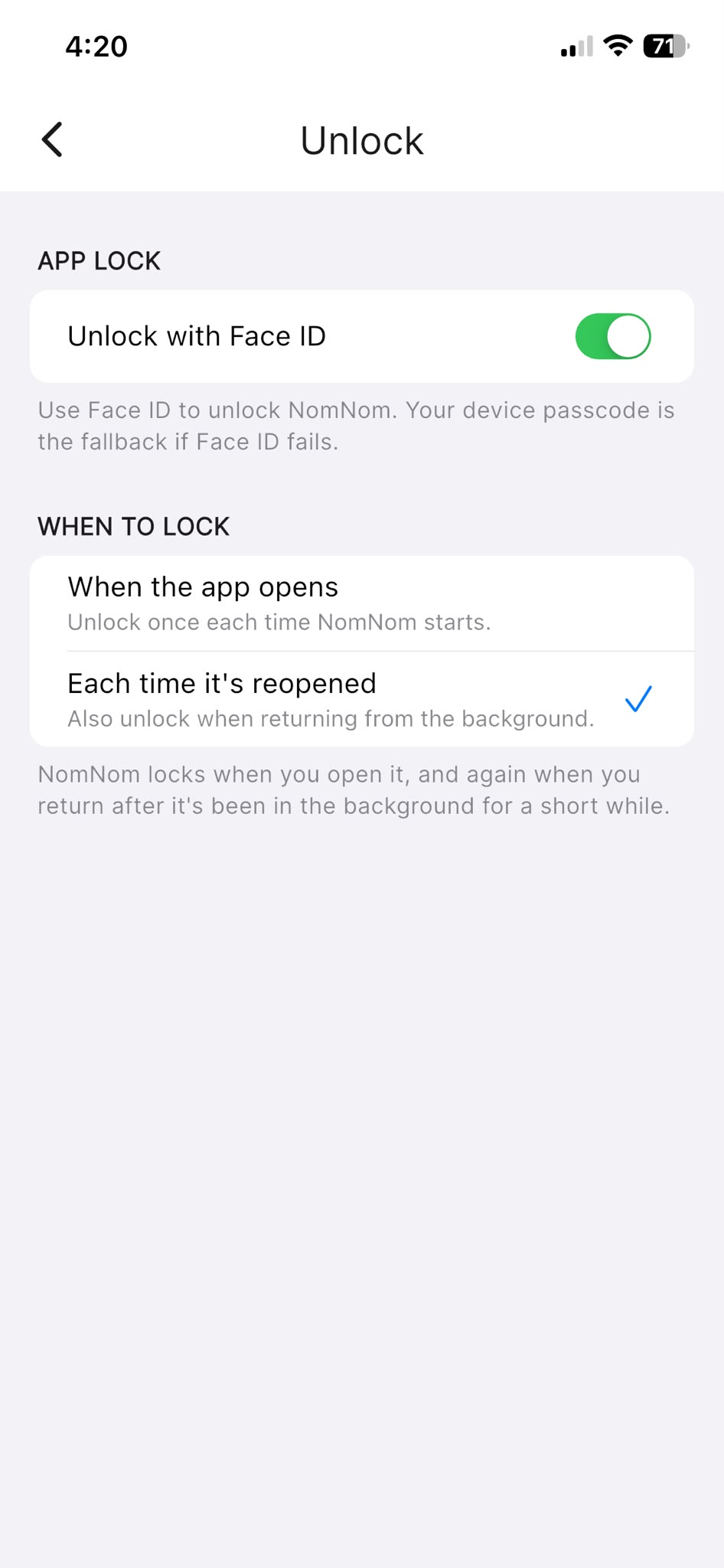
There's no separate PIN inside the app. Once a device is signed in, the optional lock uses the device's own biometrics — Face ID, Touch ID or fingerprint, falling back to the device passcode. A team member can turn this on for their device under Settings → Unlock (shown only on devices that support biometrics). When it's on, the app shows "NomNom is locked" on opening until they unlock.
In the app: Settings → Unlock (under SECURITY).