Sometimes you want a guest's card kept safely on file against a booking — as a commitment, or so you can charge a no-show or cancellation fee later — rather than charging anything now. NomNom lets you ask the guest to add their card to a reservation, and charge it only if and when you decide to.
Holding a card vs taking a deposit
These are two different things, and it helps to keep them apart.
- Holding a card stores the guest's card details against the reservation. Nothing is charged at that point — the card simply sits on file until you choose to use it.
- Taking a deposit actually charges money, either up front when the guest books online or when you charge the card later.
In practice you ask the guest to add their card first, and then — separately, and only if you need to — you charge it. There is no single button that places a temporary authorisation hold on the card; in the app, holding means keeping the card on file, and charging is a deliberate, separate step.
Before you start: connect Stripe
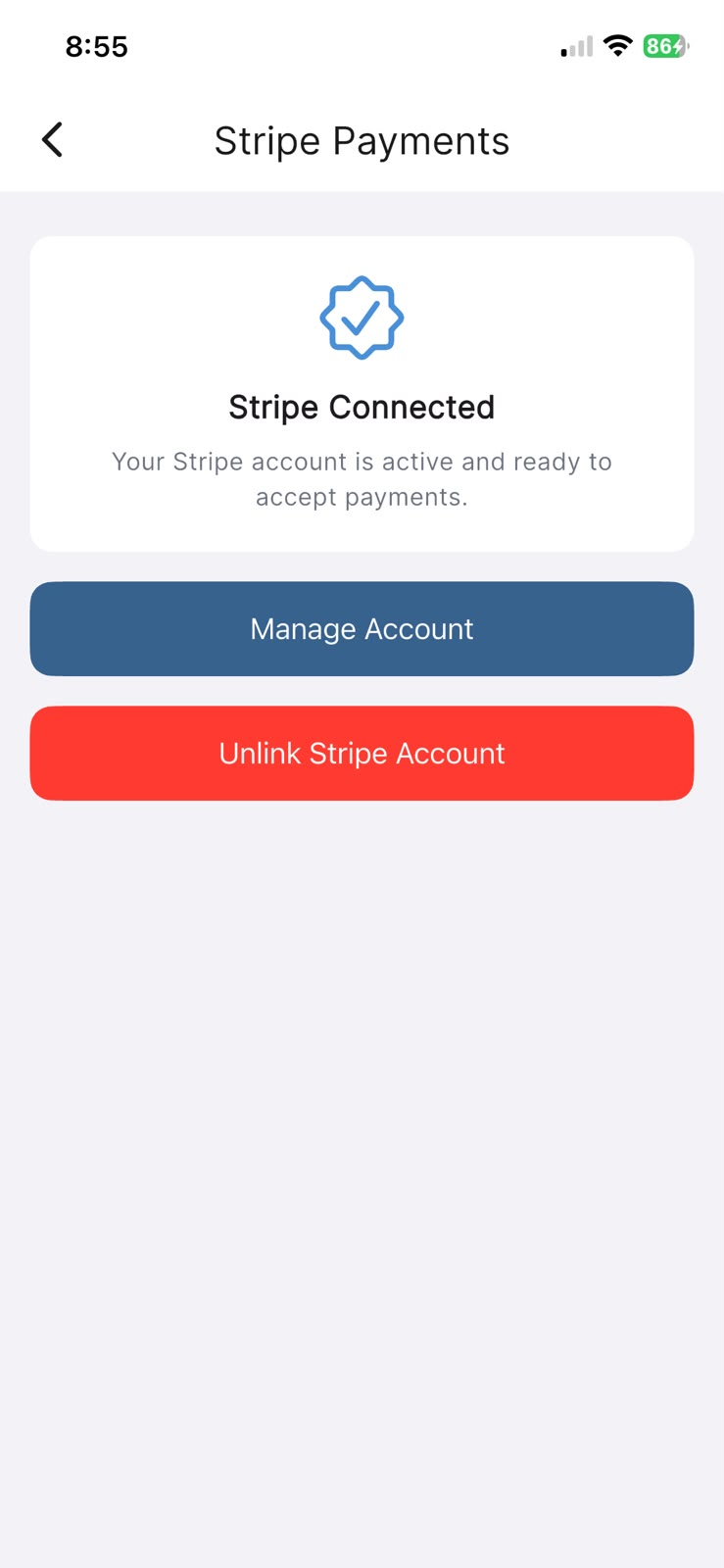
Card features only appear once your venue's Stripe account is connected. Without it, you can't store or charge cards.
In the app: Settings → Stripe → Setup Stripe Account. When it's done, this screen shows Stripe Connected.
Ask a guest to add their card to a booking
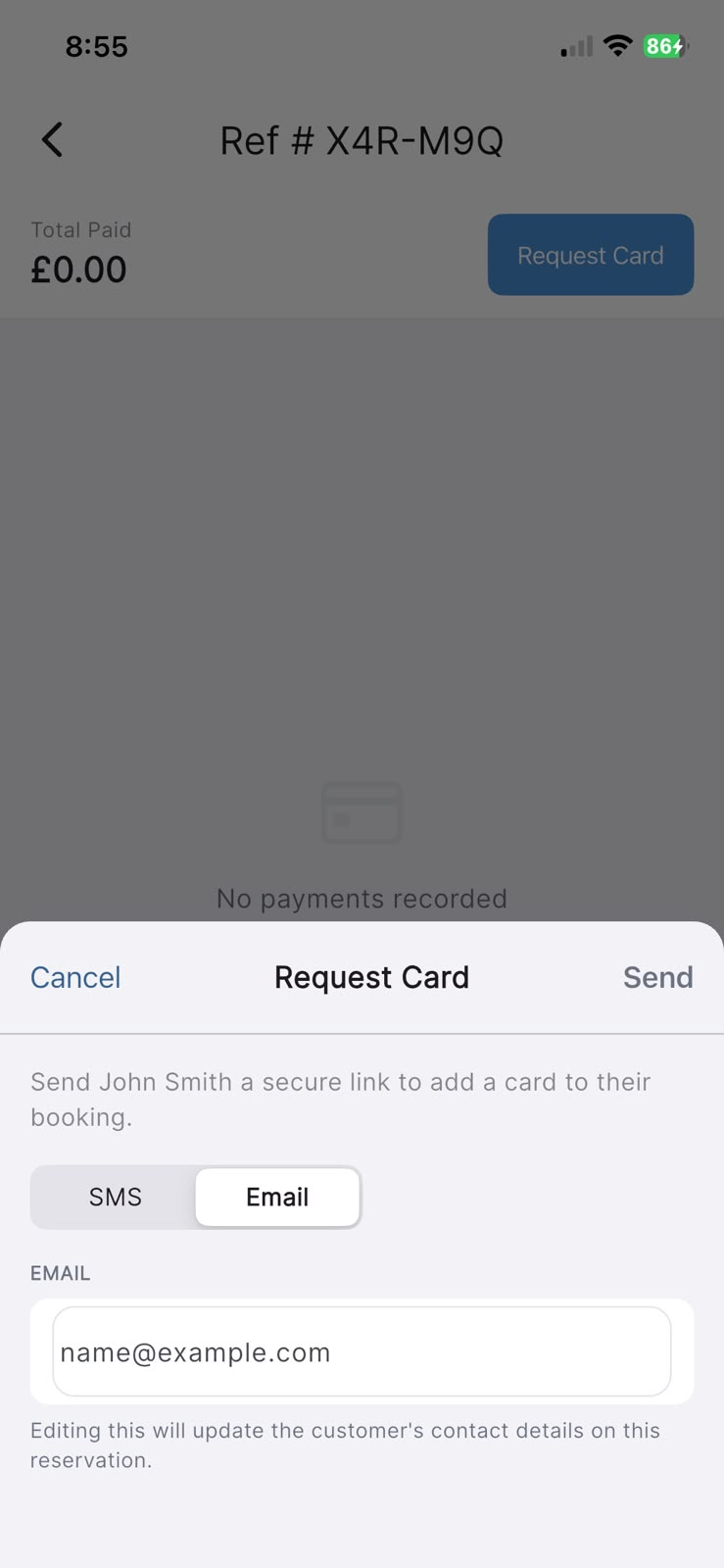
Open the reservation and go to the Card & Payments tab. If there's no card stored yet, you'll see a Request Card button.
- Tap Request Card.
- Choose how to send the link — SMS or Email — and check the recipient details (the guest's mobile or email is filled in for you).
- Tap Send.
The guest receives a secure link and adds their card on a safe web page. Once they do, the card appears on the Card & Payments tab as a card on file — no charge is taken.
Note: editing the recipient in this step also updates the guest's contact details on the reservation. If a card is already stored, you'll be told the card is already on file rather than sending another request.
In the app: open the reservation → Card & Payments tab → Request Card → choose SMS or Email → Send.
When the booking is still waiting for a card
If a booking needs a card but none has been added yet, the reservation shows an Awaiting card — booking not yet secured banner near the top. That banner clears on its own the moment the guest finishes adding their card, so there's nothing to tick off manually.
Charging the card later
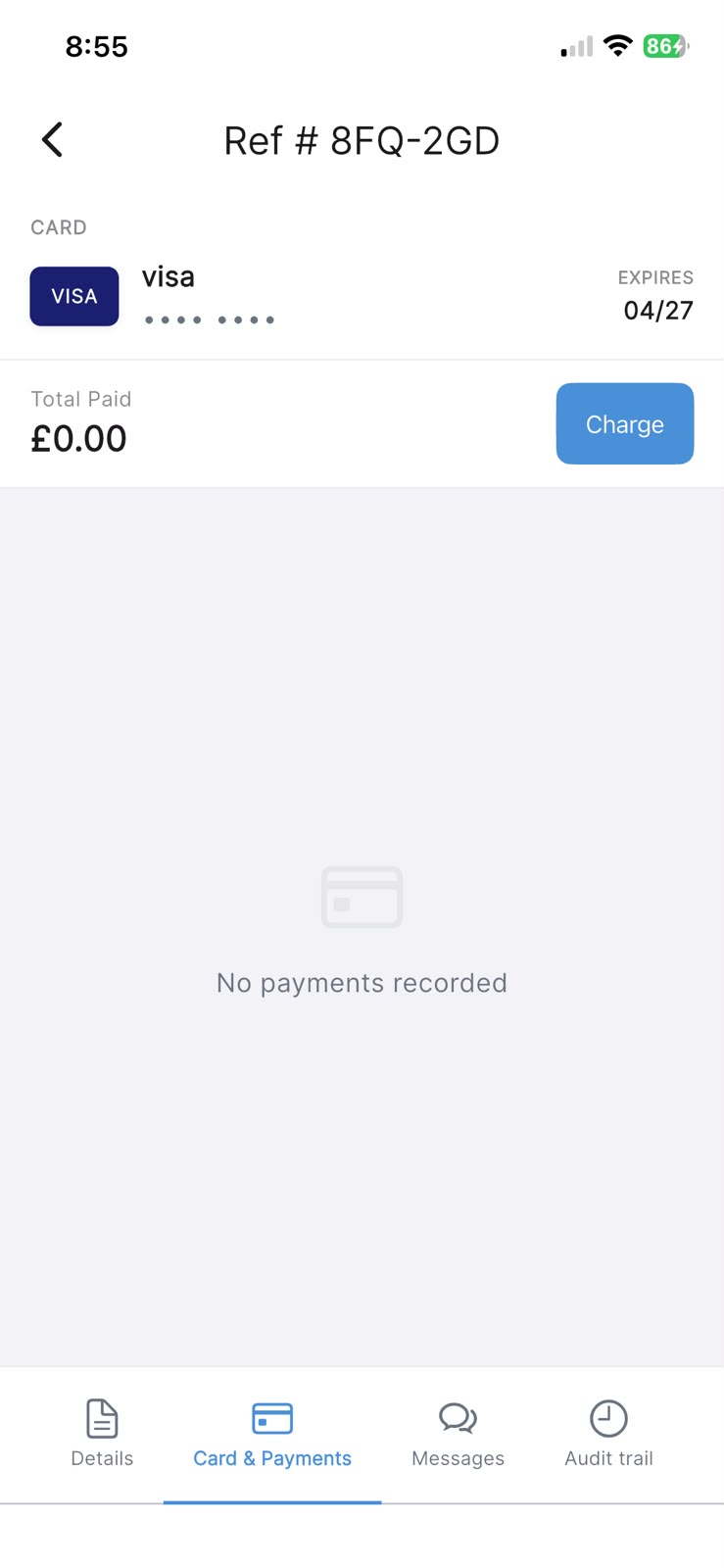
Once a card is on file, the Card & Payments tab shows the card details, and the button changes to Charge. This is how you'd take a fee or a deposit against the stored card.
- Tap Charge.
- Enter the amount and an optional description, then tap Charge to confirm.
Charges you take appear in the list on the same tab, and you can refund them from there if needed.
In the app: open the reservation → Card & Payments tab → Charge.
A quick recap
- Connect Stripe once, under Settings → Stripe.
- Use Request Card on a reservation to store a guest's card without charging it.
- Use Charge later, on the same tab, when you actually want to take money.