Before you can take booking deposits or sell vouchers, your venue needs a connected Stripe account. Stripe is the secure payment provider that handles the card details and pays the money into your bank — NomNom never sees or stores the card numbers. This is a one-time setup, and you can pick up where you left off at any time.
What connecting does
Connecting links your venue to its own Stripe account so card payments can flow to you. Once it is set up and active, you can take deposits on reservations and sell vouchers. Until it is connected, those payment features stay switched off.
Where to set it up
The Stripe connection lives on the Stripe Payments screen.
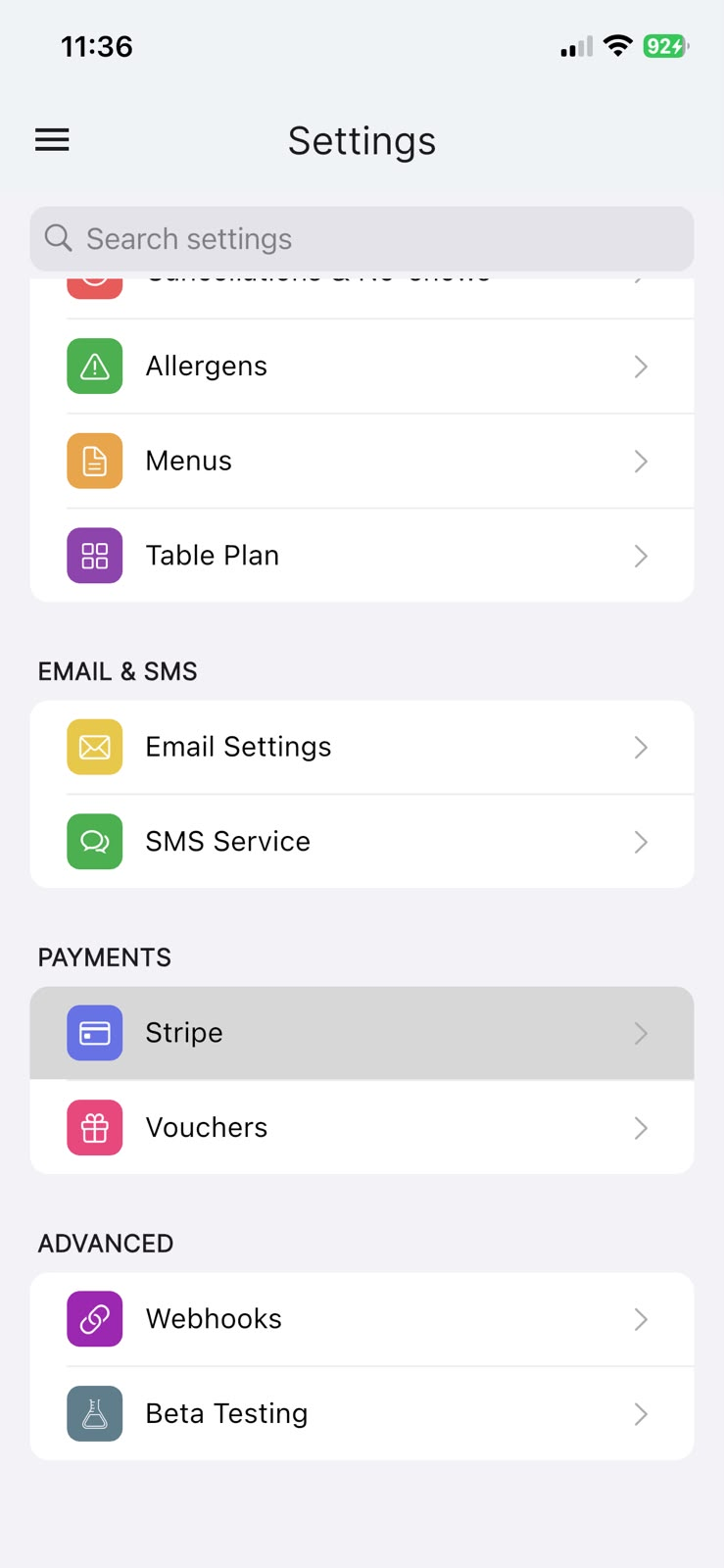
In the app: open the menu (top-left), tap Settings, then under PAYMENTS tap Stripe.
Connecting your account
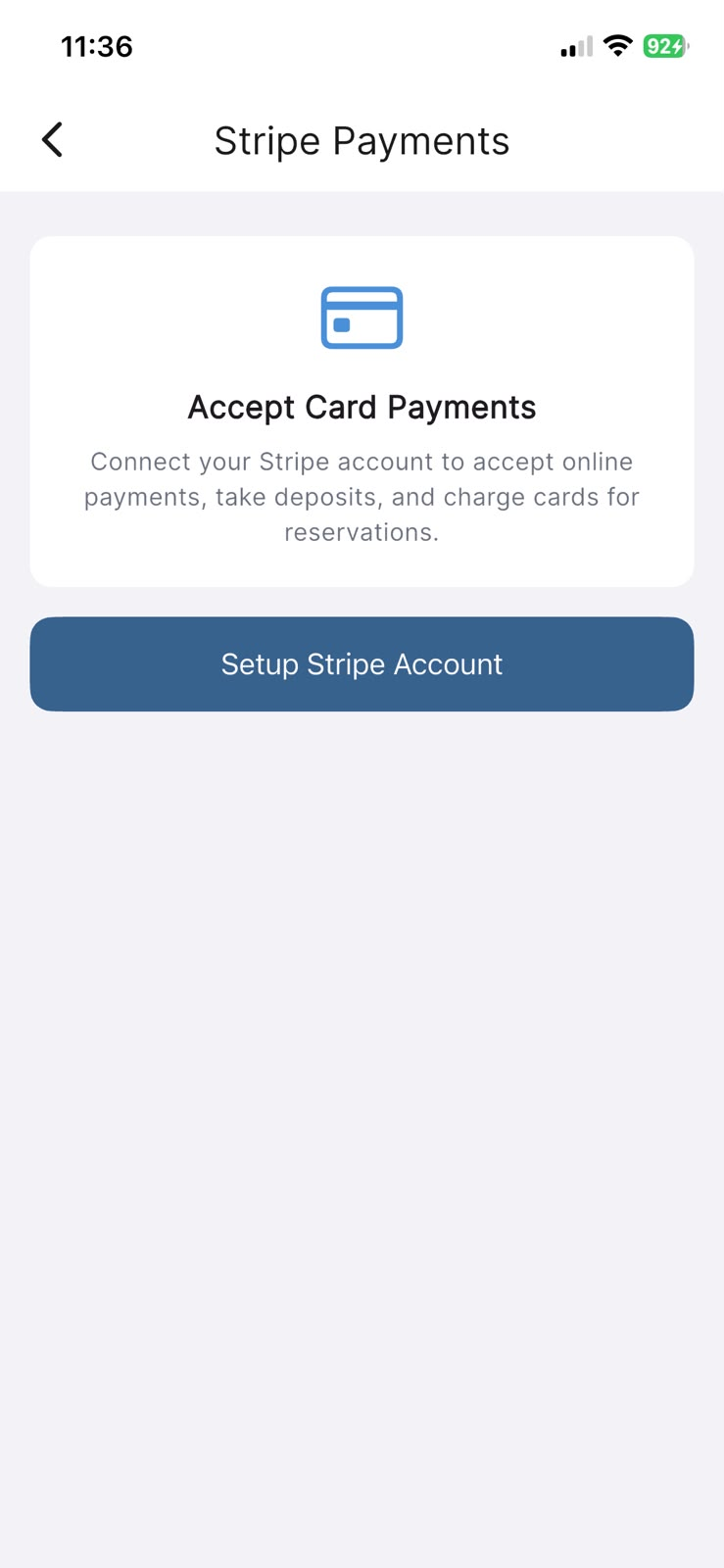
If no account is connected yet, the screen shows an Accept Card Payments card. Tap Setup Stripe Account to begin.
This opens Stripe's own secure onboarding pages inside the app. The form is hosted and run by Stripe, not by NomNom — you will be asked for your business and bank details so Stripe knows where to send your money. Take your time; there is no rush.
When you have finished Stripe's steps, return to the app. NomNom checks with Stripe and updates the screen for you.
If your setup is not finished
Sometimes Stripe needs a little more from you before the account goes live. If so, the Stripe Payments screen shows Setup Incomplete with a Continue Setup button. Tapping it takes you straight back into Stripe's onboarding so you can complete the missing details. This is normal and nothing to worry about.
Knowing it worked
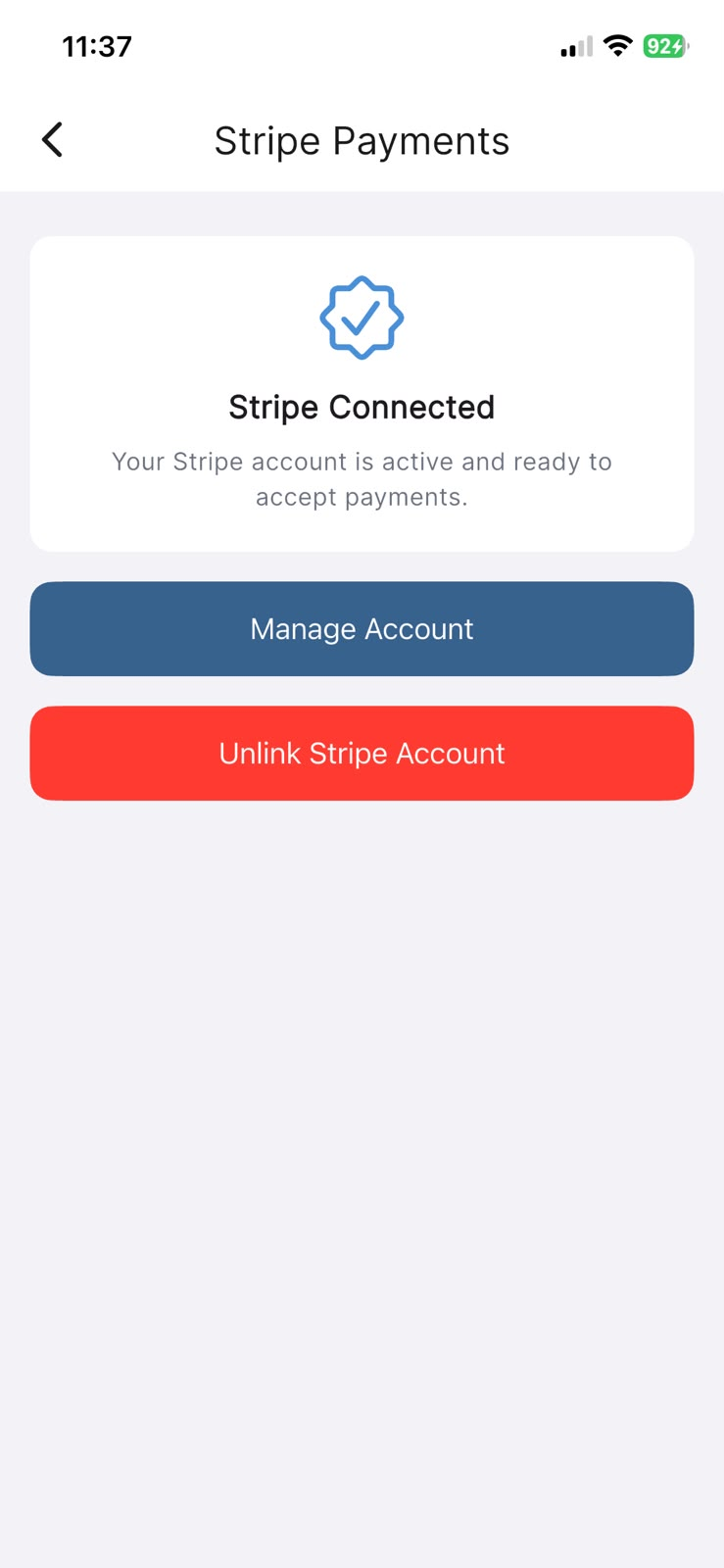
When everything is in place, the Stripe Payments screen shows Stripe Connected and confirms your account is active and ready to accept payments. From here you can tap Manage Account to open your Stripe dashboard (for example to check pay-outs), or Unlink Stripe Account if you ever need to disconnect.
A note for vouchers
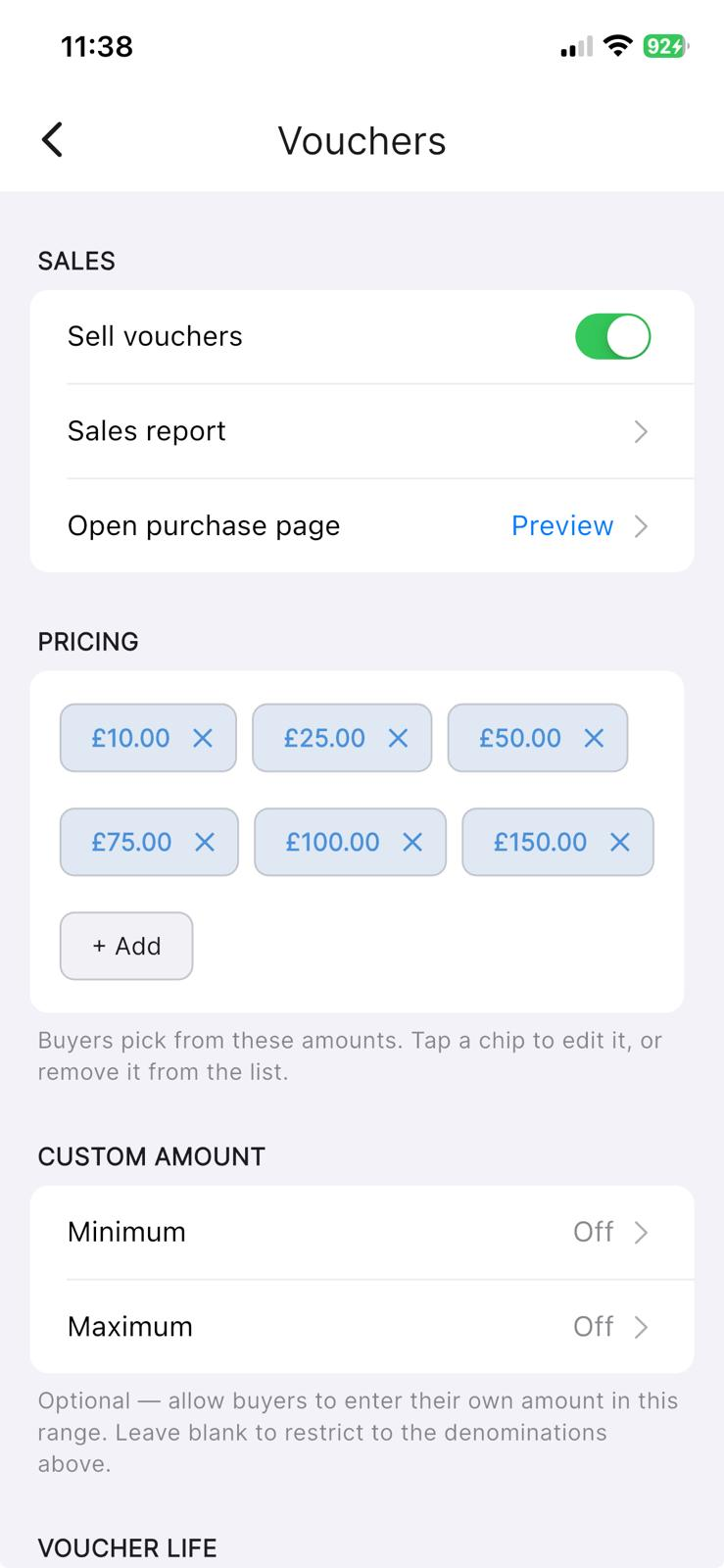
Vouchers rely on the same Stripe connection. If your Stripe setup is not yet finished, the Vouchers screen (also under PAYMENTS in Settings) shows a reminder that reads Stripe onboarding incomplete — vouchers paused, with a Complete Stripe Onboarding button that takes you back into the same Stripe setup. Any vouchers already sold can still be redeemed in the meantime.
In the app: Settings → Vouchers (under PAYMENTS).
If something does not look right
If the Stripe Payments screen cannot load, it shows Couldn't reach the server with a Retry option — this usually just means a brief connection hiccup, so tap Retry. If you have completed Stripe's steps but the screen still shows setup as unfinished, give it a moment and reopen the screen, as it rechecks with Stripe each time. If you are still stuck, please reach out to support and we will be glad to help.