NomNom shows your numbers in two places: the web admin portal has a Dashboard with summary tiles for your whole venue, and the app gives you a live, day-by-day view of the room. Here's how to read each.
The Dashboard tiles (web admin portal)
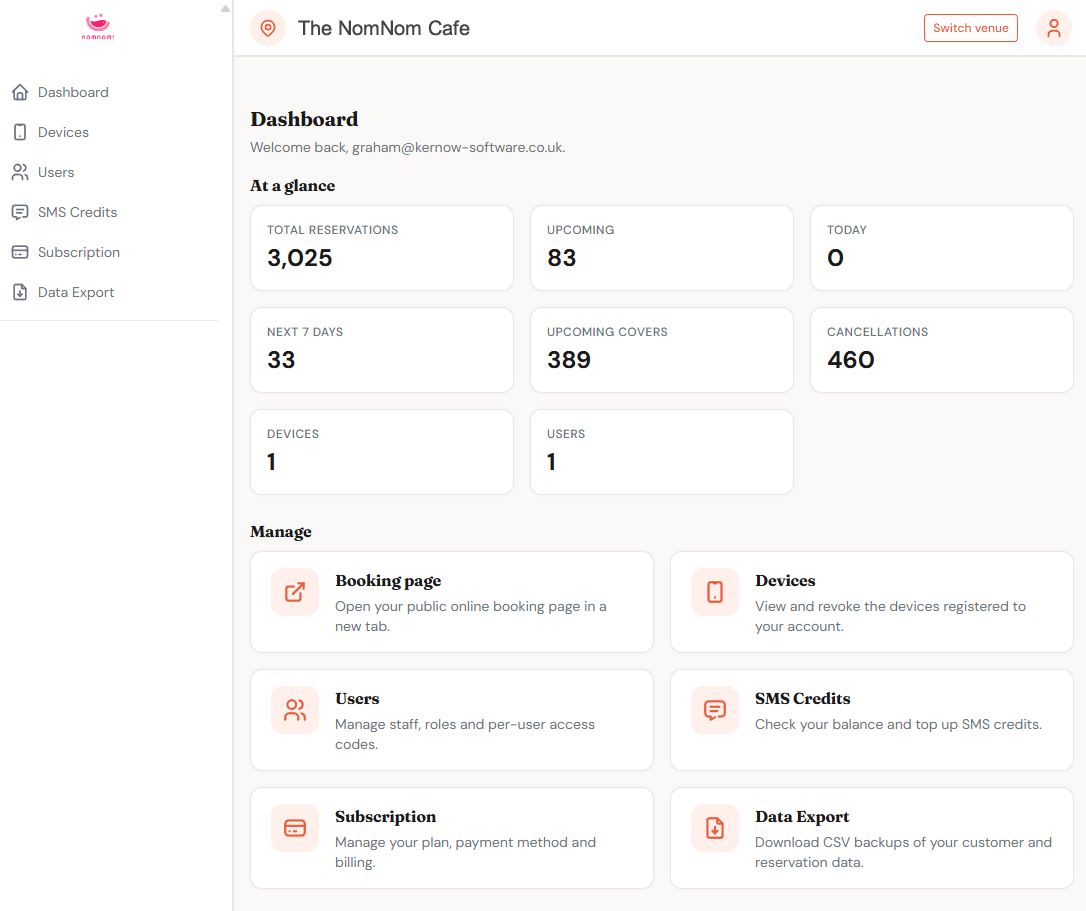
The portal Dashboard opens on a section called At a glance — a row of summary tiles, each a caption above a single number. The numbers cover your venue as a whole, not just one day.
- Total reservations — every booking ever taken (excluding cancelled ones).
- Upcoming — bookings dated today or later.
- Today — bookings for today only.
- Next 7 days — bookings from today through the coming week.
- Upcoming covers — the total number of guests across your upcoming bookings.
- Cancellations — bookings that have been cancelled.
- Devices — the devices currently registered to your venue.
- Users — the staff members set up for your venue.
Cancelled bookings are left out of the active counts (Total, Upcoming, Today, Next 7 days), so those figures reflect tables you're actually expecting to seat.
In the web admin portal: sign in and the Dashboard opens by default.
Jumping into the detail
Below the tiles is a Manage section with quick-access cards. Each opens the matching area of the portal.
- Devices — view and revoke the devices registered to your account.
- Users — manage staff, roles and per-user access codes.
- SMS Credits — check your balance and top up.
- Subscription — manage your plan, payment method and billing.
- Data Export — download CSV backups of your customer and reservation data.
The live view in the app
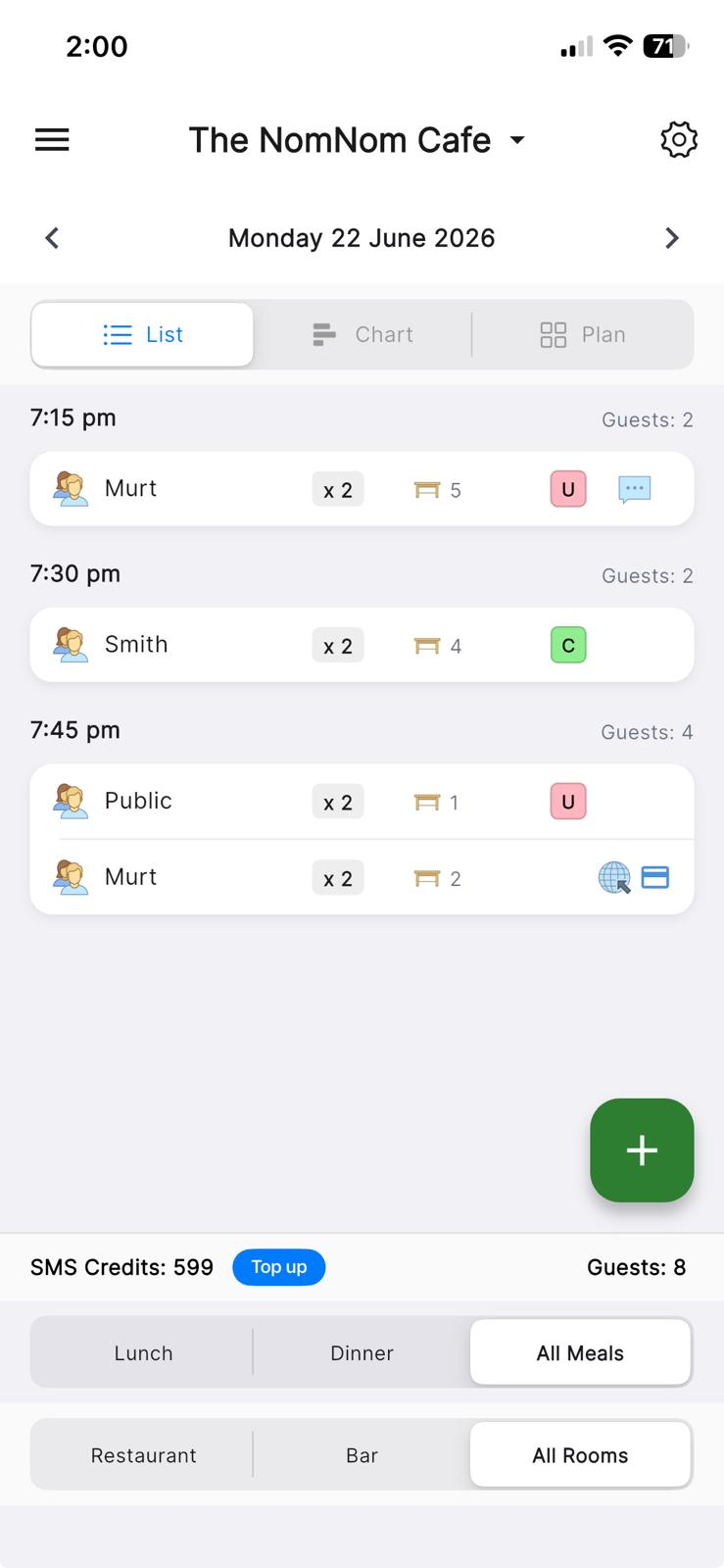
The app's home screen is your working view of a single day rather than a tiles dashboard — it's the first screen you land on, and in the side menu it's labelled Reservations. The date you're viewing sits across the top; tap it to jump to another day, or use the arrows to step a day at a time.
Along the bottom, a footer keeps two running totals in view as you work:
- SMS Credits: your remaining text-message balance for confirmations and reminders. If it runs low, a Top up button appears beside it.
- Guests: the total number of covers booked for the day and filters you're currently viewing.
You can switch how the day is laid out using the toggle near the top: List (bookings grouped by time), Chart (a timeline against your tables), and Plan (the floor plan). If you run more than one meal or area, the buttons along the bottom let you narrow the view to a single meal or area, or show All Meals / All Rooms.
In the app: the home screen — open the menu and choose Reservations to return to it.
Printable reports
For a record you can print or share — a daily run sheet or a monthly payments summary — the app has a dedicated Reports screen. It builds a PDF you can flick between by date, then print or share from the menu in the top corner.
In the app: open the menu and choose Reports, then switch between Bookings and Payments.