Finding a guest is quick from the Search screen. You can look someone up by name, booking reference, phone number or email, and open any matching booking to see its full detail.
Opening Search
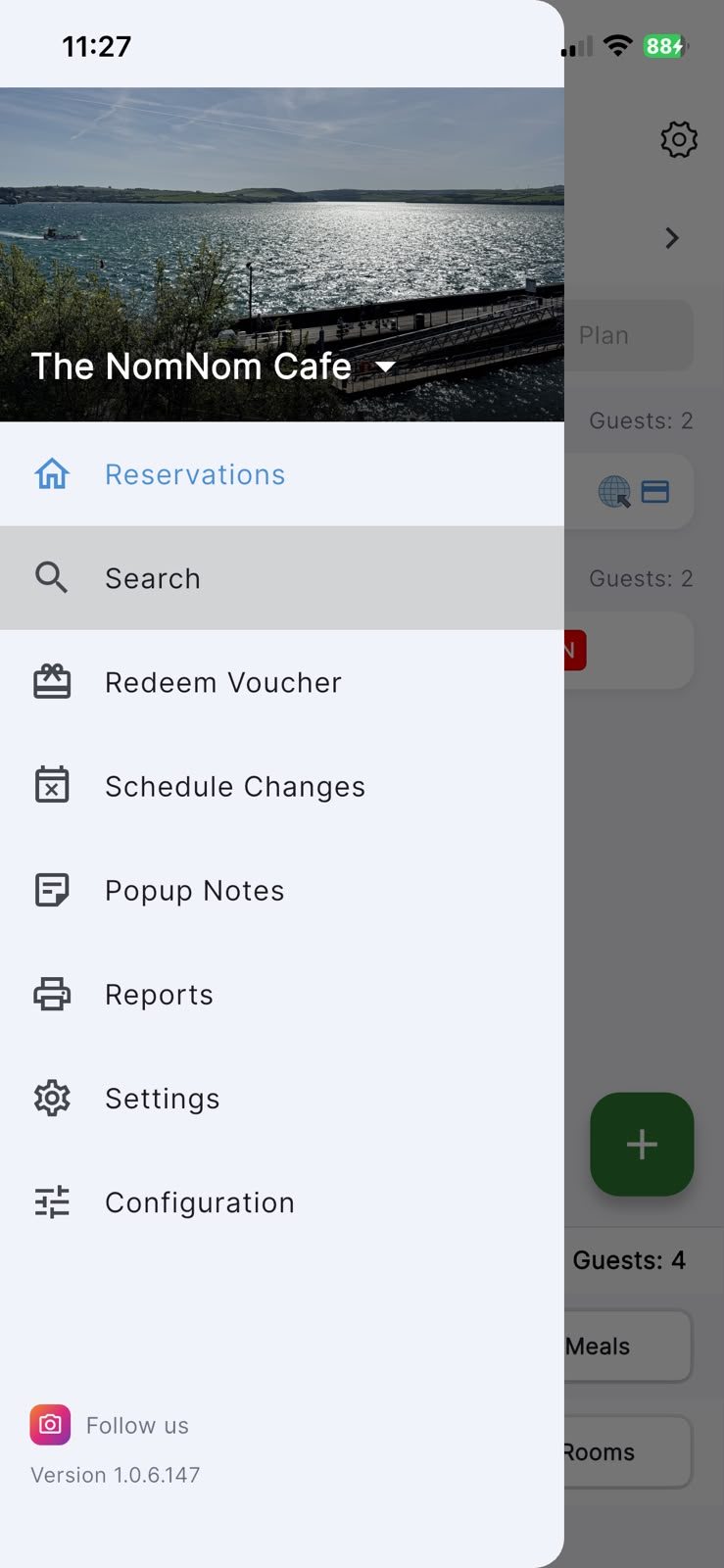
Search lives in the main menu, so it is always one tap away.
In the app: open the menu (the icon at the top-left) and tap Search.
Searching for a guest
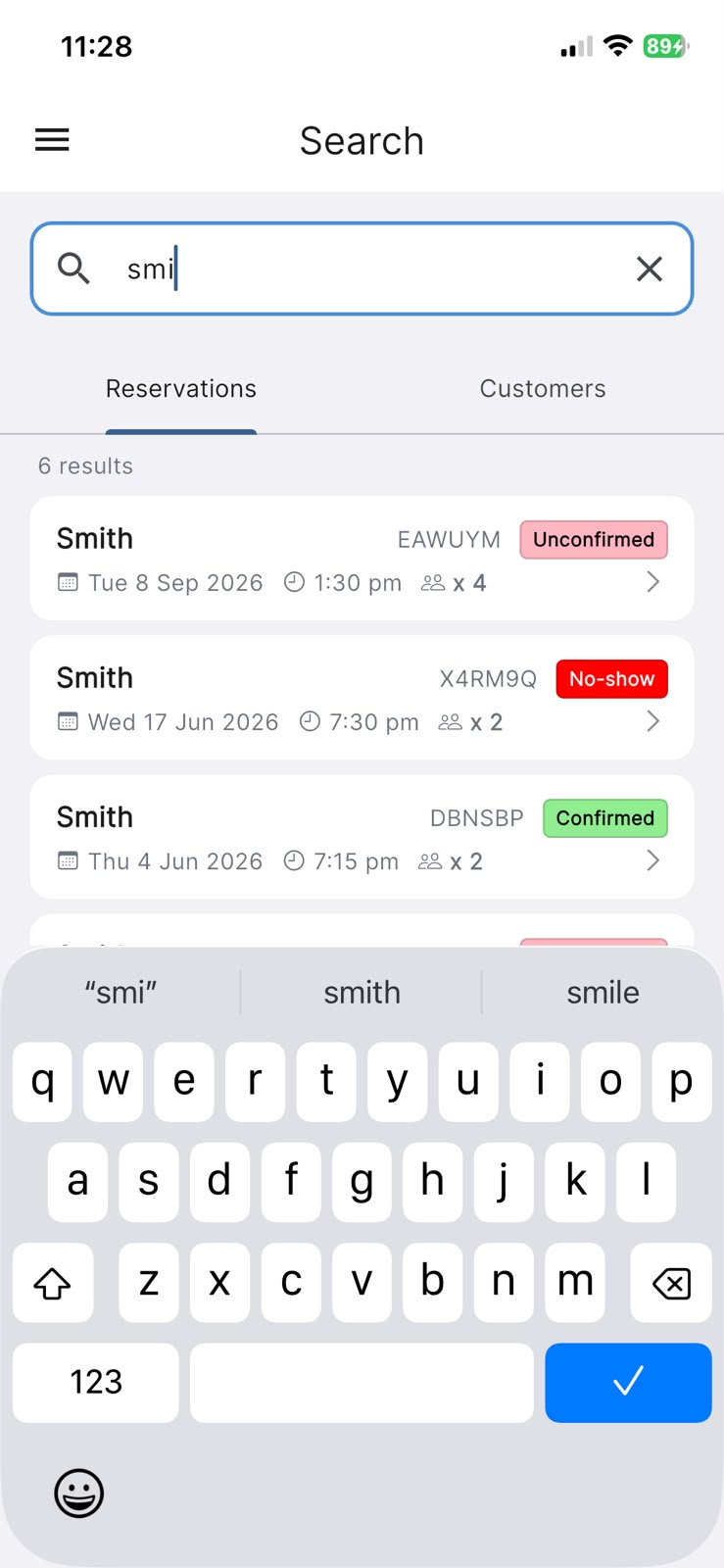
Type into the search box at the top and results appear as you type — there is no separate "go" button. The box accepts a name, a booking reference, a phone number or an email address, so whatever you have to hand will do. You will need at least two characters before results start to show.
The Search screen has two tabs beneath the box:
- Reservations — finds individual bookings that match what you typed.
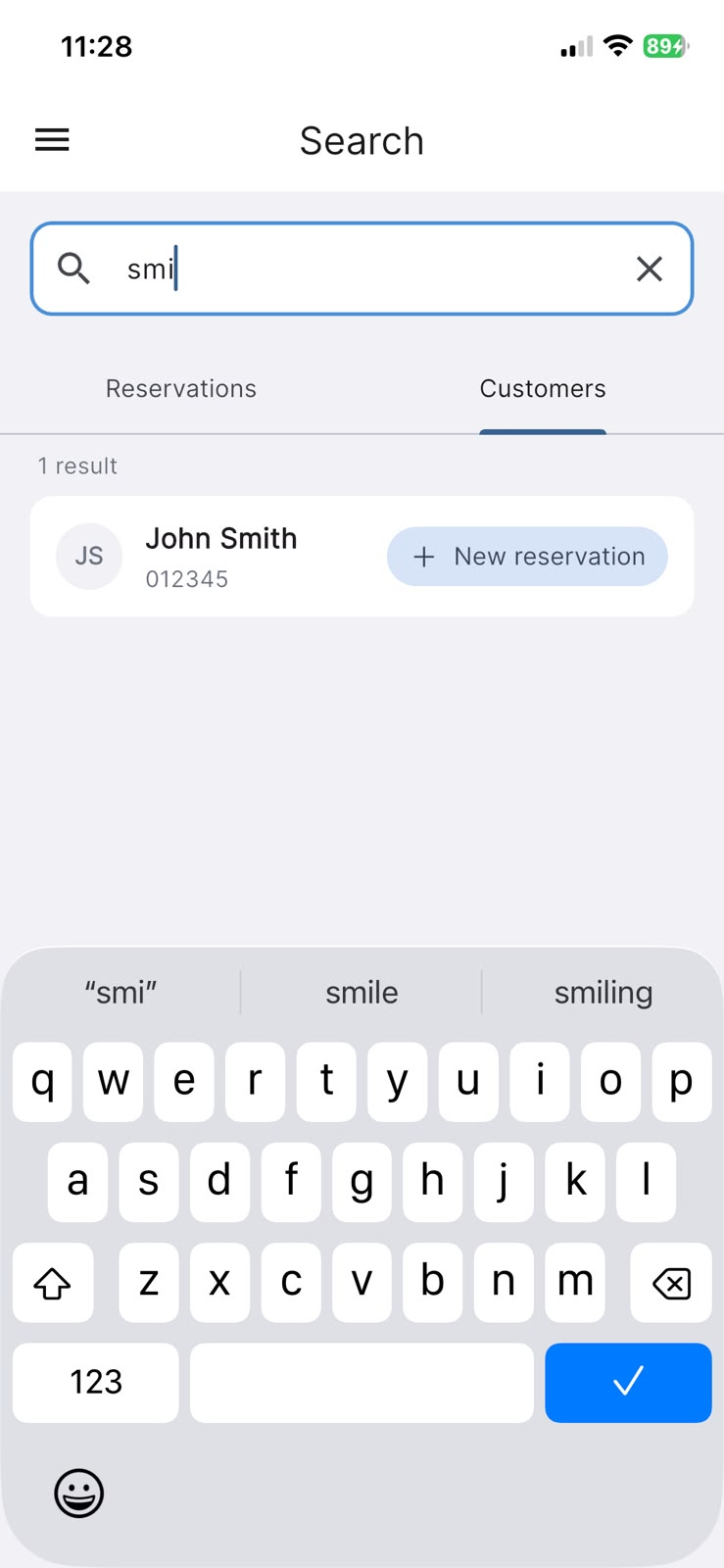
- Customers — finds the guest's saved contact details (name, phone and email).
In the app: menu → Search, then choose the Reservations or Customers tab.
Seeing a guest's bookings
To look through a guest's bookings, use the Reservations tab and search by their name, phone or email. Each matching booking is listed with the guest's name, the date and time, the party size and its status, so you can see at a glance what they have booked. Tap any result to open it.
In the app: menu → Search → Reservations tab.
Please note: the app does not have a single "guest profile" page that lists all of a guest's past visits together. Searching their name on the Reservations tab is the way to bring up the bookings linked to them.
Opening a booking and its details
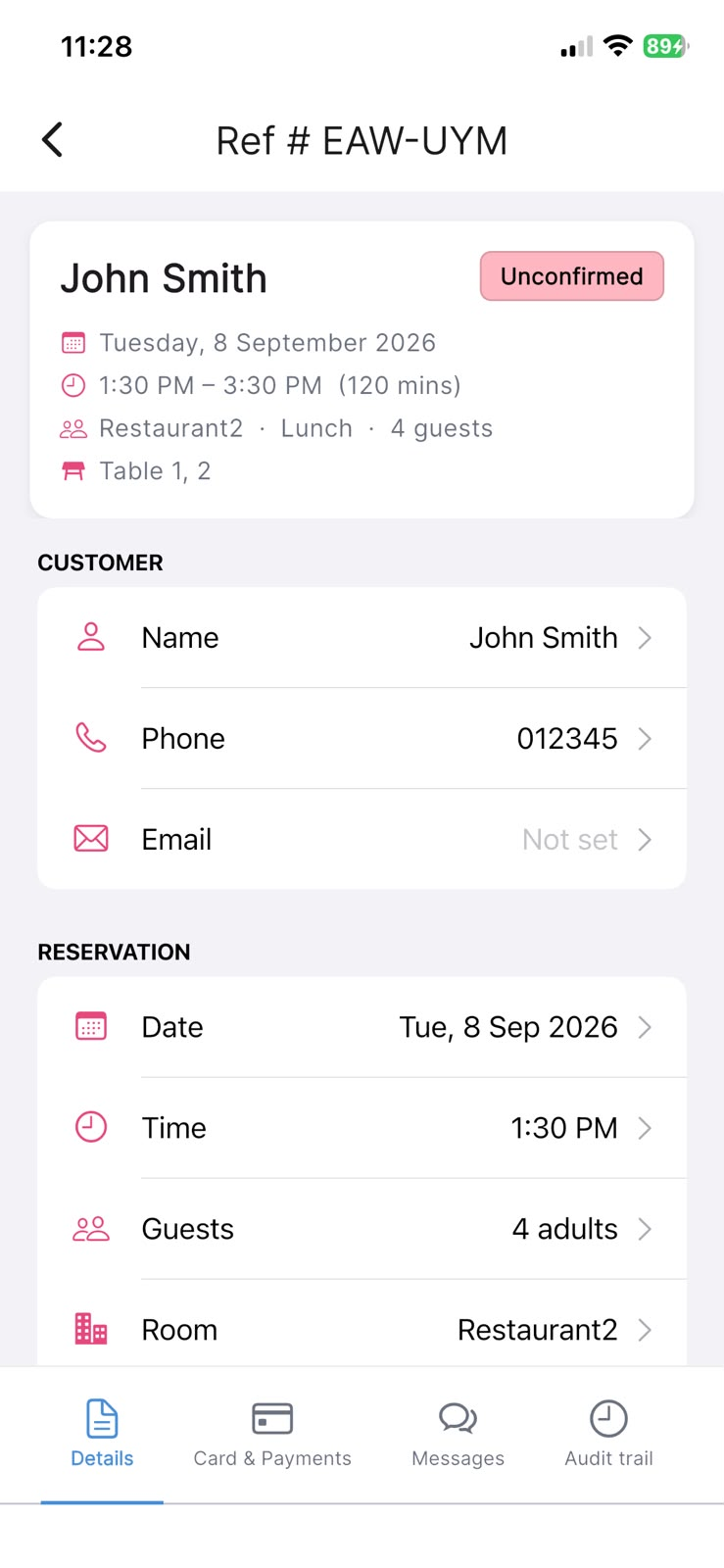
Tapping a result on the Reservations tab opens the full booking. Inside, you will find tabs for Details, Card & Payments and Messages (with an Audit trail tab as well for admin users). The guest's information and the booking's status are both managed on the Details tab. Any changes you make are reflected back in your search results when you return.
Starting a new booking for an existing guest
If you find the person on the Customers tab, each result shows their name with their phone and email, and a New reservation button. Tapping it begins a new booking already filled in with their saved details, so you do not have to re-type anything.
In the app: menu → Search → Customers tab → New reservation.
If you can't find someone
If a search comes back empty, it is usually one of a few simple things:
- Too few characters — results only begin once you have typed at least two characters.
- Wrong tab — a name might appear under Customers but not Reservations if they have no matching booking, and vice versa. Try the other tab.
- A small spelling or number difference — try just the surname, or a few digits of the phone number, or the email instead.
- You're viewing a different location — if your login covers more than one venue, switch to the right one using the venue name at the top of the menu, then search again.