Sold a voucher at the till and closed the screen before you printed it? Or a guest has lost the one you gave them? An admin can print any voucher again, or share it as a PDF, from its details in Sales. It works for vouchers sold in person and ones bought online.
Print or share it
1. Open Sales. In NomNom Web, click More (the three dots in the top bar), choose Vouchers and click the Sales tab. In the phone app, open the menu, tap Vouchers, then the Sales tab.
2. Find the voucher. Search for the buyer’s name or email, or change the dates at the top if it was sold a while ago. Click or tap it to open its details.
3. Print it. In NomNom Web, click Print voucher. In the phone app, tap Print voucher to print it, or Share voucher to send the PDF by text, WhatsApp, email or AirDrop, or save it to your files.
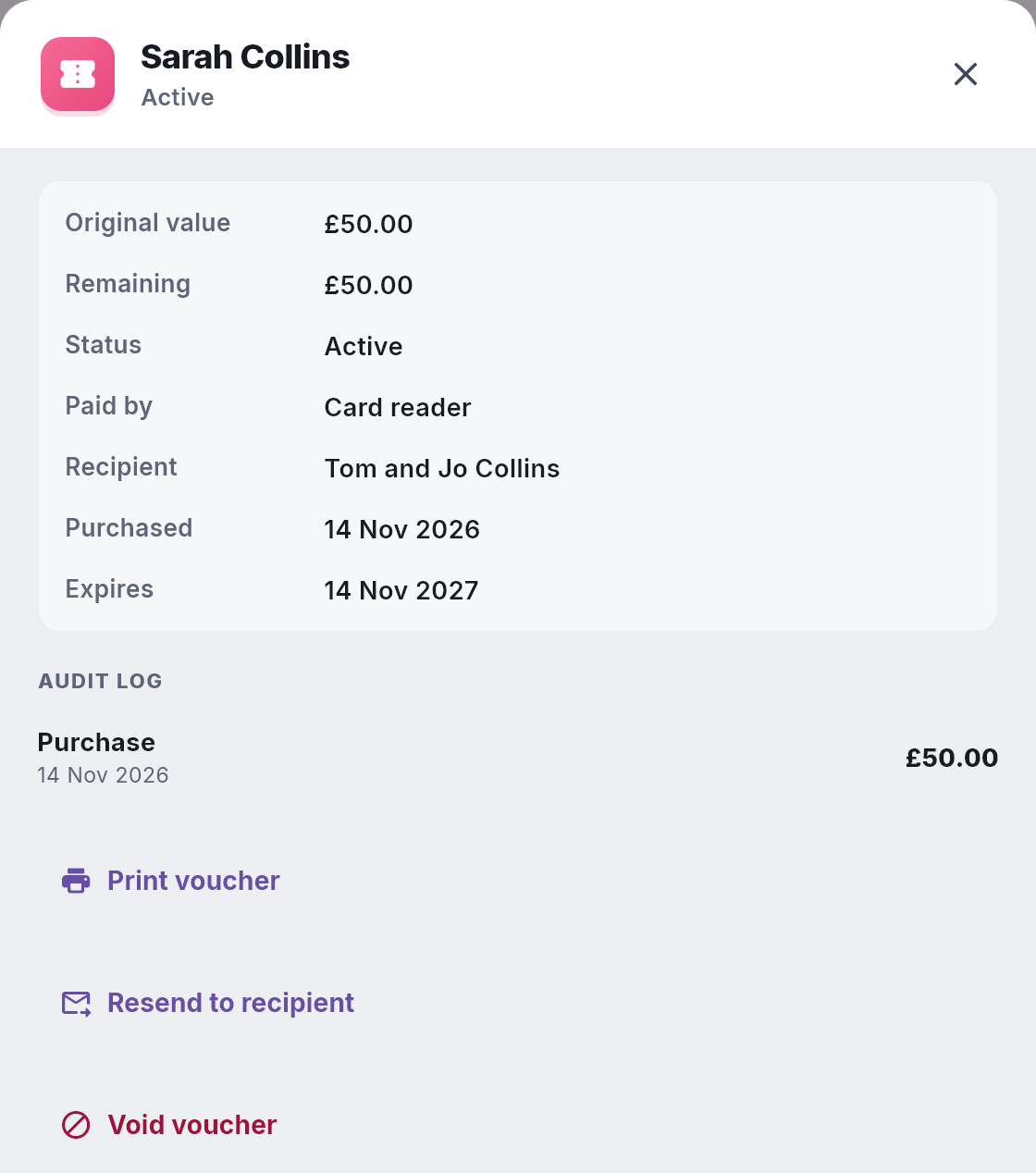
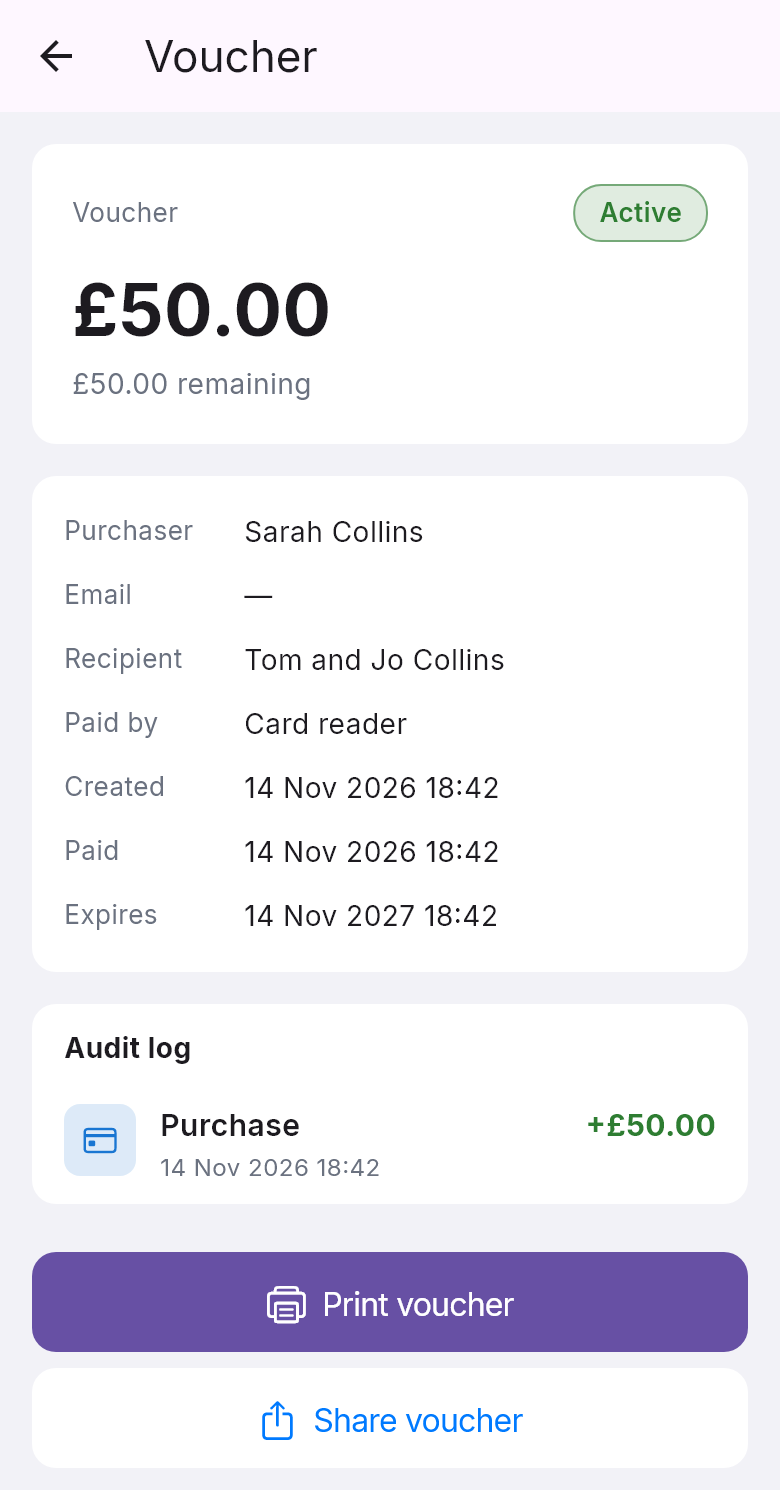
In NomNom Web: More → Vouchers → Sales → the voucher → Print voucher. In the phone app: menu → Vouchers → Sales → the voucher → Print voucher or Share voucher.
The voucher looks just like the one printed at the sale: the amount, who it’s for, any gift message, a QR code, the code, the date it’s valid until and your voucher terms.
If NomNom Web can’t load the PDF straight into the print window, it opens it in a new tab instead — print or save it from there.
Good to know
It’s the same voucher. Printing it again doesn’t create a new voucher or add any value. It has the same code and the same balance, and once it’s spent, every copy is spent. If a guest has used part of it, the balance left is what they can still spend — check it on the Redeem tab with the code.
Only vouchers that can still be spent. The buttons only appear on a voucher that is active or part-spent and still in date. A voucher that has been used up, refunded, cancelled or has expired can’t be printed again, and neither can an online purchase the buyer never finished paying for.
Admins only. Printing again shows the voucher’s code, so it’s for admins, like resending and voiding. Standard and Read-only logins don’t see the buttons.
Would an email be easier? If you have the guest’s email address, an admin can send the voucher again instead — see Resending a gift voucher to the guest or the buyer.
Selling one in the first place? See Selling gift vouchers in person.