Gift vouchers let your customers buy credit toward a future visit. You set everything up in the app, and customers buy on your public purchase page in any web browser. Voucher payments are handled through Stripe, so you'll need a connected Stripe account first (see our separate Stripe setup article).
Where voucher settings live
All of the setup happens in the app, on the Vouchers screen.
In the app: Settings → Vouchers.
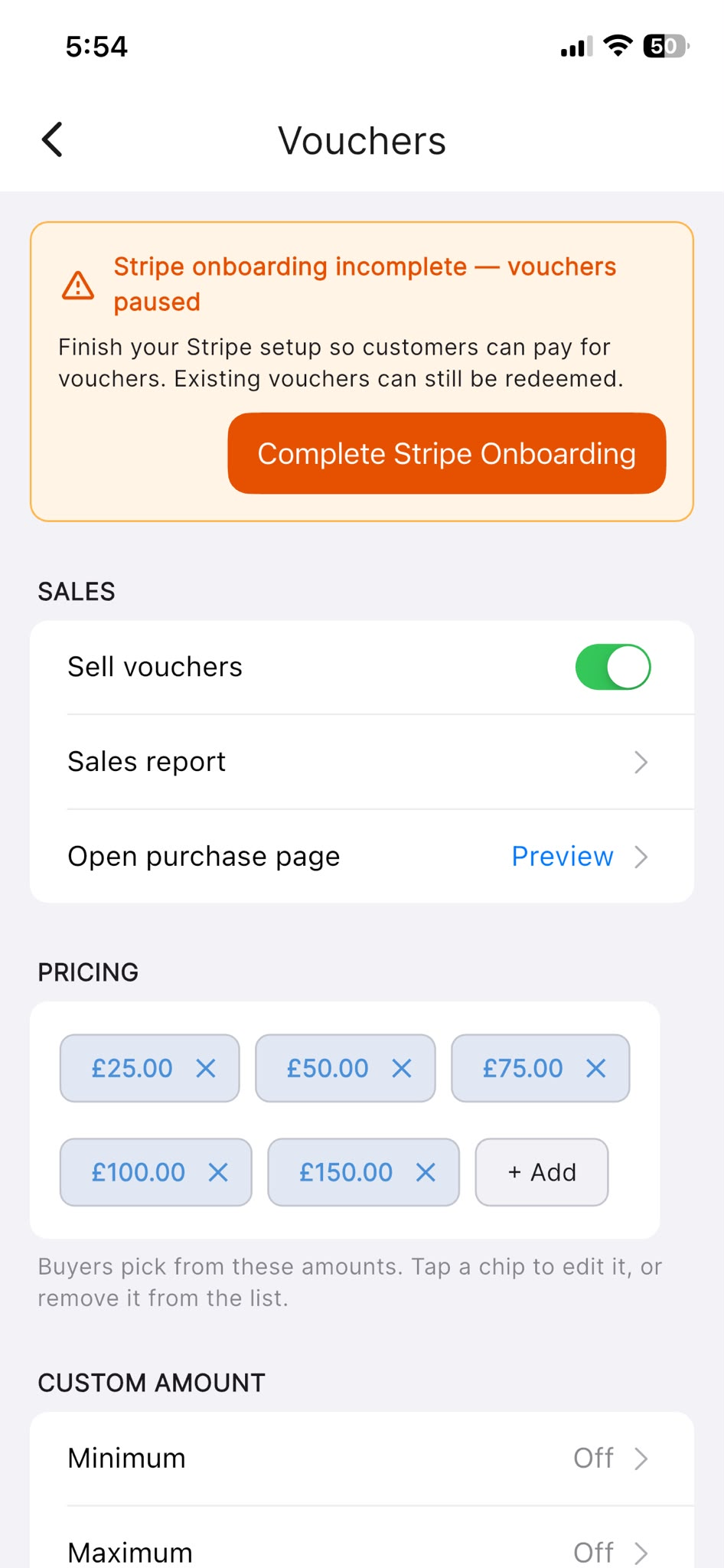
The screen saves each change as you make it — there's no separate Save button. If Stripe onboarding isn't finished, a banner reading Stripe onboarding incomplete — vouchers paused appears at the top with a Complete Stripe Onboarding button. Existing vouchers can still be redeemed while paused, but customers can't buy new ones until Stripe is ready.
Turning sales on or off
Under the SALES section, use the Sell vouchers switch to enable or disable voucher purchases. When sales are off, the screen reminds you that existing vouchers remain redeemable until they expire.
This section also has Sales report (a record of what's sold) and Open purchase page, which opens a preview of the customer-facing page so you can see exactly what buyers will see.
Setting the amounts customers can choose
Under PRICING, you'll see the fixed amounts buyers can pick from, shown as chips. Tap a chip to edit that amount, tap the delete icon on a chip to remove it, or tap + Add to add a new one. The editor accepts a value in pounds.
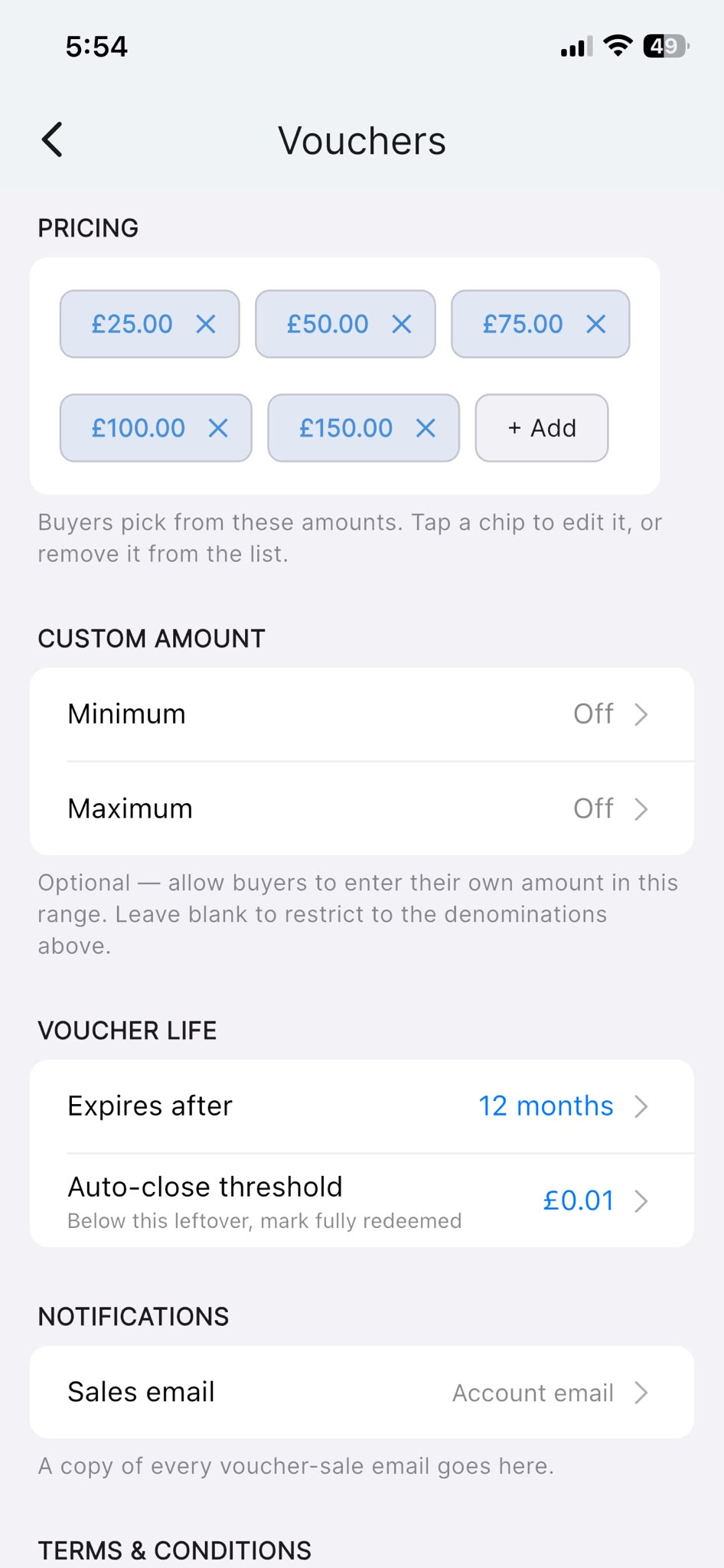
If you'd like to let buyers type their own value instead of choosing a fixed amount, use the CUSTOM AMOUNT section. Set a Minimum and a Maximum to define the allowed range; leave them blank (shown as Off) to restrict buyers to the fixed amounts above.
How long vouchers last
Under VOUCHER LIFE, tap Expires after to choose how many months a voucher stays valid. There's also an Auto-close threshold — when a voucher's remaining balance falls to or below this amount, it's automatically marked as fully redeemed so tiny leftover balances don't linger.
Getting notified when a voucher sells
Under NOTIFICATIONS, the Sales email setting controls where a copy of each voucher-sale email is sent. Leave it blank to use your account email, or enter a different address.
Setting your voucher terms & conditions
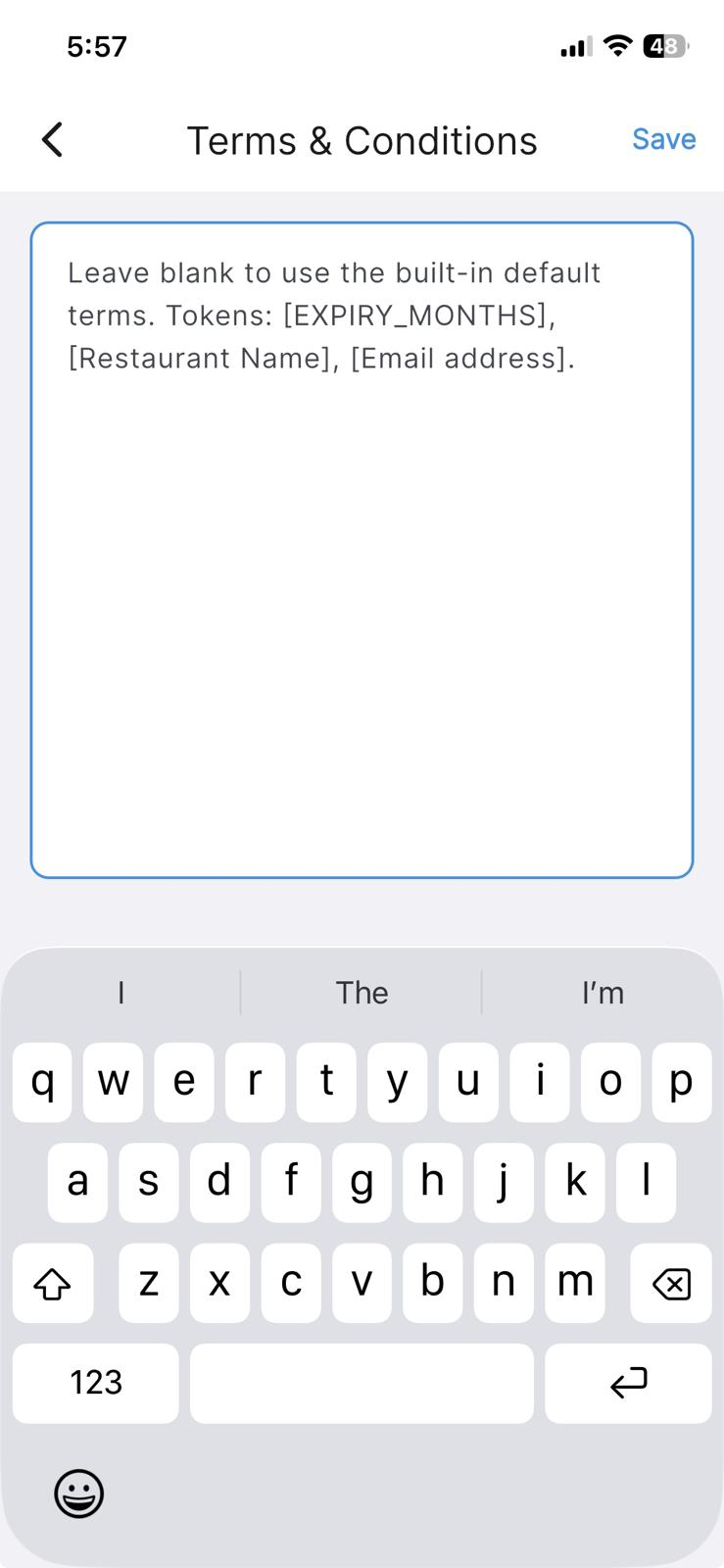
Voucher terms are separate from your online-booking terms. Under TERMS & CONDITIONS, tap Edit terms to open the editor (titled Terms & Conditions). Leave it blank to use the built-in default terms, or write your own.
You can include the tokens [EXPIRY_MONTHS], [Restaurant Name] and [Email address] in your text — these are filled in automatically. Note that the terms are snapshotted onto each voucher at the moment of purchase, so editing them here won't change vouchers that have already been sold.
Fees
The PLATFORM FEES section shows the charges that apply per voucher sold — a NomNom Platform fee, Stripe's Card processing rate, and the Minimum voucher value below which a voucher can't be purchased. A worked example below the list shows what you'd receive on a sample voucher. Card processing is charged by Stripe directly out of your connected account; it isn't collected by NomNom.
What customers see when buying
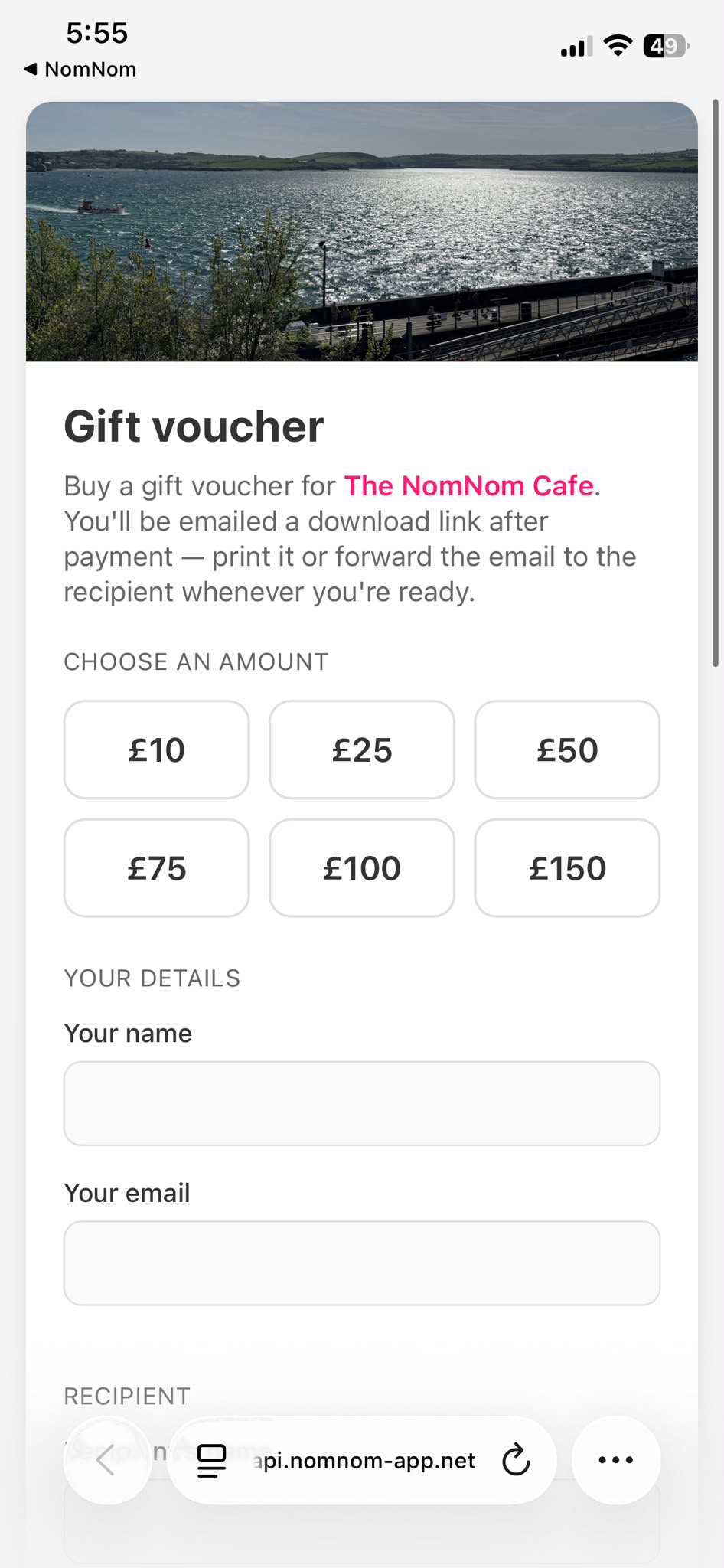
Customers don't use the app — they buy on your public purchase page in a web browser. You can preview it any time via Open purchase page on the Vouchers screen. The page is titled Gift voucher and invites them to buy a gift voucher for your restaurant, noting that they'll be emailed a download link after payment.
On that page a buyer will:
- Pick an amount under Choose an amount.
- Enter Your name and Your email under Your details.
- Fill in the Recipient section — the recipient's name is required, while the recipient's email and a Gift message are optional. There's also a Deliver later option to schedule when the recipient is emailed; left blank, the voucher is emailed straight away.
- Tick I agree to the terms & conditions below (your terms appear in a Terms & conditions card lower on the page).
- Tap Continue to payment, which takes them to a secure Stripe checkout.
After paying, the buyer receives an email with a link to download the voucher PDF, and you receive a sale notification at the address set under Sales email.