If your booking page isn't offering the times you'd expect, don't worry — online availability is built up from a few independent settings, and a slot only appears when all of them line up. Working through the checklist below will almost always point you to the one that's switched off.
There is no single master "venue on/off" switch in the app. Instead, a meal, area, table, or time each carries its own online flag, and a schedule change for a specific date can override them. Below, each likely cause is paired with exactly where to confirm it.
Is the meal bookable online?
Each meal has its own Bookable Online switch. If it's off, none of that meal's times will appear on the booking page, no matter how the times themselves are set.
In the app: Configuration → Meals, then tap the meal and check the Details tab.
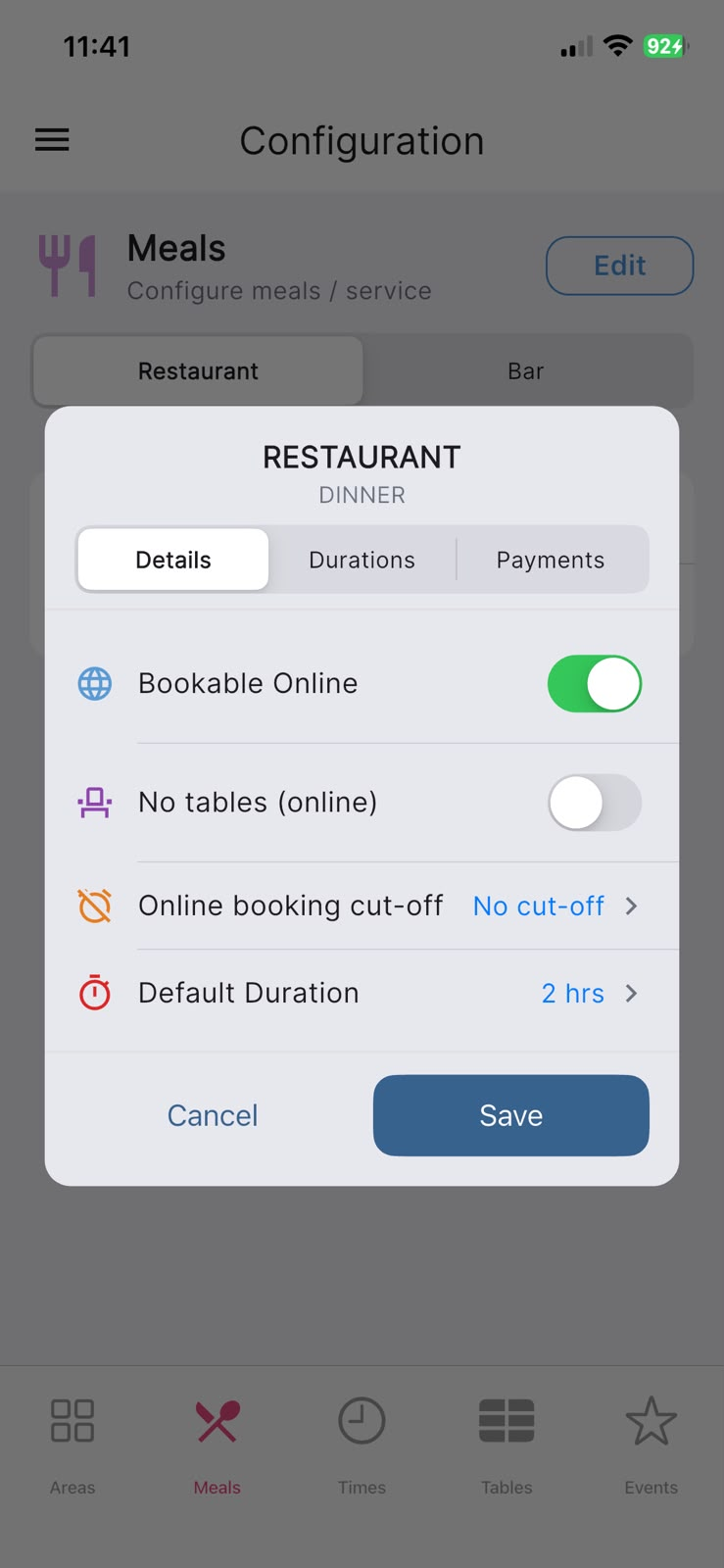
Has the same-day cut-off already passed?
A meal can have an Online booking cut-off — a time of day after which that meal stops being offered online for the same date. If the cut-off for today has passed, the meal's slots quietly drop off the page until the next day; staff bookings made in the app are not affected. If you don't use this feature it will read No cut-off.
In the app: Configuration → Meals, then tap the meal and check Online booking cut-off on the Details tab.
Is the area set online?
Each area (room) has its own Online Booking switch. If an area is off, tables in that area won't be offered online. In the list, an area that's online shows a small globe icon in the WEB column.
In the app: Configuration → Areas, then tap the area to see its Online Booking toggle.
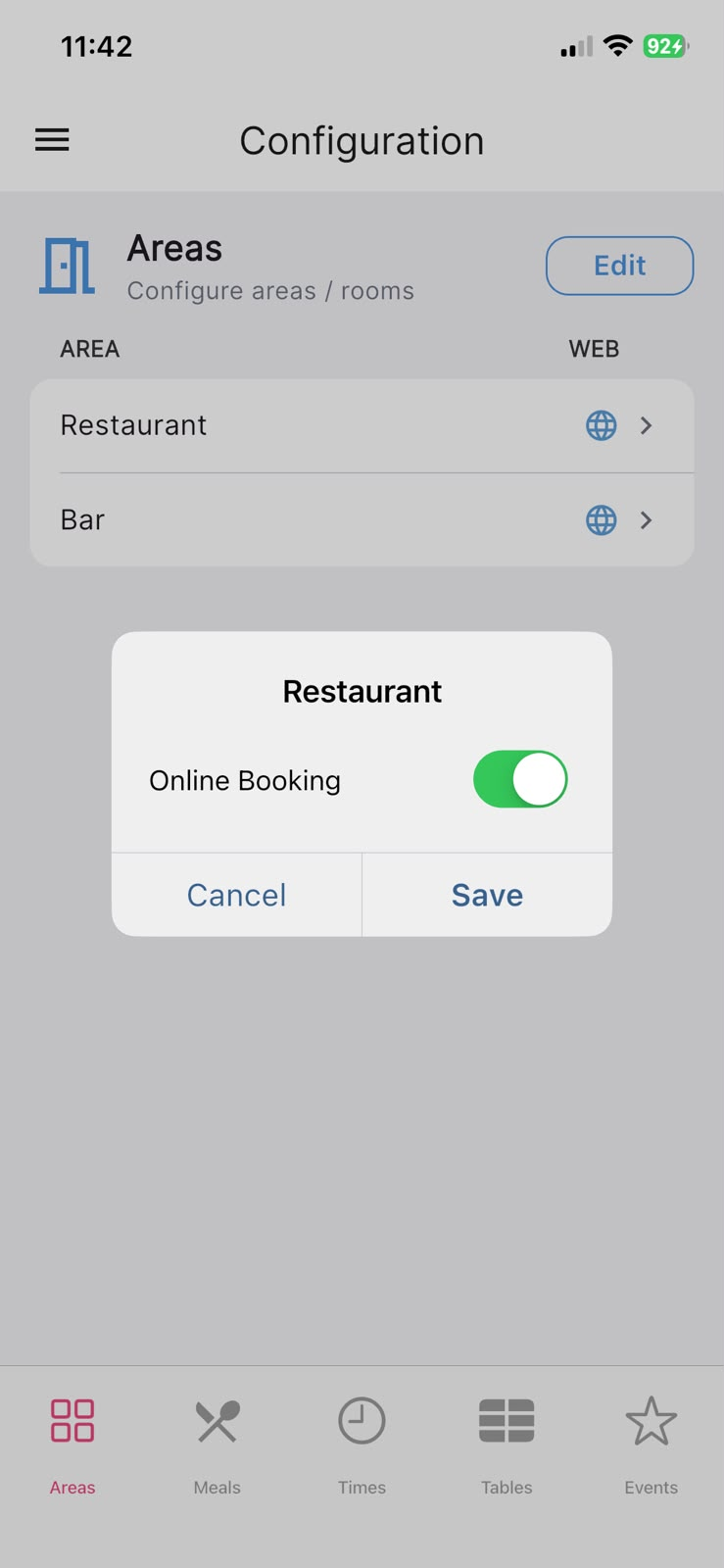
Are the tables set online?
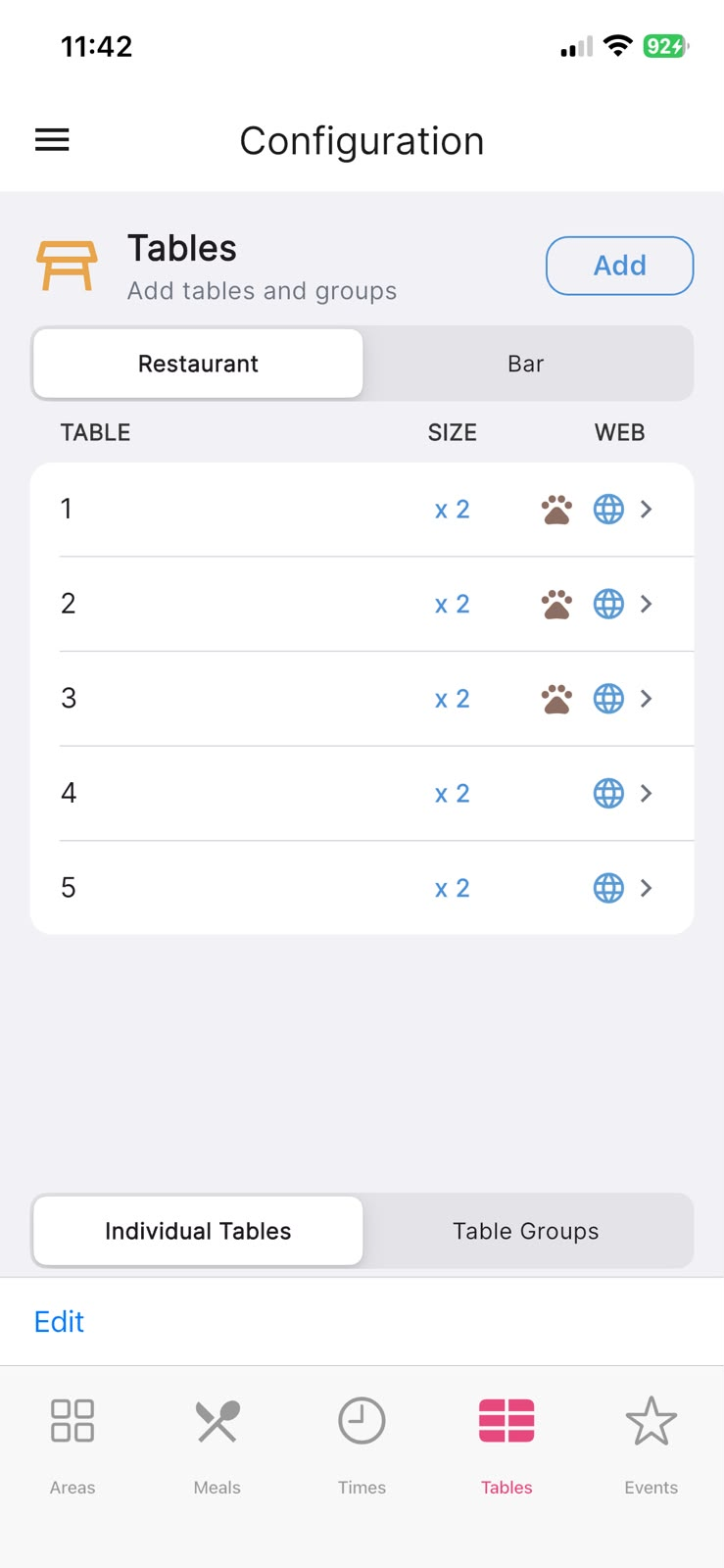
Tables each carry their own Online Booking flag too. If the tables that would normally seat a party aren't online, the booking page can't offer that party a table. The WEB column shows a globe icon for tables that are online.
In the app: Configuration → Tables, then tap a table to check Online Booking. To change several at once, tap Edit, select the tables, then Modify → Enable Web Booking.
Note: if your meal uses the No tables (online) option, online bookings are gated by the meal's Online maximum guests cap rather than by individual tables — both are on the meal's Details tab.
Are the time slots enabled for online — and for that day?
Every time slot has its own online flag and its own set of active days. A slot only shows online when it is enabled for online booking and active on the weekday you're looking at. In the times list, the WEB column shows a globe icon for online slots, and the row of day markers shows which weekdays the slot runs on.
In the app: Configuration → Times. Choose the meal, then tap a time and use the Details tab (the Online Booking switch) and the Days tab.
To adjust many slots together, tap Edit, select the slots, then Modify and choose Enable Web Booking, Enable for days, or Disable for days.
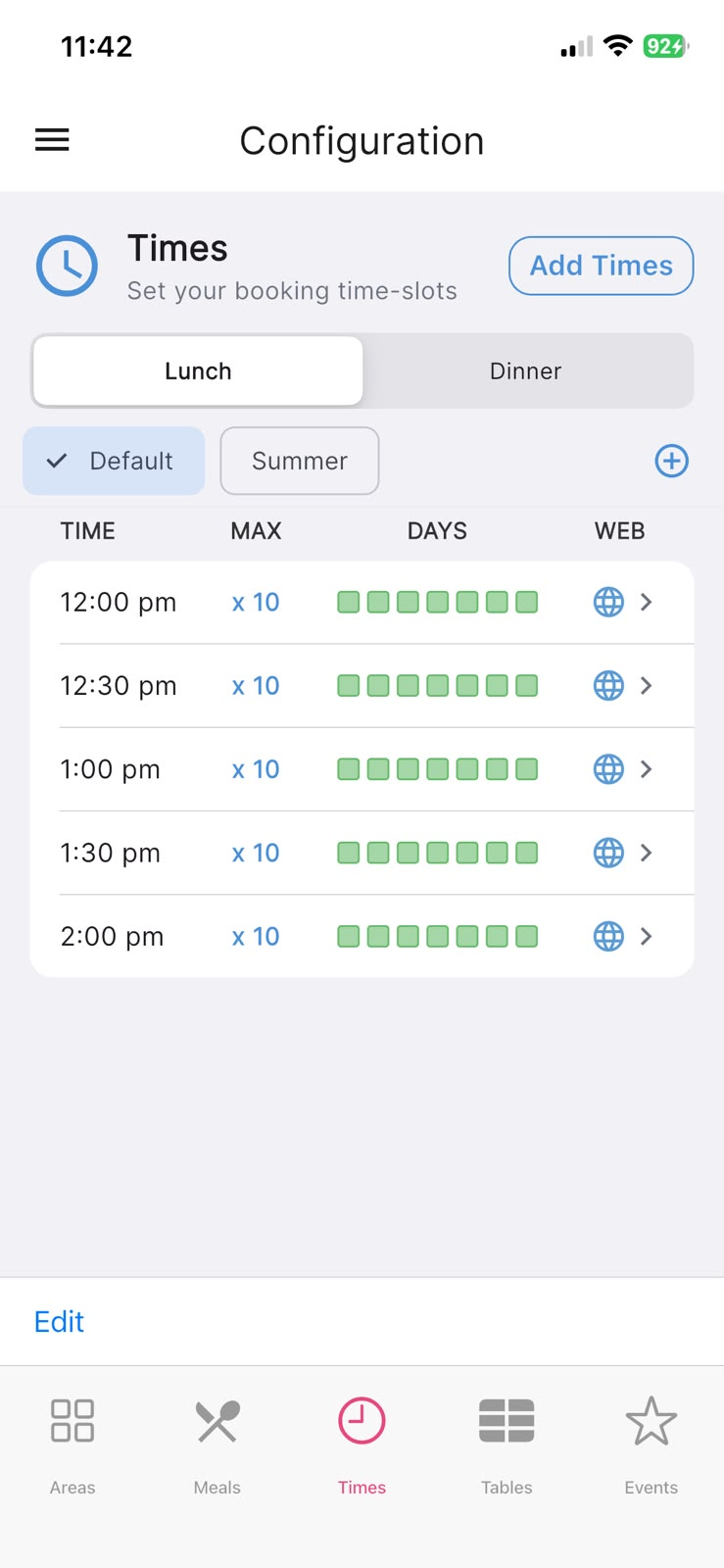
One more thing: if you use seasonal time lists, make sure you're looking at the right list — the times screen has a Default chip plus any named seasons. The booking page uses whichever list applies to the date.
Is there a schedule change in effect for that date?
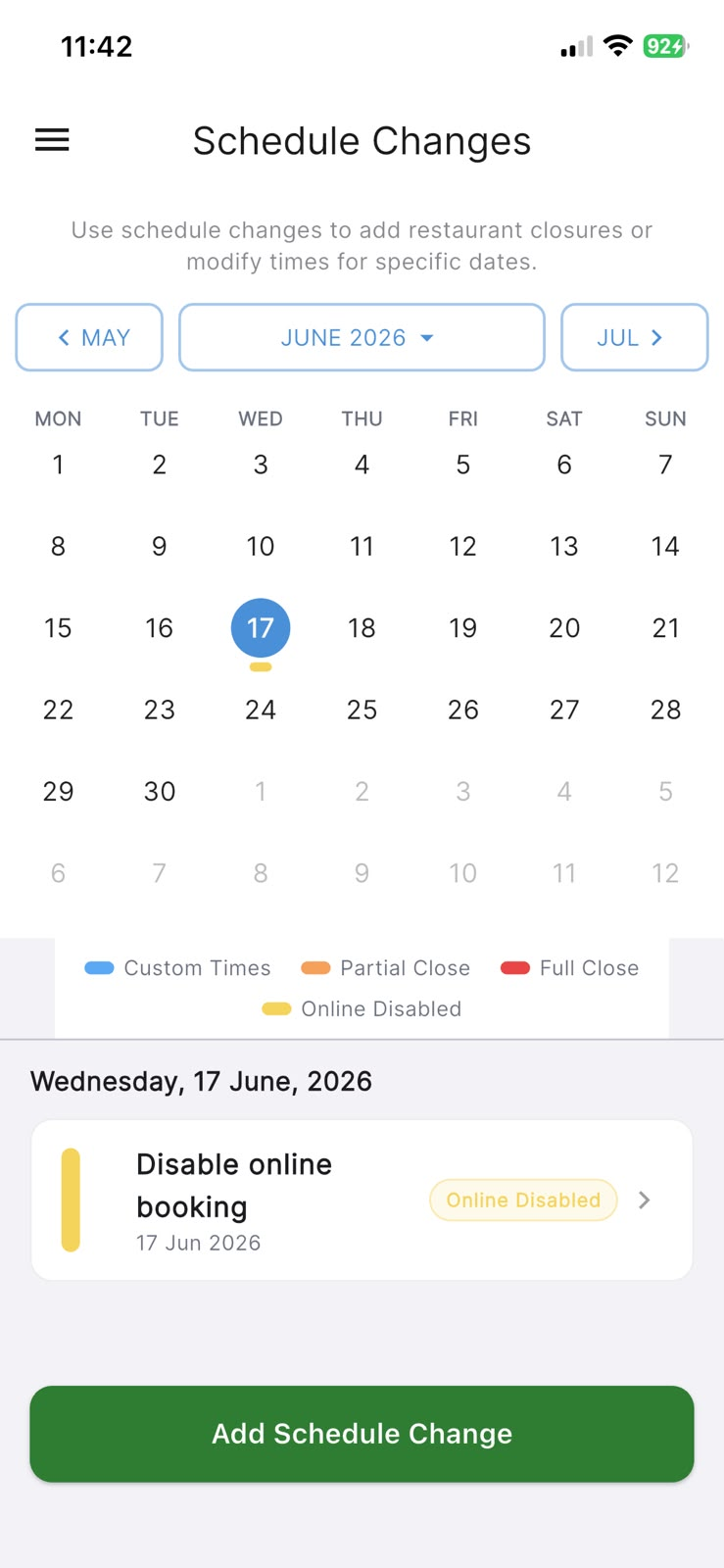
A closure or an online-disabled change for a particular date will override your normal settings for that day. On the Schedule Changes screen, dates with a change are marked on the calendar, and the legend explains the colours: Custom Times, Partial Close, Full Close, and Online Disabled. A Full Close or Online Disabled entry is the usual reason a single date shows nothing online.
In the app: open the menu and choose Schedule Changes, then tap the date to see any changes listed for it.
Could the party size or timing be excluded?
Sometimes availability is there, but a particular request is filtered out:
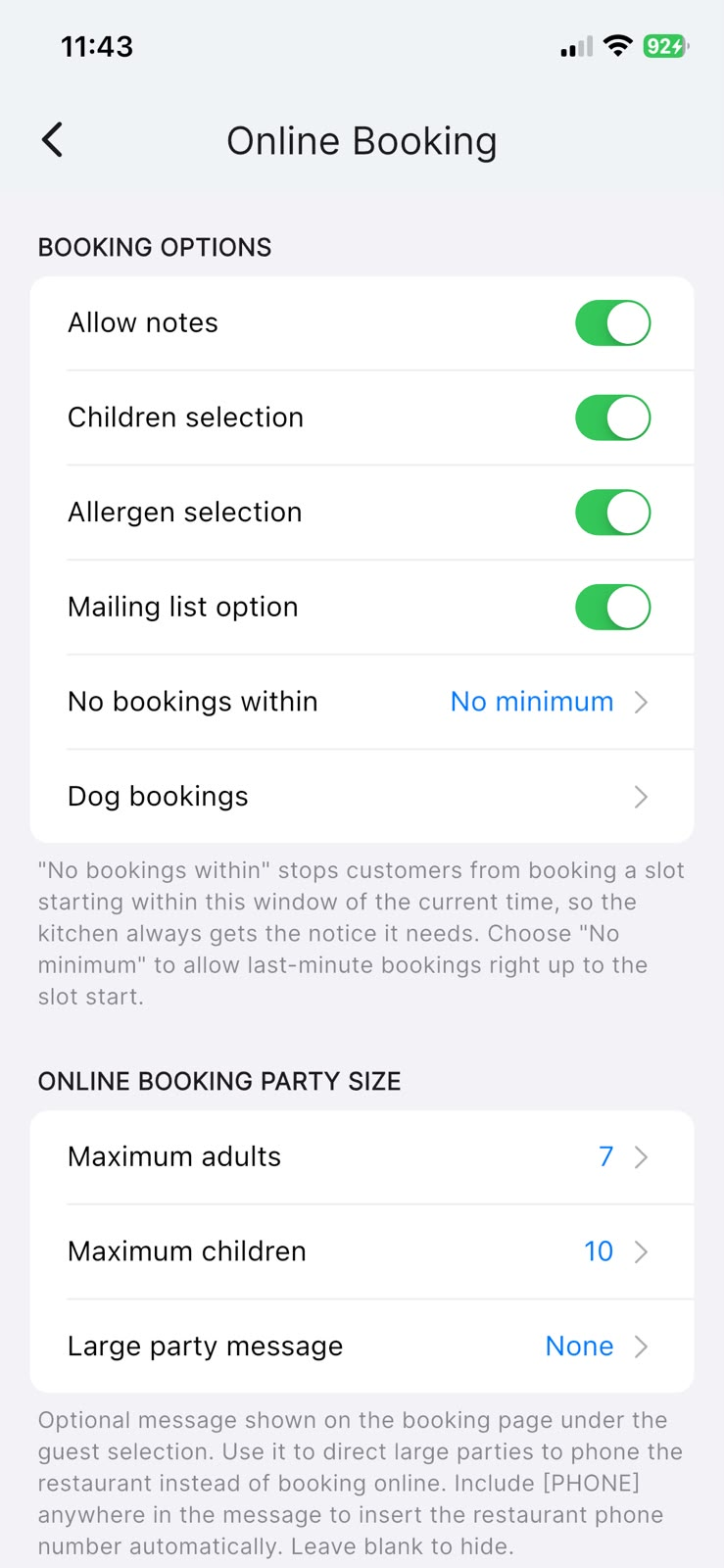
- Party too large. Your Maximum guests (or Maximum adults and Maximum children when children selection is on) limits the largest party the page will offer. Larger parties may see your Large party message instead.
- Too close to the slot time. The No bookings within setting stops customers booking a slot that starts within that window of the current time. If it's set high, near-term slots won't appear; No minimum allows last-minute bookings.
In the app: Settings → Online Booking (under RESERVATIONS). The size limits live in the ONLINE BOOKING PARTY SIZE section and No bookings within is under BOOKING OPTIONS.
A quick way to see what customers see
When you've checked the above, you can open your live booking page from within the app to confirm what's showing. On the Online Booking settings screen, tap Test Online Booking at the bottom.
If something still looks off after working through this list, it's worth a quick word with support — but in most cases one of the switches above is the culprit, and turning it back on brings the availability straight back.