If you have rooms as well as tables, you can mark a booking as a room guest: the party is staying with you. It is a note for your team, so everyone can see at a glance who is a resident. It has nothing to do with the area (room) the table is in.
Mark a booking in NomNom Web
- Open the booking form. Start a new booking, or select one and click Edit reservation.
- Click Room guest. It sits on the right of the NOTES & ALLERGIES heading. When it is on, it turns green with a tick. Click it again to turn it off.
- Save the booking.
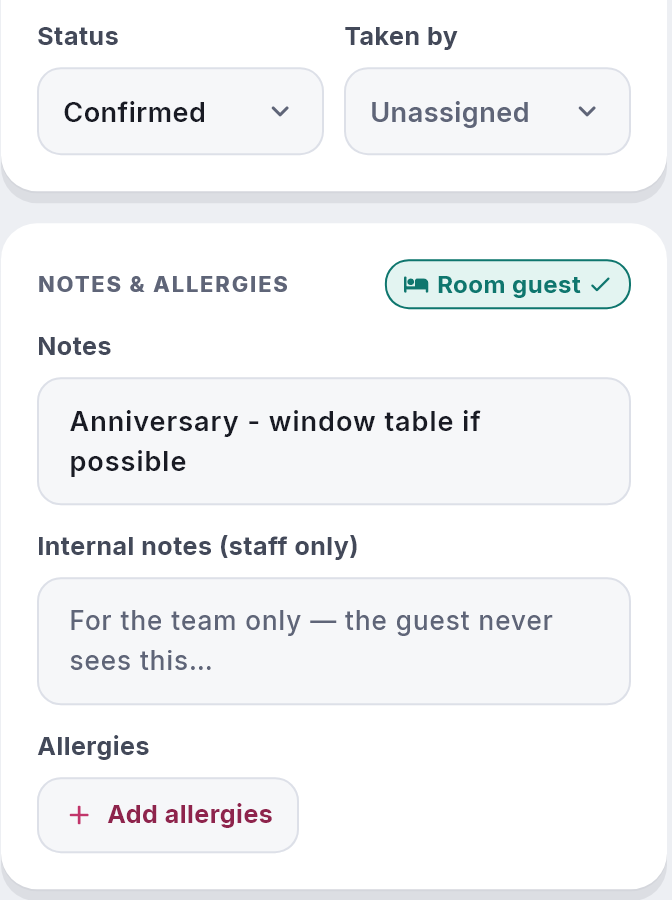
Mark a booking in the phone app
Open the booking (or reach the details of a new one), go to Notes & Extras and switch on Room guest (“Staying in your rooms”). Then save the booking.
Where it shows
- Your bookings list. A green bed icon beside the guest’s name, in NomNom Web and on the phone app’s booking cards.
- The booking itself. A green Room guest label in the panel beside your bookings and in Full details in NomNom Web, and at the top of the booking in the phone app.
- The service sheet. “Room guest” is printed straight after the allergies, on every layout. See Printing tonight’s service sheet.

Good to know
- Staff only. Guests are never asked it online, and it is not in their confirmation emails.
- It does not change anything else. Times, tables, deposits and limits work the same for a room guest.
- It is in the audit trail. Ticking or unticking it is recorded like any other change. See Seeing who changed a booking (the audit trail).
- Not in your API or webhooks. A till or other system reading your bookings does not get it.