If your login covers more than one venue, you can move between them without signing out. The venue switcher only appears when your login actually has more than one venue — with a single venue there is nothing to switch, so it stays hidden.
Switching venues in the app
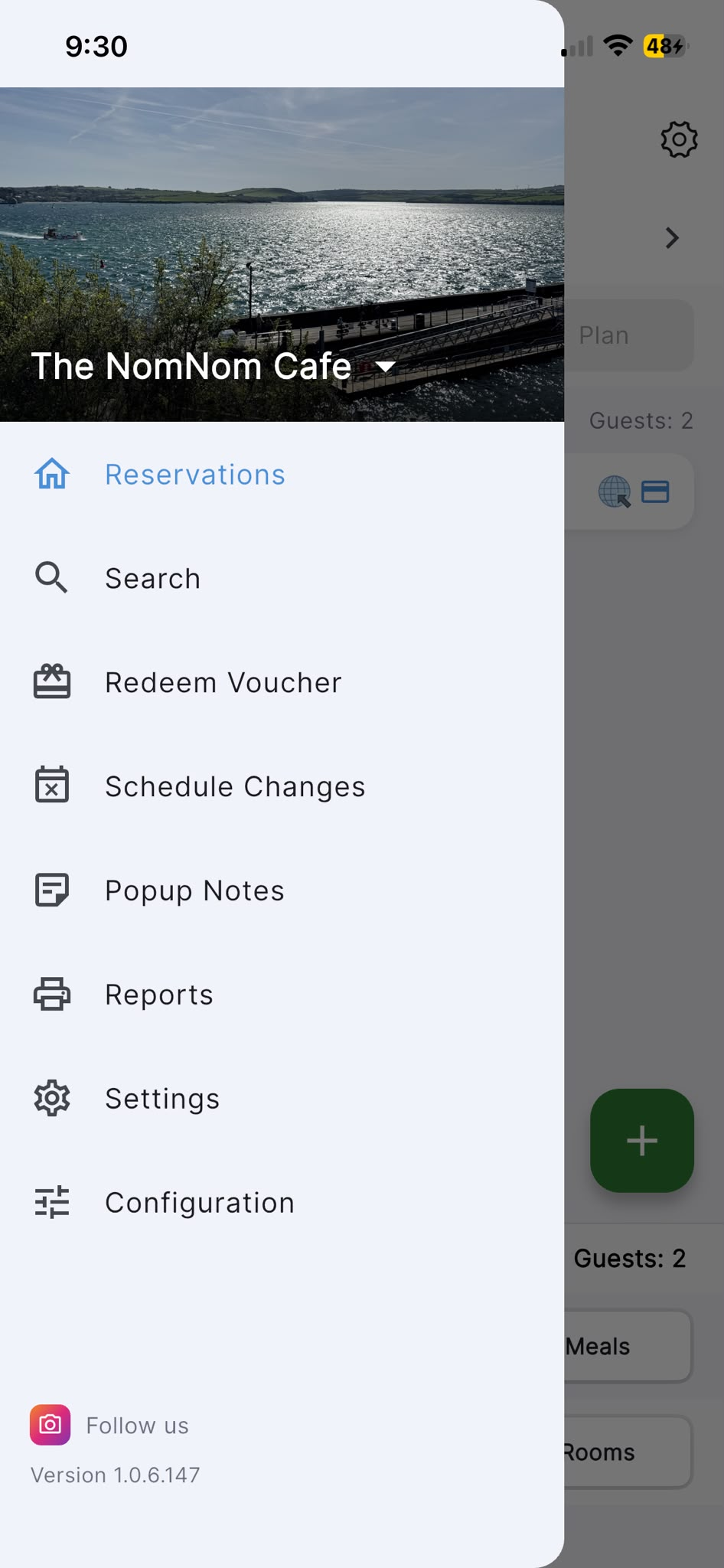
The fastest way is from the side menu. Open the menu and look at the header at the top — it shows the name of the venue you're currently working in. If your login has more than one venue, a small down-arrow appears next to the name.
In the app: open the side menu, then tap the venue name in the header.
Tapping it opens a Switch Location sheet listing your other venues. Choose one and the app reloads that venue's reservations and settings. The venue you're already in is not listed — you only see the ones you can switch to.
Switching venues from Settings
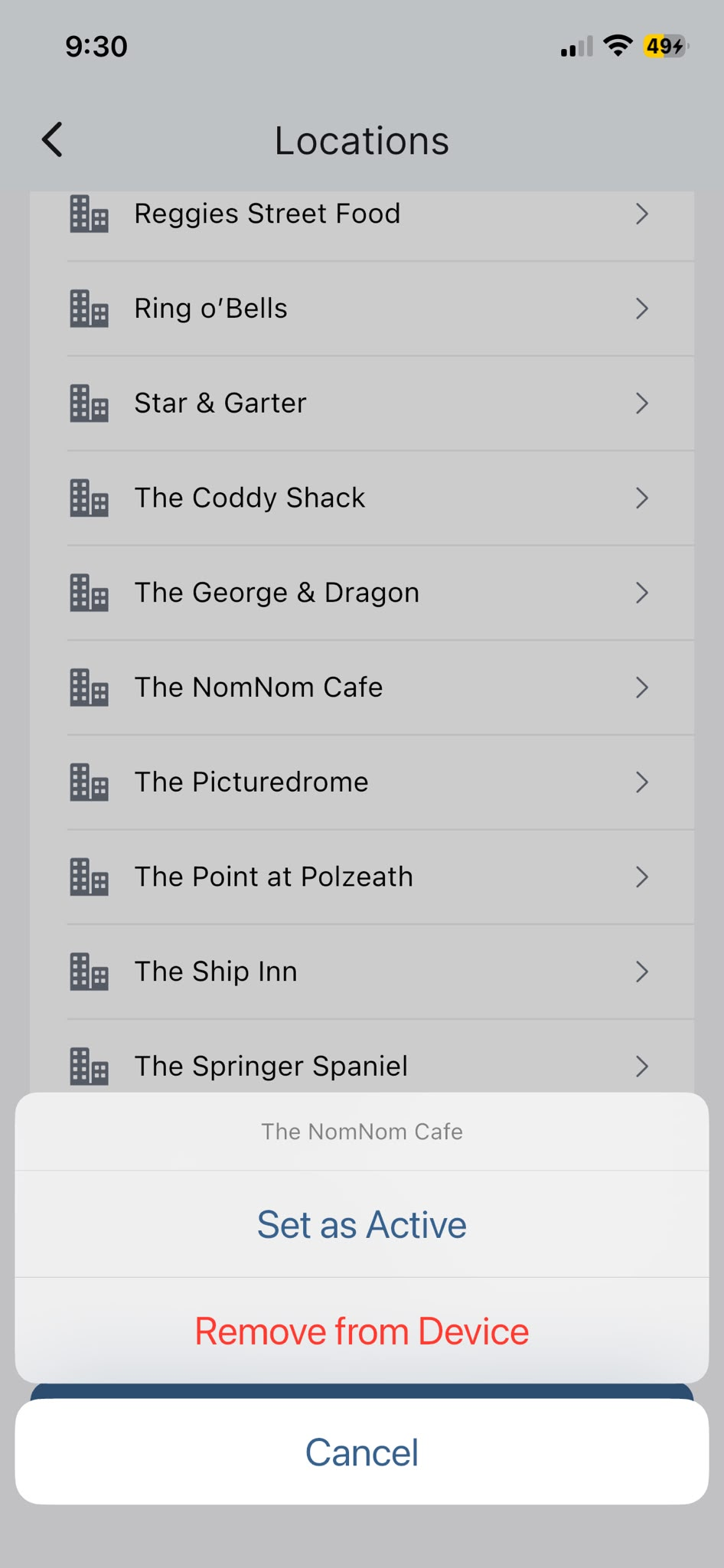
There's also a fuller view that lists every venue on the device, with the active one marked.
In the app: Settings → Locations.
Under RESTAURANTS each venue is listed; the active one is shown in bold with a green ACTIVE badge. Tap a venue, then choose Set as Active to switch to it. (The same sheet also offers Remove from Device, which only removes that venue from this device — it does not delete anything.)
Switching venues in the web admin portal
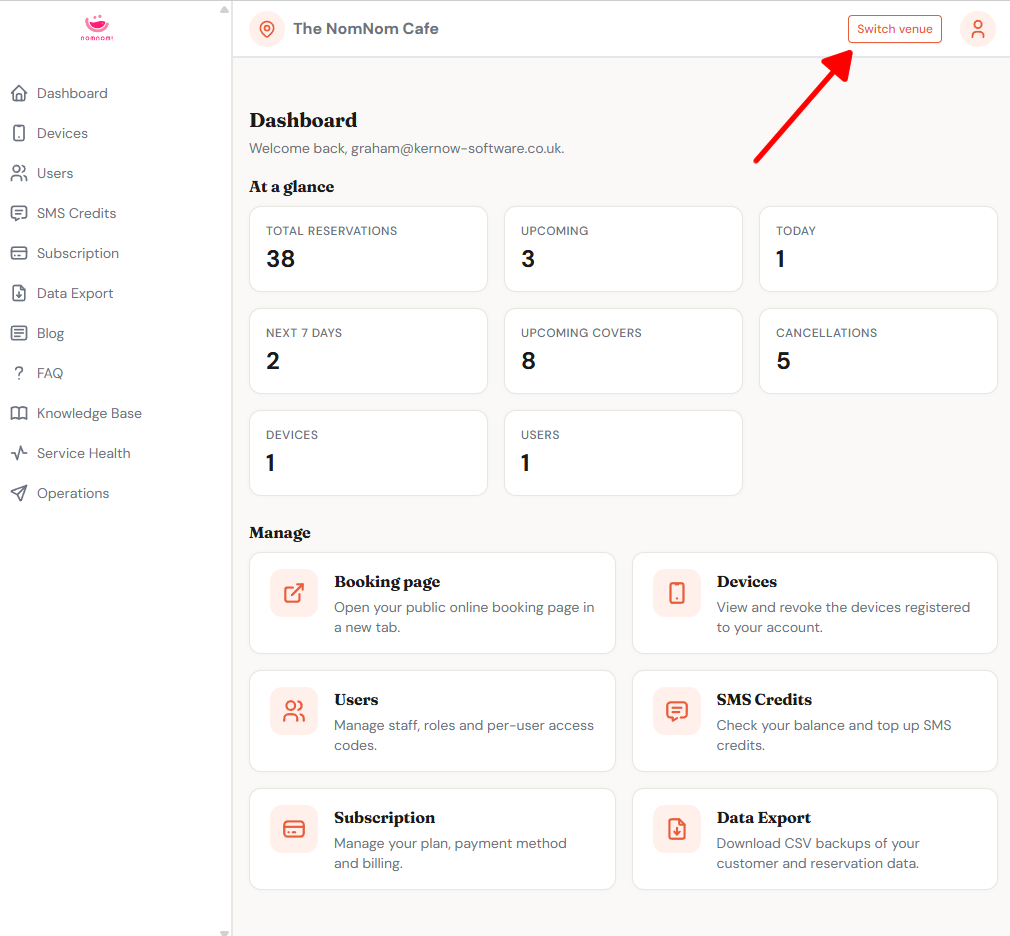
The web admin portal has its own switcher, separate from the app. The name of the venue you're currently managing is shown at the top of every page.
In the web admin portal: use the Switch venue control in the top bar, near the account menu.
With a handful of venues, Switch venue is a dropdown — open it and pick a venue from the list; the one you're in is highlighted as the current selection. If your login covers many venues, Switch venue instead opens a window with a Search venues box: type to narrow the list, then choose Select next to the venue you want. The venue you're already in is marked Current rather than offering a Select button.
Switching keeps you on the same page — you stay where you were, now showing the new venue's data.
Good to know
- The switcher only appears when your login has more than one venue — single-venue logins won't see it.
- The app and the web admin portal each track their own active venue, so switching in one place does not change the other.
- You can only switch to venues your login has been granted. If a venue you expect is missing, contact us so the right access can be added.