After a visit, NomNom can email your guests asking them to rate you from 1 to 5 stars. Until now you only heard about the low ones. Guest ratings shows you every rating, good and bad, with your average, how the stars break down, and anything guests wrote to you.
In NomNom Web: the More menu (the three dots in the top bar) → Guest ratings. In the phone app: menu → Guest ratings, just under Insights.
Everyone on your team can open it, including read-only staff. Nobody can change or delete a rating from here: it is for reading.
Where the ratings come from
Ratings come from the follow-up email guests get after their visit. If you don’t send follow-up emails, there won’t be any. See Ask guests for a Google or Tripadvisor review and Following up with guests and collecting reviews to set it up.
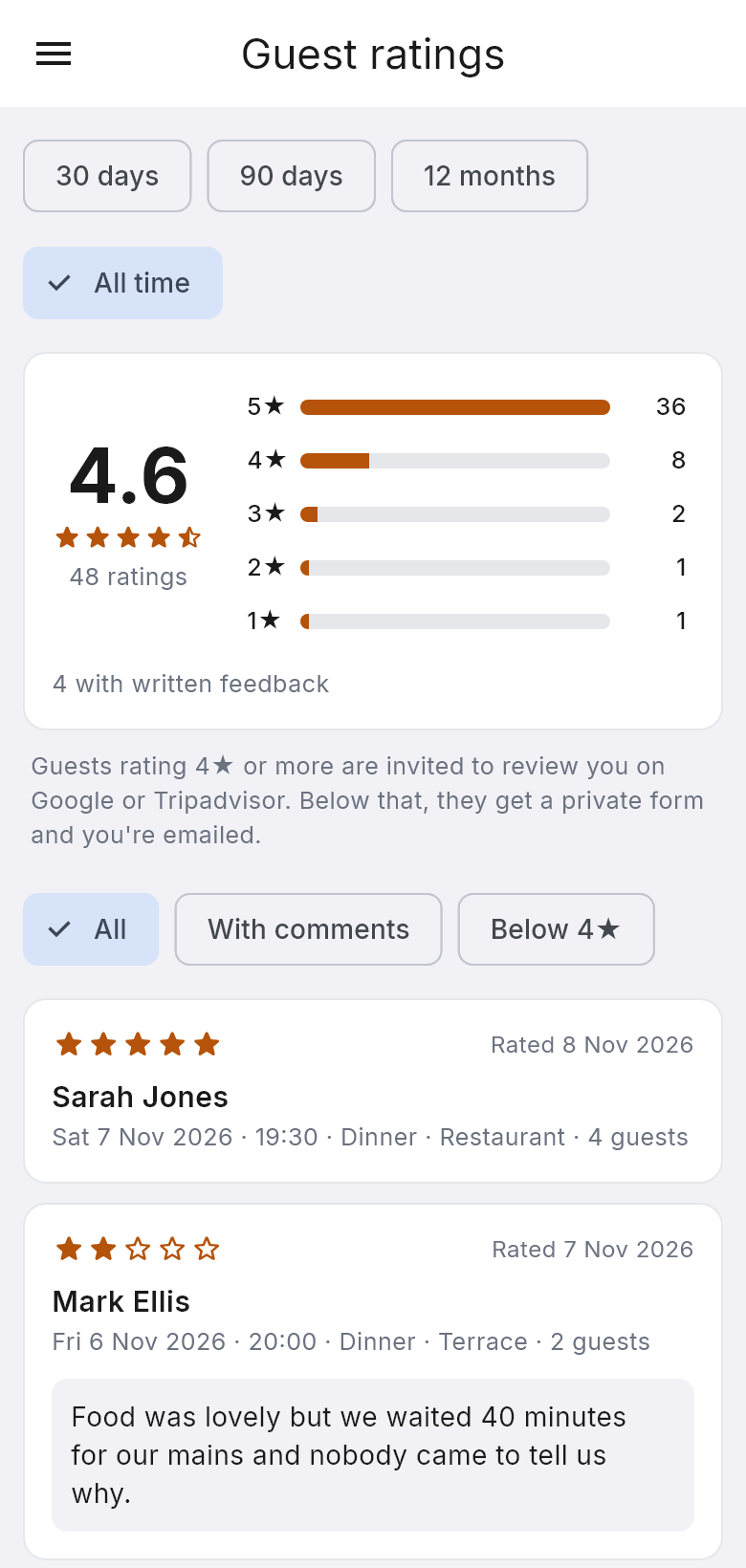
What happens next depends on the stars, and the screen reminds you of it under the summary:
- 4 or 5 stars. The guest is asked what they enjoyed, then invited to review you on Google or Tripadvisor, with a button that copies their words. If they write something, you’re emailed it too.
- 3 stars or fewer. The guest gets a private form to tell you what went wrong, and you’re emailed. See When a guest leaves a low rating: review alerts.
Every rating appears in Guest ratings either way. The ratings themselves are private: only your team sees them here.
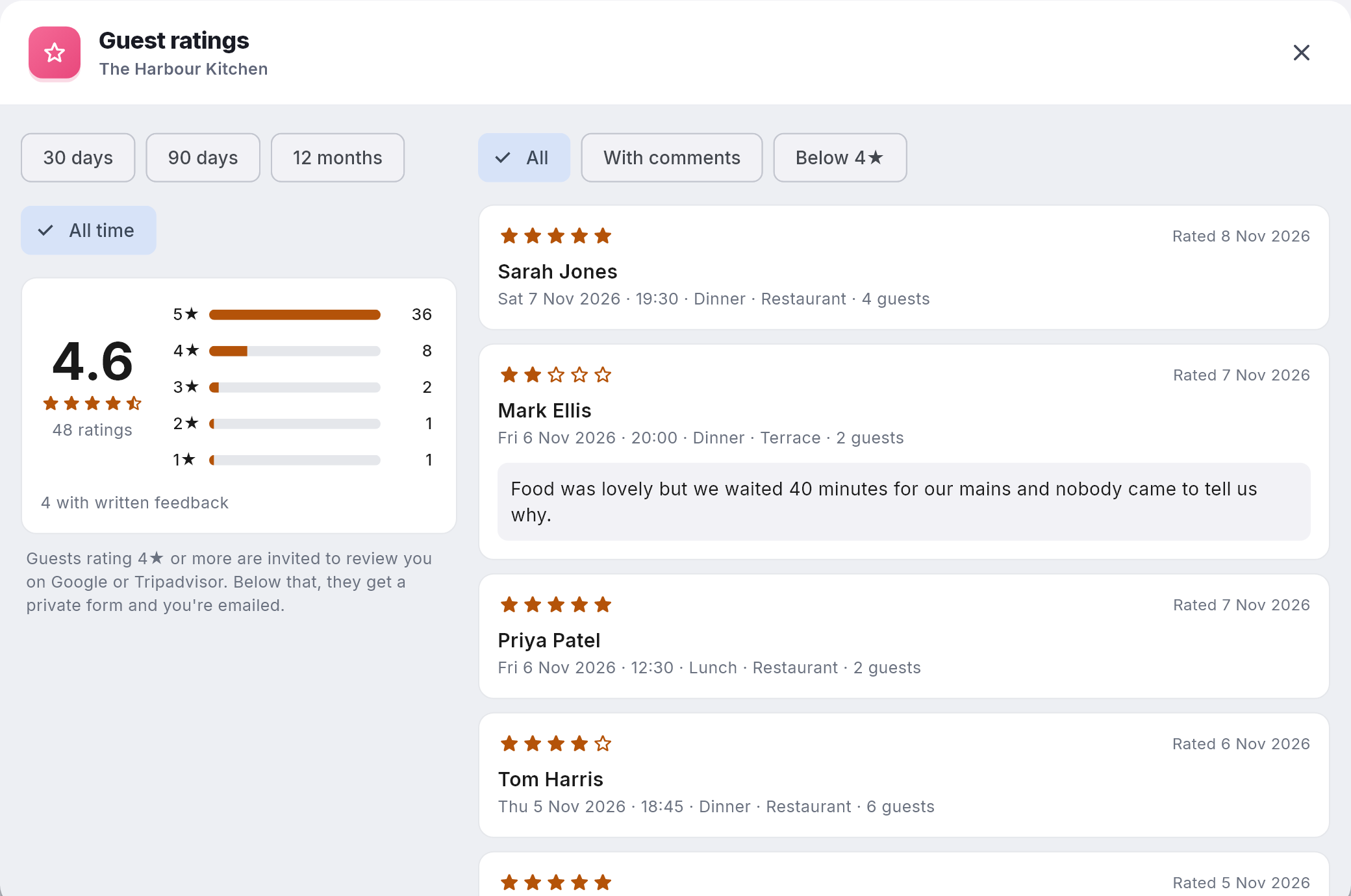
The summary
- Your average, in large figures with its stars, and how many ratings it is based on, for example 48 ratings.
- The breakdown: one bar for each number of stars, 5 down to 1, with how many guests gave it.
- How many came with written feedback, for example 4 with written feedback.
Choosing the period
Pick 30 days, 90 days, 12 months or All time (it opens on All time). The period goes by the day the guest gave the rating, not the day they visited.
Narrowing the list
- All shows every rating in the period.
- With comments shows only the ratings where the guest wrote something.
- Below 4★ shows only the low ratings, the ones that went to the private form.
- Click a bar in the breakdown to see only that number of stars. A chip such as 3★ only appears; click its cross, or the bar again, to clear it.
The filters only narrow the list. The average and the breakdown always cover the whole period, so picking 1★ never makes your average read 1.0.
What each rating shows
- The stars the guest gave, and Rated with the date they rated you.
- The guest’s name.
- Their visit: the date, the time, the meal, the room and how many guests, for example Sat 7 Nov 2026 · 19:30 · Dinner · Restaurant · 4 guests.
- Their written feedback in full, if they left any. You can select and copy it, for example into a reply.
The newest ratings come first. Click Load more at the bottom to see older ones.
Good to know
- Booking no longer on file. If a booking has since been deleted, the rating stays, with this line in place of the visit details.
- No ratings yet? You’ll see No ratings yet until guests start rating you after their visits. A quiet period shows No ratings in this period: try a longer one.
- More than one venue? Guest ratings shows the venue you are working in. Switch venue to see another’s.
- Alerts carry on as before. Low ratings still email you and notify your phones, so you can get in touch quickly.