If you are moving to NomNom from ResDiary, you can bring your upcoming bookings across yourself in a few minutes: export them from ResDiary, then choose the file in NomNom. You can do it while you sign up, or at any time afterwards from Settings → Import bookings.
Do the export while your ResDiary account is still open. It is the one step that needs your ResDiary login, and access usually goes the day an account closes.
1. Export your bookings from ResDiary
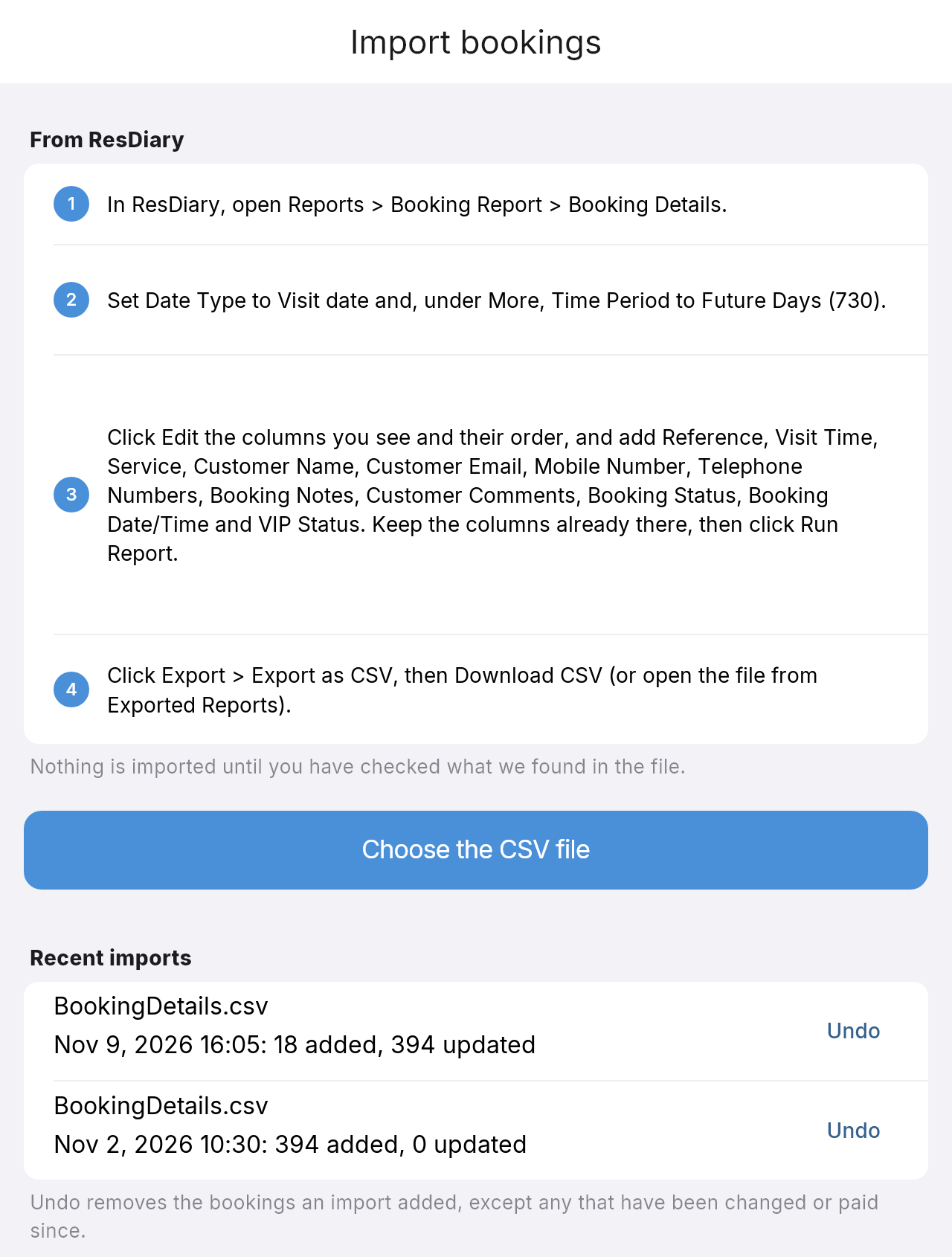
- Sign in to ResDiary and click Reports in the top menu.
- Under Booking Reports, open Booking Report, then click the Booking Details tab at the top.
- In the panel on the right, set Venues to your restaurant (or All Venues if you have more than one) and leave Date Type on Visit date.
- Click More under the date buttons, change Time Period to Future Days, and type 730 into In the next … days. That picks up every booking for the next two years.
- Click Edit the columns you see and their order, then add each of these from the list (type the name in the search box and click it): Reference, Visit Time, Service, Customer Name, Customer Email, Mobile Number, Telephone Numbers, Booking Notes, Customer Comments, Booking Status, Booking Date/Time, VIP Status. Leave the columns that are already there.
- Click Run Report and check the bookings look right on screen.
- Click Export, then Export as CSV. When ResDiary says the export is ready, click Download CSV. If the download does not start, open Exported Reports from the Export menu and click the file there.
You do not need to click Save Report, and nothing you do here changes your bookings in ResDiary.
Use the file exactly as it downloaded. Please do not open it in Excel and save it again first: that can quietly change dates and phone numbers.
2a. Importing while you sign up
On the first page of the sign-up, click Bring my bookings from ResDiary and choose the file. NomNom reads it and sets up your rooms, services and tables from it: a room for each ResDiary area, the tables your bookings sat at, and lunch or dinner in the rooms that served them. You then go through the sign-up as usual, so you can rename anything, change table sizes and add your opening hours (ResDiary’s export does not include them).
Your bookings come across on the last step, straight after your account is created, while you watch. If anything stops them, your account is still created and the page tells you why; you can then import the same file from Settings → Import bookings.
The sign-up import needs a laptop or desktop computer. On a phone you will only see the ordinary sign-up.
2b. Importing from Settings
Already using NomNom? Open NomNom in your web browser, go to Settings → Import bookings and click Choose the CSV file. Only an owner or admin of the venue can do this. The same screen repeats the ResDiary export steps, in case you need them.
Nothing is imported until you have checked what NomNom found:
- Which venue. If your ResDiary account exported more than one venue into the file, pick the one you are importing into. Import the others from their own venues.
- Areas and rooms. Each ResDiary area is listed with the room its bookings will go into. Type the name of one of your rooms to change it, for example to put High Tables into your Restaurant.
- What will be created. Any room, service or table the bookings need that you do not have yet is created switched off for online booking, so nothing new appears on your booking page until you turn it on in Configuration.
- Rows that look like notes. Teams sometimes type a message into ResDiary as a run of pretend bookings to block some tables. Rows with no contact details sitting together at one time are left out, unless you switch them back on.
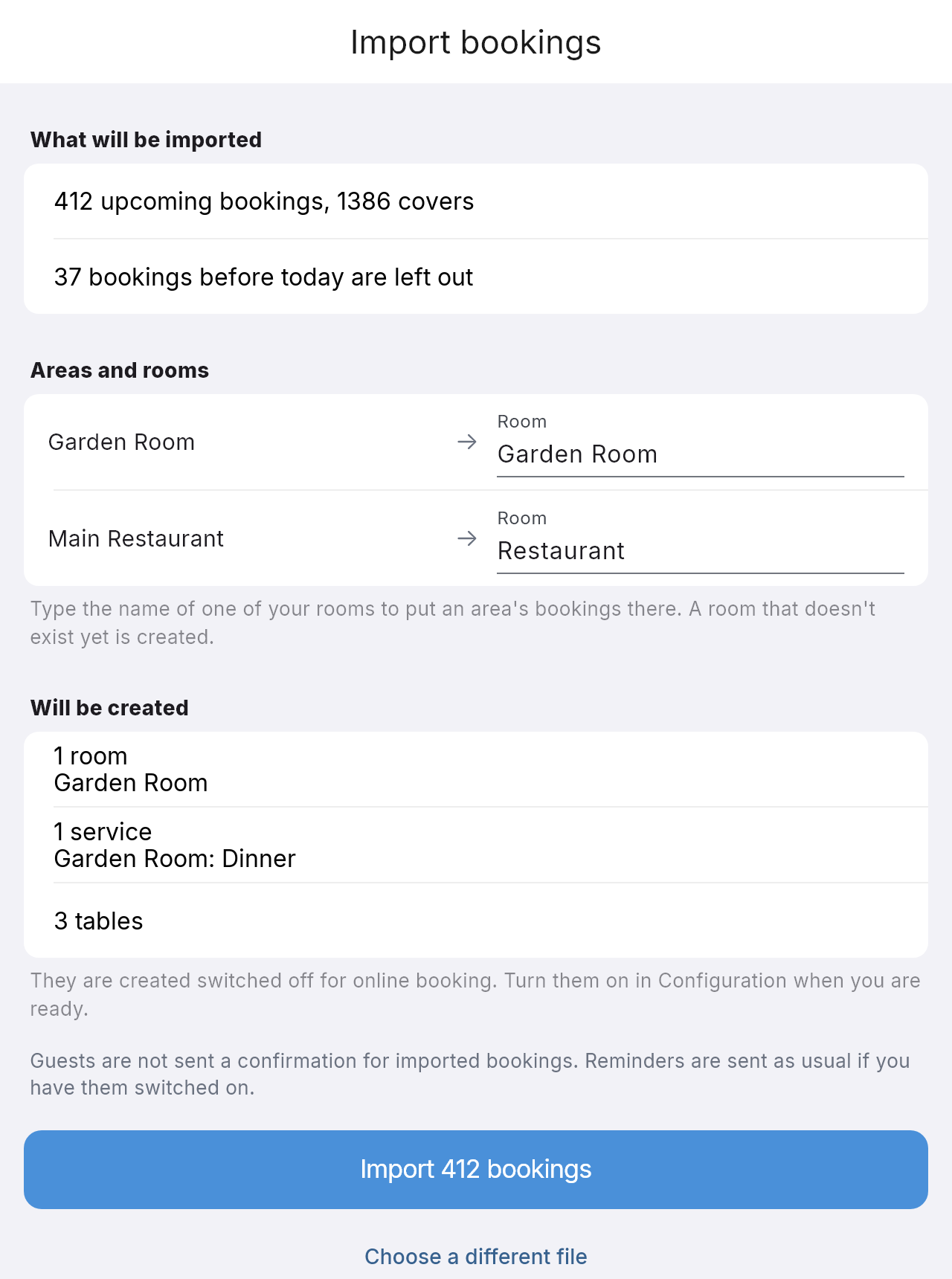
Click Import (it shows how many, for example Import 412 bookings) and keep the window open while the progress bar runs. You will see how many bookings were added, and any that could not be read, with the reason.
What comes across
- Every upcoming booking: date, time, party size, how long the table is booked for, lunch or dinner, area and tables. Bookings before today are left out.
- The tables each booking is on, including larger parties on several tables. Your table joins themselves are not copied as table groups, so if guests book large parties online, set up your joins in Configuration.
- The guest on each booking: name, email and phone number. Placeholder numbers your team typed to get past a required field (111, 1111111 and so on) are left out rather than saved as if they were real.
- Your notes: Booking Notes and Customer Comments become internal notes on the booking, which only your team can see. They are never shown to the guest or included in any email.
What does not
- Money. A deposit taken through ResDiary stays with ResDiary, so settle it the way you always have. If your team wrote “deposit paid” in a note, that note comes across, so nobody asks the guest to pay twice. From your switch-over day, deposits run through NomNom into your own Stripe account.
- Cancelled bookings. This report only lists bookings that are still going ahead, which is what you want in your new diary.
- Your opening hours and online booking rules. Set those in NomNom.
What your guests see
Nothing changes for them. Imported bookings do not get a fresh confirmation from NomNom, because they already had one from ResDiary. If reminders are switched on in NomNom, guests get the usual reminder before their visit, just as anybody booking directly would.
Importing again, and undoing an import
Importing twice is safe. Bookings keep arriving in ResDiary right up to the day you move your booking button across, so the usual pattern is to import once early, then import a fresh export just before you switch. The second import updates the bookings you already have and adds the new ones. It never makes a duplicate.
Imported the wrong file? Your recent imports are listed under Settings → Import bookings, each with an Undo button (you can see them at the bottom of the first screenshot above). Undo deletes the bookings that import added, except any your team has changed or taken a payment on since, which are kept. It cannot be reversed, so NomNom asks you first: click Delete them to go ahead, or Keep them.
A sensible order to do it in
- Export your bookings from ResDiary using the steps above.
- Import them while you sign up, or from Settings if you already have an account. Pick out a few bookings you remember and check they read right.
- Check your rooms and tables in Configuration, and switch on online booking for the ones guests can book.
- Move your booking button on your website and your Google listing over to NomNom.
- Import one last export the same day, so nothing booked in the meantime is missed.
- Then cancel ResDiary, giving whatever notice your contract asks for.
If you get stuck
If NomNom says the file does not look like a ResDiary export, check you used the Booking Details tab and kept the Reference, Visit Date, Visit Time and Covers columns. One import takes up to 10,000 bookings and 5 MB; for more than that, export a shorter date range and import it in parts. If a menu looks different on your account, or anything else goes wrong, get in touch and we will walk you through it, or do it for you.