Reserve with Google lets diners book you straight from Google Search or Maps, but they can’t choose where they sit. NomNom picks the table for them, in any of your areas that takes online bookings. So if you have a terrace, a garden or a bar you’d rather not give to someone who never chose it, a Google booking could still land there. Take Google bookings keeps Google out of that area. Guests on your own booking page can still choose it.
This only matters while Reserve with Google is switched on for your venue, under Settings → Online Booking & Discover → Reserve with Google (see Getting the Reserve button on Google (Reserve with Google)).
Switch it off for an area
1. Open Configuration, then Areas. In NomNom Web, open Configuration and choose Areas. Configuration is for admins only.
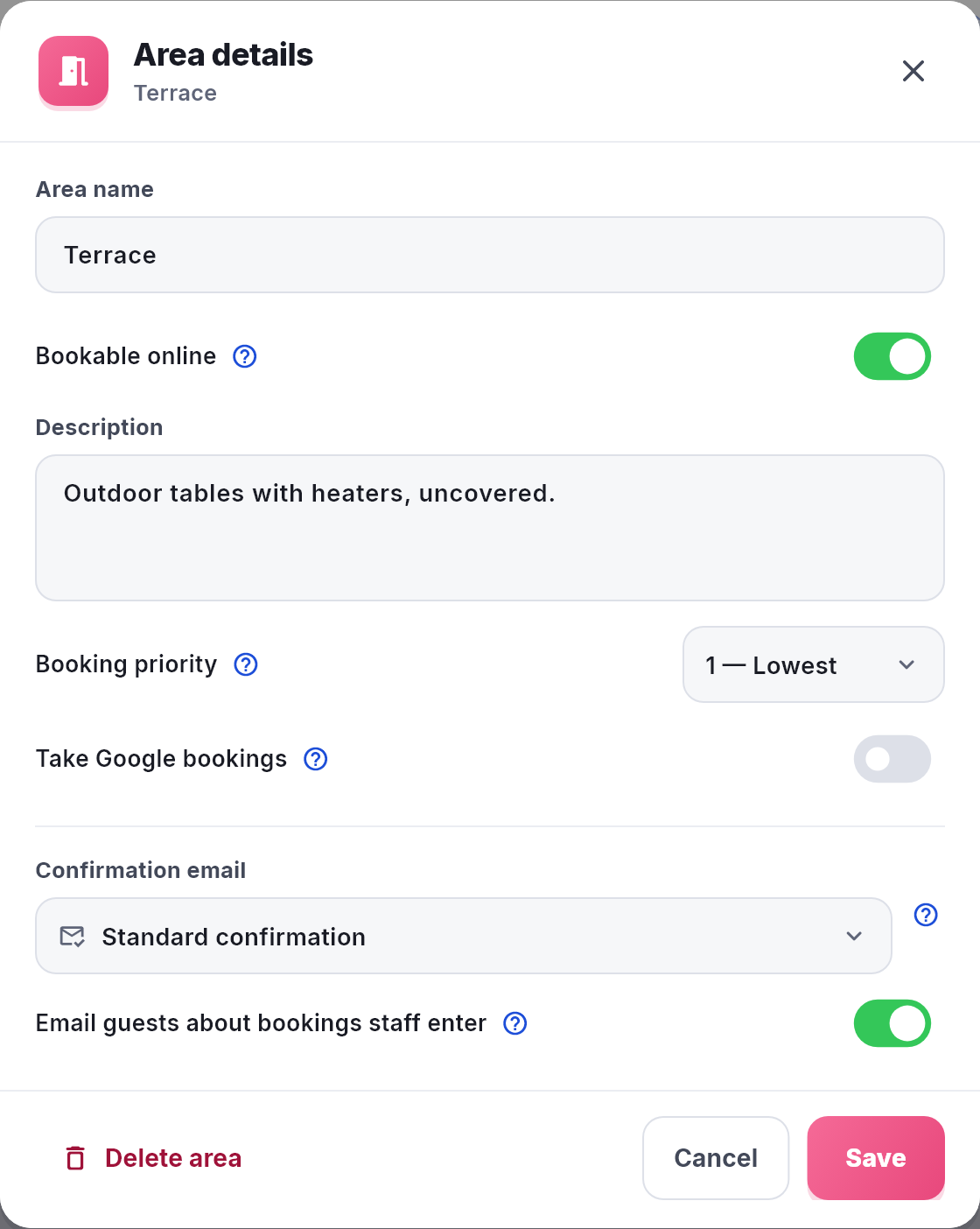
2. Click the area. Its Area details window opens.
3. Turn off Take Google bookings. It’s under Booking priority. The ⓘ beside it says: “Google diners can’t choose an area. Turn this off and Google never seats anyone here; guests on your own booking page can still choose it.”
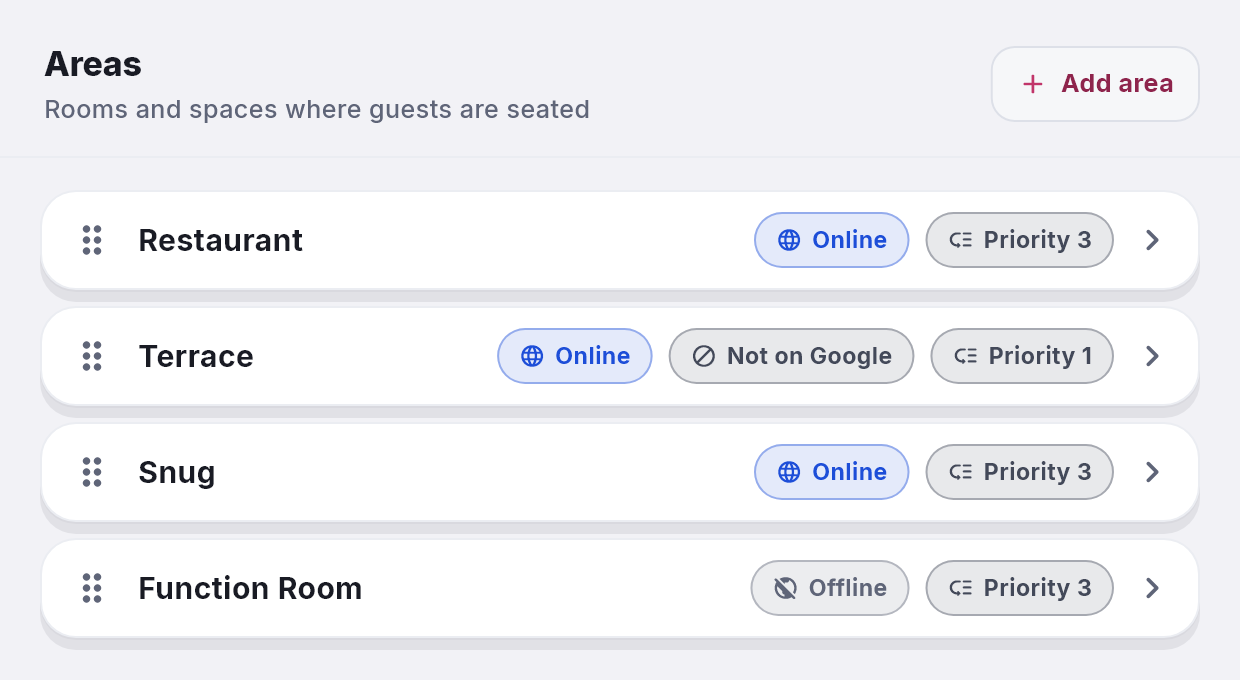
4. Click Save. Back in the list, the area’s row now shows Not on Google next to Online.
In NomNom Web: Configuration → Areas → click the area → Take Google bookings → Save. In the phone app: Configuration → Areas → tap the area → Take Google bookings → Save.
What changes
- Google never seats anyone in that area. NomNom leaves it out of everything Google sees: the times it shows for you, its check just before a diner books, and the booking itself. A Google diner gets a table in one of your other areas, picked in the usual order (see How NomNom picks a table for an online booking).
- Times only that area has come off Google. If the area is the only one with a free table at a time, Google can’t offer that time. From the moment you save, NomNom won’t take a Google booking there. The times Google shows on your listing catch up with the overnight update.
- Your own booking page doesn’t change. Guests on your booking page, the booking form on your own website and NomNom Discover can still see the area and book it. So can a booking link you’ve added to your Google profile yourself, because it opens your normal booking page (see Show your NomNom booking page on Google).
- Your team can still book it. Bookings you take yourself go wherever you choose.
Bookings you already have
Nothing moves. Google bookings already in the area stay where they are, and you can still move any booking into it yourself. If a Google diner changes their booking through Google, NomNom finds them a table again, and it won’t be in an area that’s off Google.
Good to know
- The area has to be Bookable online first. While Bookable online is off, Google can’t book the area anyway, so Take Google bookings is greyed out. Whatever it was set to is kept for when you switch the area back on. An area that’s offline shows Offline on its row and no Not on Google pill (see Keeping part of your restaurant off online booking).
- This is the switch to use for a terrace or garden. Switching off Bookable online takes the area off your own booking page too. Take Google bookings keeps it there for guests who choose it.
- Every area starts on. A new area takes Google bookings until you switch it off.
- Leave at least one area on. If every area is off Google, Google has no times to offer for you.
- Want Google to prefer one area rather than avoid another? Leave the switch on and give that area a higher Booking priority, or put it higher in your list of areas.
- To come off Google altogether, turn off Reserve with Google in Settings instead of switching off every area.
- The Not on Google pill is in NomNom Web. The phone app has the switch but doesn’t show the pill. An older version of the phone app doesn’t show the switch at all, but saving an area from it leaves the setting as it was.