When a guest on the phone says “could you do next Friday instead?”, the quickest way there in NomNom Web is the calendar in the left-hand bar: turn to the month and click the day. It also shows at a glance which days you’re closed.
Go to a day
1. Find the calendar. It’s under CALENDAR in the left-hand bar, below your meals. Can’t see the bar? Click the menu button at the far left of the top bar, or press Ctrl+B. In a narrow window the bar slides out over the screen instead.
2. Turn to the month you want. Use the arrows beside the month name (Previous month and Next month when you hover). Turning the page doesn’t change the day on screen, so you can look ahead without losing your place.
3. Click the day. The diary moves straight to it. The day you’re looking at is filled in pink, and today has a pink outline. The first and last rows show a few faded days from the months either side; click one of those to go there too.
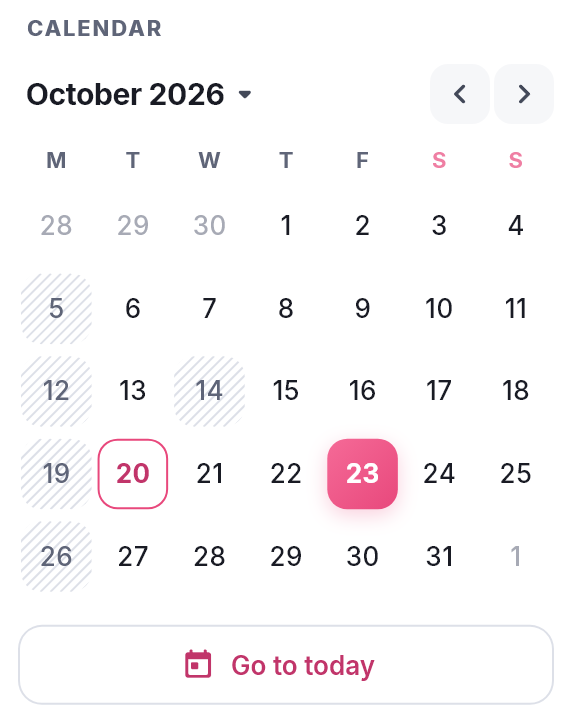
In NomNom Web: the left-hand bar → CALENDAR → click a day. In the phone app: tap the date at the top of the bookings screen.
Jump to a month further away
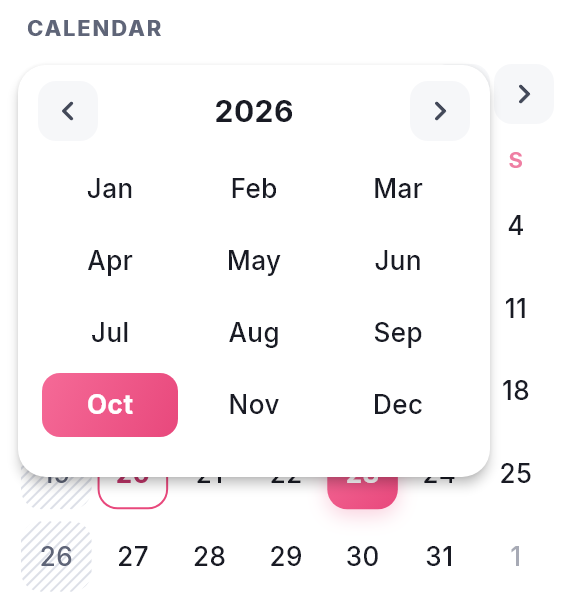
1. Click the month name, such as October 2026. Hover over it first and you’ll see Jump to a month. A box opens with the year at the top and its twelve months underneath.
2. Change the year if you need to, with the arrows either side of it (Previous year and Next year).
3. Click the month. The calendar turns to it. The month you were showing is filled in pink and the current month has a pink outline.
4. Click the day you want, as above.
Back to today
Click Go to today under the calendar. Today in the top bar does the same, and so does pressing T.
Closed days
A day with fine diagonal stripes is a day you serve no meals at all. Hover over it and you’ll see Closed — no meals served. That might be:
- a day of the week none of your meals run on, such as every Monday;
- a date you’ve closed in Schedule changes (see Closing dates and one-off changes);
- a date outside the dates your meals run, if you use them (see Running a meal only between certain dates).
A day is only striped when nothing at all is being served. If one meal is still on that day — even one you’ve taken off your booking page — the day looks normal, because your team can still book it.
You can still click a striped day and open it, to check what’s booked or to take a private hire. To open for bookings on a day you’re normally closed, see Opening on a day you’re normally closed (bank holidays).
Using the keyboard
[ and ] go back and forward a day, { and } a week, and T to today. The calendar follows, turning to the new month by itself. See Keyboard shortcuts in NomNom Web for the rest.
In the phone app
Tap the date between the arrows at the top of the bookings screen. A calendar opens with your closed days striped in the same way, and a key underneath that says Closed — no meals served. Use the arrows to change month and tap a day to go to it. When you’re on another day, Today at the top right brings you back.
Good to know
- Clicking a day closes the side panel. If a booking’s details were open on the right, they close and nothing is selected on the new day.
- Weeks start on Monday in this calendar, whatever you’ve chosen for your booking page.
- Just closed a date? NomNom Web reads each month’s closed days when the calendar first shows it. A closure you’ve only just saved gets its stripes when you refresh the page (press F5); in the phone app, close the app and open it again.
- No stripes at all? If NomNom can’t load your closed days, for example while the connection drops, every day shows plain rather than risk marking a day you’re open as closed.
- More on getting around. For the meals, rooms and views on the rest of the screen, see Finding your way round the diary: List, Chart and Plan.