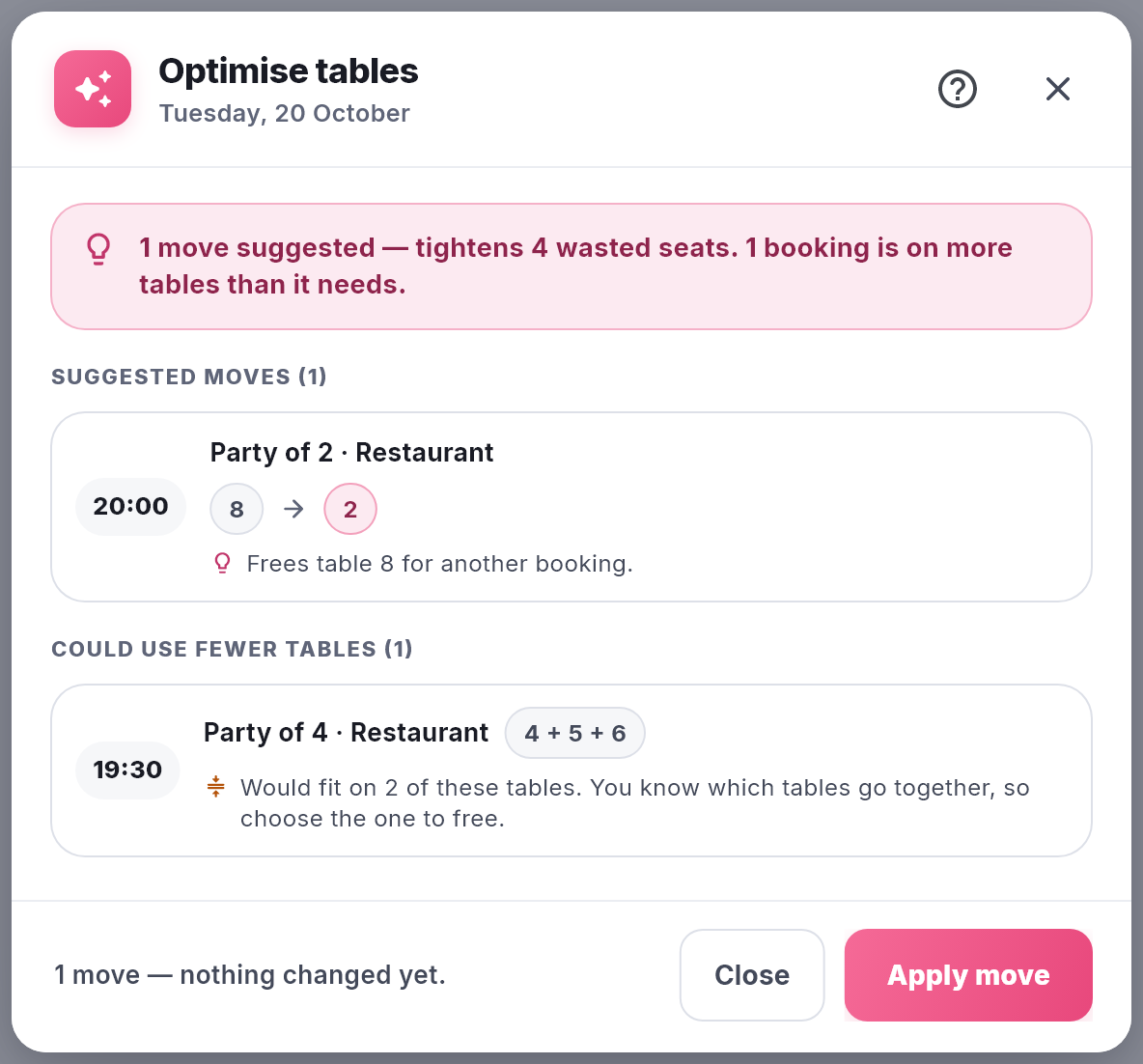
When you seat a party across several tables, it’s easy to end up with one more than they need: a party of four booked on three two-seaters, say, after their friends dropped out. Every one of those tables is held for the whole booking, so the spare one can’t go to a walk-in or an online booking. NomNom points these bookings out so you can free the extra table.
It never frees a table for you. NomNom doesn’t know which of your tables push together, so it tells you how many tables would do and leaves you to choose which one to let go.
Where you’ll see it
Optimise tables. When you run it, bookings like this are listed under COULD USE FEWER TABLES, after any suggested moves. Each one shows the time, the party and area, the tables it’s on, such as 4 + 5 + 6, and how many of them would do: Would fit on 2 of these tables. You know which tables go together, so choose the one to free. The line at the top counts them too, for example 1 booking is on more tables than it needs.
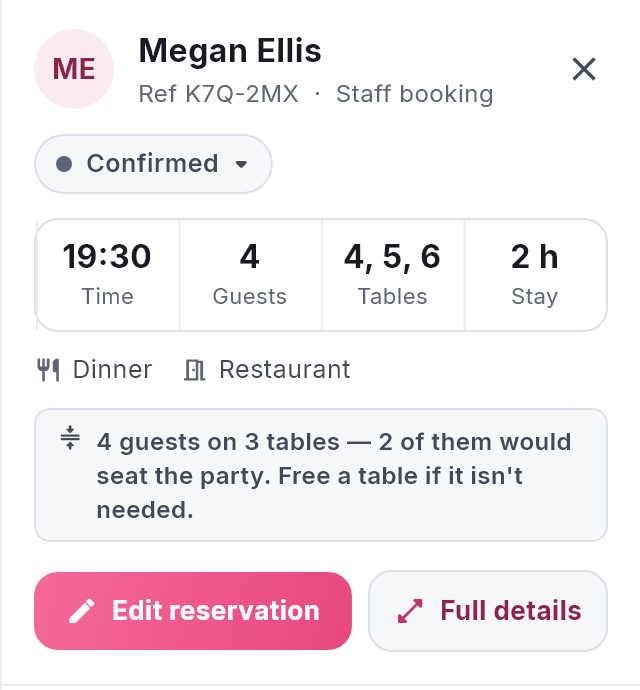
The booking’s side panel. Click the booking and a note under the time, guests and tables says, for example, 4 guests on 3 tables — 2 of them would seat the party. Free a table if it isn’t needed.
The chart. Each of the booking’s bars carries a small amber icon of two arrows pointing together.
In NomNom Web: the Optimise tables icon in the top bar (or More → Optimise tables in a narrow window), the side panel and the chart. In the phone app: three dots → Optimise Tables.
Free the extra table
1. Right-click the booking and choose Move to table. In the phone app, tap the booking, then Move to.
2. Switch on Select several. On the phone it’s Select multiple. The tables the booking is on are already ticked.
3. Click the table you want to free to untick it. Keep the tables that are actually pushed together.
4. Click Confirm. The note and the chart icon go once the booking is on no more tables than it needs.
You can also open the booking, click Edit reservation, click the spare table under Tables to drop it, then Save changes. There’s more on this in Seating a big party across more than one table.
How NomNom works it out
It adds up the booking’s own tables, biggest first, until everyone has a seat. If that takes fewer tables than the booking is on, it’s flagged. A party of four on a four-seater and two two-seaters is flagged, because the four-seater alone would do; a party of seven on the same three tables isn’t, because it needs all of them.
A booking isn’t flagged when:
- its tables are one of your table groups — a group is your word that those tables go together (see Joining tables for bigger parties: table groups);
- the guest asked for those tables, with Requested table ticked (see When a guest requests a specific table);
- it’s on just one table. A party on a single table that’s too big for them is a job for Optimise tables’ suggested moves instead.
Good to know
- Apply leaves these alone. In Optimise tables, Apply move only makes the suggested moves. If a day has nothing else to do, the window has a single Done button and the line at the top starts Nothing to move automatically.
- Do you always use those tables together? Save them as a table group. NomNom then uses the group’s own seat count and stops flagging bookings on it.
- The opposite problem — tables that seat fewer than the party — shows as on a table too small in the bar along the bottom (see What the chips, icons and colours in your diary mean).
- Where it shows. The side panel note and the chart icon are in NomNom Web. The phone app lists these bookings in Optimise Tables.