NomNom lists your tables in number order: 1, 2, 3 down the chart, and the same in the list of tables when you take a booking. If that isn’t how your room runs — say your bar tables go 20, 1, 2 from the door — you can put them in your own order. Everyone at your venue then sees the same order, in NomNom Web and in the phone app.
Put your tables in order
1. Open Configuration, then Tables. In NomNom Web, click Configuration at the bottom of the left-hand bar and choose Tables. Configuration is for admins only.
2. Click Order on screen. It’s in the bar above your list of tables. It isn’t under Table groups: groups always follow your single tables.
3. Move the tables. The Table order window lists every table in every area in one list, with its area and seats underneath, such as Bar · 2 seats. Drag a table up or down, or use the arrows at the end of its row to move it one place at a time.
4. Click Save order. The chart redraws in the new order straight away.
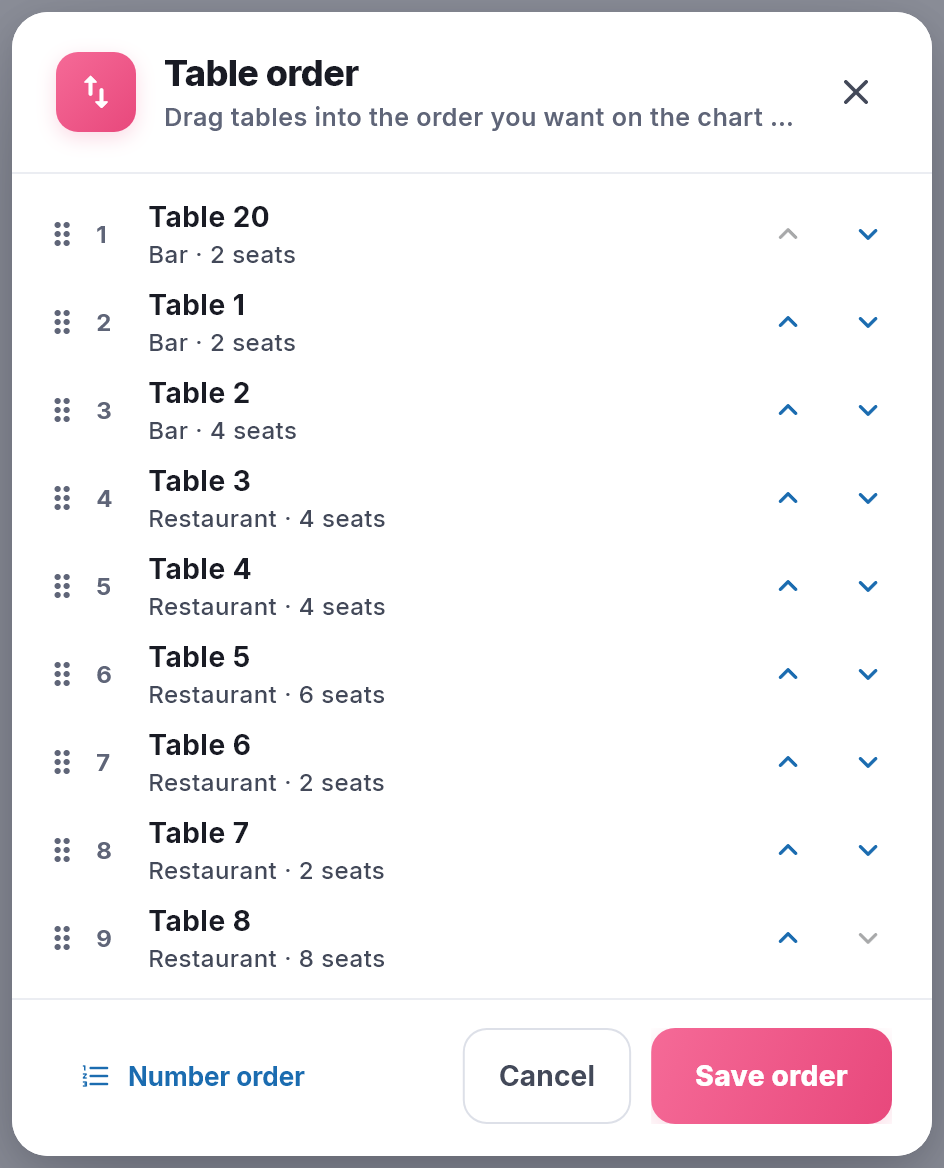
In NomNom Web: Configuration → Tables → Order on screen → Save order. You set the order in NomNom Web; the phone app follows it.
Where your order is used
- The chart in NomNom Web. Your tables run down the side in this order, under the Unallocated row. With one area picked, its tables keep the same order among themselves.
- The list of tables when you take or change a booking in NomNom Web — New reservation, Walk-in and Edit reservation. Your single tables come first, in your order, then your table groups.
- The phone app: the chart, and the tables on the Availability screen when you add or change a booking.
What it doesn’t change
- Which table an online booking gets. NomNom still gives each online guest the smallest free table that fits, whatever order they’re in on screen. To have some tables fill first, give them a higher Priority (see How NomNom picks a table for an online booking).
- Optimise tables works exactly as before (see Optimising your table plan).
- The floor plan. Plan shows your tables where you placed them (see Seeing your room as a floor plan).
- Configuration itself. The list under Configuration → Tables stays in number order, and the printed chart from Reports & printing isn’t affected.
Going back to number order
Open Order on screen again, click Number order at the bottom left, then Save order. Your tables go back to 1, 2, 3 everywhere, and tables you add from then on slot in by number.
Good to know
- One order for the whole venue. It covers every area, and every computer and phone at your venue uses it.
- New tables go to the bottom. A table you add after saving an order appears below the ones you’ve placed. Open Order on screen to move it where it belongs.
- Other screens catch up on a refresh. A computer or phone that already had NomNom open shows the new order once NomNom Web is refreshed (press F5) or the app is opened again.
- Admins only. Anyone can see the order, but only admins can change it (see What Admin, Standard and Read-only staff can do).