Reserve with Google lets diners book you without leaving Google Search or Maps, but Google’s booking button can’t take a card or a deposit. So if any of your meals asks guests booking online for a card or a deposit, your venue is left off Google, and NomNom turns down any booking Google tries to make for you. Accept Google bookings without a card lets you take Google bookings anyway: they arrive without a card, and your own booking page carries on asking exactly as before.
Switch it on
1. Open Online Booking & Discover. In NomNom Web, open Settings from the account menu (top right) or the button at the bottom of the left-hand bar, then choose Online Booking & Discover. Settings is for admins only.
2. Find RESERVE WITH GOOGLE. It’s near the top, below YOUR RESTAURANT.
3. Turn on Accept Google bookings without a card. It saves as soon as you switch it.
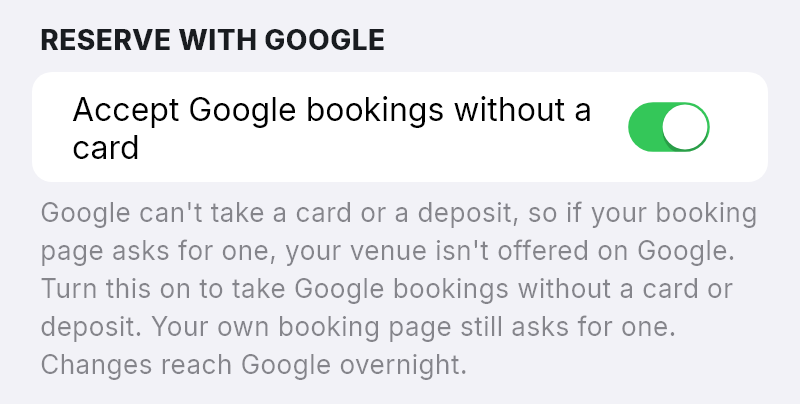
In NomNom Web: Settings → Online Booking & Discover → RESERVE WITH GOOGLE. In the phone app: Settings → Online Booking & Discover → RESERVE WITH GOOGLE.
What changes
- Your card or deposit rules stop keeping you off Google. The change reaches Google with the overnight update. You still need to meet Google’s other conditions, and we’re switching venues on in stages, so the button may not appear on your listing straight away (see Getting the Reserve button on Google (Reserve with Google)).
- Google bookings arrive without a card. No card is saved and no deposit is taken, whatever the party size or day, even where your rules would ask for one.
- They’re ordinary online bookings. They aren’t marked Awaiting card, and the guest’s confirmation email doesn’t ask them to add a card. In NomNom Web they show a small Google G; hover over it to see Booked through Reserve with Google.
- Nothing else changes. Your booking page and the booking form on your own website still ask for a card or deposit by your rules, and bookings your team takes work just as before.
Switching it off
Turn it off and NomNom turns down new card-free bookings from Google straight away. Your venue comes off Google at the next overnight update, and the button goes once Google has caught up. Google bookings you’ve already taken stay in your diary as they are.
Good to know
- Only needed if you ask for a card or deposit. With no card or deposit rule on any meal, Google can offer your venue already, and this switch makes no difference.
- Any rule counts. A card or deposit rule on any meal — even one just for big parties or certain days — keeps you off Google unless this is on (see Setting up deposits and card requirements on a meal).
- Want a card for one Google booking? Open it and use Request card on its Card & Payments tab, or send a payment link (see Taking a card to hold a booking and Sending a guest a payment link). Without a card on the booking, there’s nothing to charge a no-show fee to.
- A link on your Google profile isn’t affected. Guests who come through a booking link you’ve added yourself use your normal booking page, so they’re asked for a card or deposit as usual (see Show your NomNom booking page on Google).
- Your weekly summary email may suggest this with Take a card or deposit? You can still be on Google while a card or deposit rule is keeping you off. It stops once you switch this on.